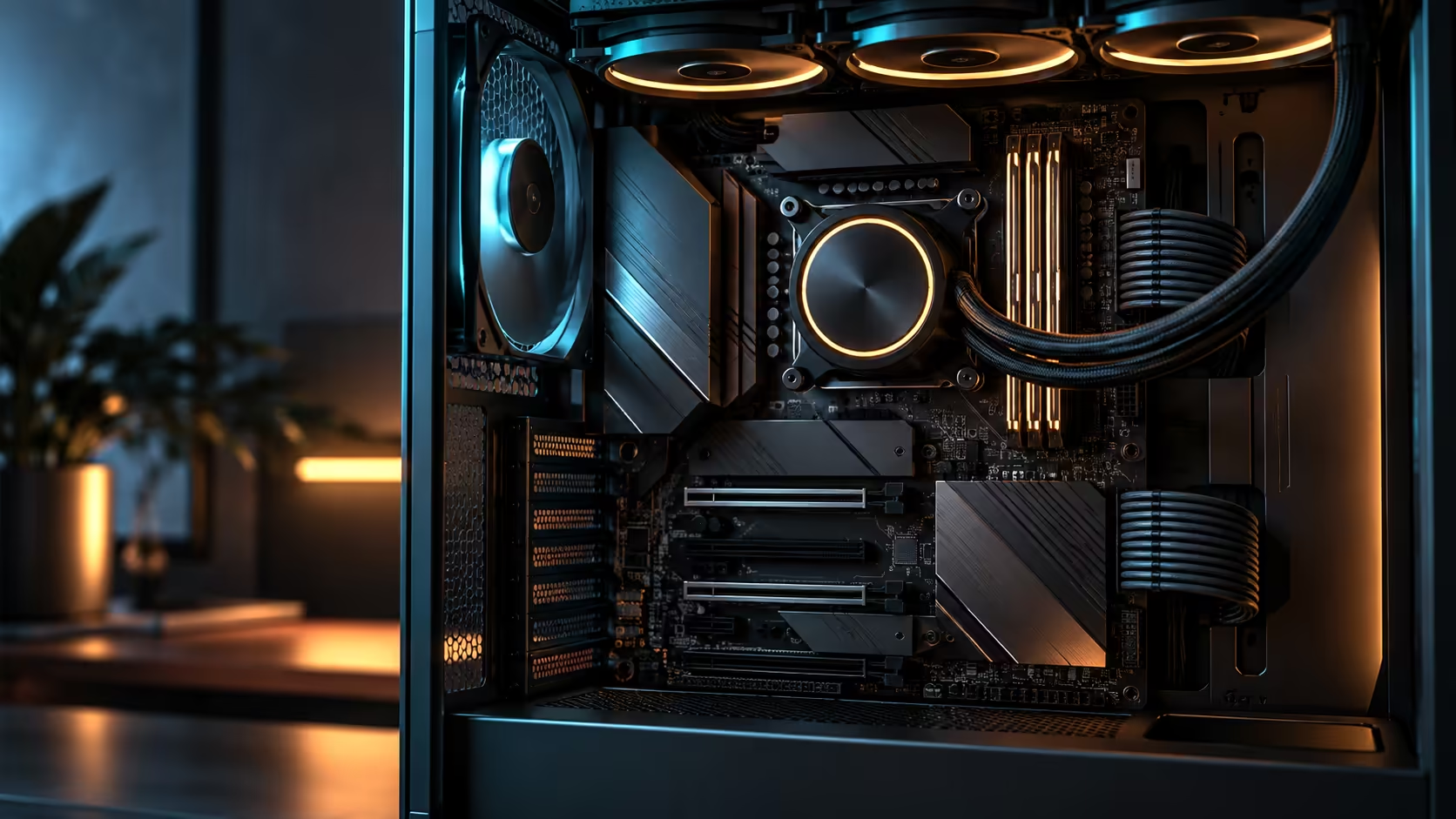
Two fast network ports do nothing by default beyond duplicating each other, and the whole benefit of dual 10Gb Ethernet comes from deciding what each one is for before you plug anything in. One port carrying the internet connection and one carrying a direct link to a NAS or a second machine turns two identical sockets into two very different jobs. The ROG Crosshair X870E Edition 20 carries both ports plus Wi-Fi 7 at R54,999, and the setup work is entirely about which cable goes where.
Quick Answer
Give one 10Gb port your fibre line through your router or ONT, and connect the other directly to a NAS or a second workstation with a short Cat6a run, no switch required for that second link. Both ports come standard on this R54,999 board alongside Wi-Fi 7, and keeping the two networks logically separate is what turns the second port into real editing and transfer speed rather than an idle connector.
🔌 Assign each port a job, not a speed
Windows and most Linux desktops treat two Ethernet adapters as independent by default, which is exactly the behaviour you want here. Port one connects to your router for internet and general traffic through the wired networking gear you already own, at whatever speed your ISP router actually negotiates. Port two connects directly to a NAS, a second PC, or a small switch dedicated to fast local transfers, bypassing the router entirely for that traffic.
A direct link between two 10Gb-capable devices needs no switch in between for a two-machine setup, since a straight Cat6a cable between two 10Gb ports negotiates the connection on its own. Add a small 10Gb switch only once a third device joins that fast local segment.
📶 Where Wi-Fi 7 fits once both Ethernet ports are spoken for
With both wired ports committed to internet and local transfer duties, Wi-Fi 7 becomes the connection for anything that does not need either job: a phone syncing photos, a laptop joining briefly, or a smart speaker on the same network. It adds a 6GHz radio alongside the familiar 2.4GHz and 5GHz bands, and the 6GHz band needs a matching router or access point to actually use it, which most South African ISP-issued routers do not yet provide.
Running Wi-Fi 7 on this board while your router still serves 5GHz is not wasted; it simply means the extra bandwidth and reduced congestion of 6GHz waits for the day your router or a dedicated access point supports it, while the 5GHz link still benefits from the newer radio's improvements to that band. Browsing the wireless networking range for a 6GHz-capable router is the natural next step once the wired side is settled.
🎬 What the second port actually buys a creator
The number that matters here is transfer time, not the port's rated speed. A 100GB project folder moving over a 1Gbps link takes close to fifteen minutes at realistic throughput; the same folder over a direct 10Gb link finishes in under two. For anyone shuttling raw footage, large game assets or render outputs to a NAS several times a day, that difference adds up to real working time back.
Static IP addressing on the direct link avoids the small delay of DHCP negotiation each time the two devices reconnect, and it makes the NAS or second machine reachable by a fixed address without relying on your router's local network naming. Set it once in the network adapter settings and the direct link behaves like a permanent internal connection rather than something renegotiated at every boot.
🖥️ Confirming both ports actually link at 10Gb
Check the negotiated link speed in your operating system's network adapter details rather than assuming a port's rated ceiling, whichever model you chose from the AMD board catalogue, is what you are actually getting, since a lower-rated cable, a damaged run, or a NAS with only a 2.5Gb port will silently cap the connection well below 10Gb without any error message. Cat6a handles 10Gb comfortably to typical desk and rack distances; older Cat5e cabling often will not hold the full rate over longer runs.
If either side of a direct link reports a lower speed than expected, check the cable category and length first, then confirm the far-end device's own port actually supports 10Gb rather than 2.5Gb or 5Gb, since many "10Gb-ready" NAS units ship with a slower port as standard and treat the faster one as an optional upgrade.
Frequently Asked Questions
Do I need a switch to use both 10Gb ports?
Not for a direct link between two devices. A straight Cat6a cable between this board's second port and a NAS or second PC works without a switch; add one only once a third device needs the same fast segment.
Will Wi-Fi 7 speed up my home internet?
No. Wi-Fi 7 improves the local wireless link and can reduce congestion, but your internet speed is set by your fibre package regardless of the radio standard on either end.
What cable do I need for a reliable 10Gb link?
Cat6a for most desk and office distances. Older Cat5e cabling may not sustain the full 10Gb rate over longer runs.
Can both 10Gb ports be used for the same job at once?
Yes, through link aggregation on supporting hardware, but assigning one to internet and one to local transfer is the simpler setup and covers most home and small-studio needs.
How do I check whether a port is actually running at 10Gb?
Open the network adapter's status details in your operating system and read the negotiated link speed directly, rather than assuming the port's rated maximum is what is connected.
Ready to put both fast ports to work instead of one sitting idle?
Assign one to your fibre line and the other to a direct NAS or PC link, then confirm the negotiated speed on each.