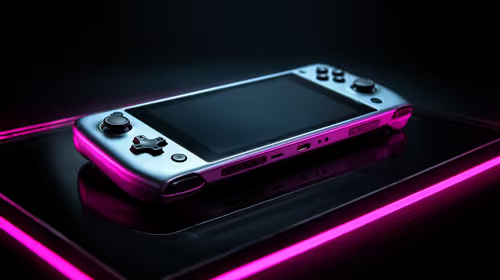
Tired of fumbling with on-screen keyboards to type your password every time you wake your gaming handheld? We've all been there. That split second of frustration is the last thing you need when you just want to jump into a game. A fingerprint sensor gaming handheld isn't just a fancy feature; it's a massive quality-of-life upgrade that gets you from standby to slaying bosses in an instant. Welcome to seamless, secure, one-touch gaming. ✨
The Magic of Biometric Security on Your Gaming Handheld
So, why is a fingerprint sensor such a big deal for a portable gaming rig? It boils down to three simple things: speed, security, and convenience. Instead of typing a complex password or PIN, you just place your thumb on a sensor—often cleverly integrated into the power button—and you're in. This is about removing friction between you and your game library.
More importantly, it secures your digital life. Your Steam, Xbox, and Epic Games accounts hold hundreds, if not thousands, of Rands worth of games. A fingerprint sensor gaming handheld ensures that if your device gets lost or swiped, your accounts and payment details are locked down tight. It’s a simple, powerful feature that is becoming standard across the best handheld gaming consoles in South Africa for a very good reason.
Your Fingerprint Sensor Gaming Handheld: A Quick Setup Guide 🔧
Getting your fingerprint registered is incredibly easy, thanks to Windows Hello. Most modern handhelds run Windows 11, making the process universal.
Step-by-Step Integration
- Open Settings: Navigate to the Start Menu and click the 'Settings' cogwheel.
- Find Accounts: In the Settings menu, select 'Accounts' from the left-hand sidebar.
- Choose Sign-in options: This is where you manage all your login methods.
- Select Fingerprint recognition (Windows Hello): Click on it and then hit the 'Set up' button.
- Follow the Prompts: You'll be asked to enter your PIN to verify your identity. Then, the system will guide you to repeatedly place and lift your finger on the sensor until it has a complete picture.
The whole process takes less than a minute. Whether you're unboxing a new ASUS ROG Ally or another Windows device, the setup is virtually identical.
Pro Tip for Flawless Scans ⚡
When setting up your fingerprint, don't just use the centre of your thumb. Roll it slightly from side to side and capture the tip and lower part as well. This gives the sensor more data to work with, making your logins faster and more reliable, even if you don't place your finger perfectly every time.
Unlocking More Than Just Your Device
The convenience of a gaming handheld with a fingerprint sensor doesn't stop at the lock screen. Windows Hello biometrics can integrate with a surprising number of applications to make your life easier.
- Password Managers: Apps like 1Password and Bitwarden can use your fingerprint to autofill login details on websites and apps.
- Store Purchases: Authenticate purchases on the Microsoft Store with a simple touch, preventing accidental or unauthorised buys.
- Secure Apps: Some applications allow you to lock them with Windows Hello, adding an extra layer of privacy.
Imagine logging into your favourite sites on a Lenovo Legion Go with just a touch, all without ever needing the on-screen keyboard. That’s the power of modern biometric integration.
Choosing the Right Fingerprint-Enabled Handheld 🚀
When you’re shopping for a new device, the placement and responsiveness of the fingerprint sensor are key things to consider. Most manufacturers build the sensor right into the power button, which is an ergonomic and intuitive spot. It allows you to wake and unlock the device in a single motion. New contenders like the MSI Claw are also integrating this tech, proving it's a must-have feature for serious portable gaming in 2024 and beyond.
Ultimately, a fingerprint sensor gaming handheld is about optimising your playtime. It’s a small piece of hardware that delivers a huge boost in convenience and peace of mind.