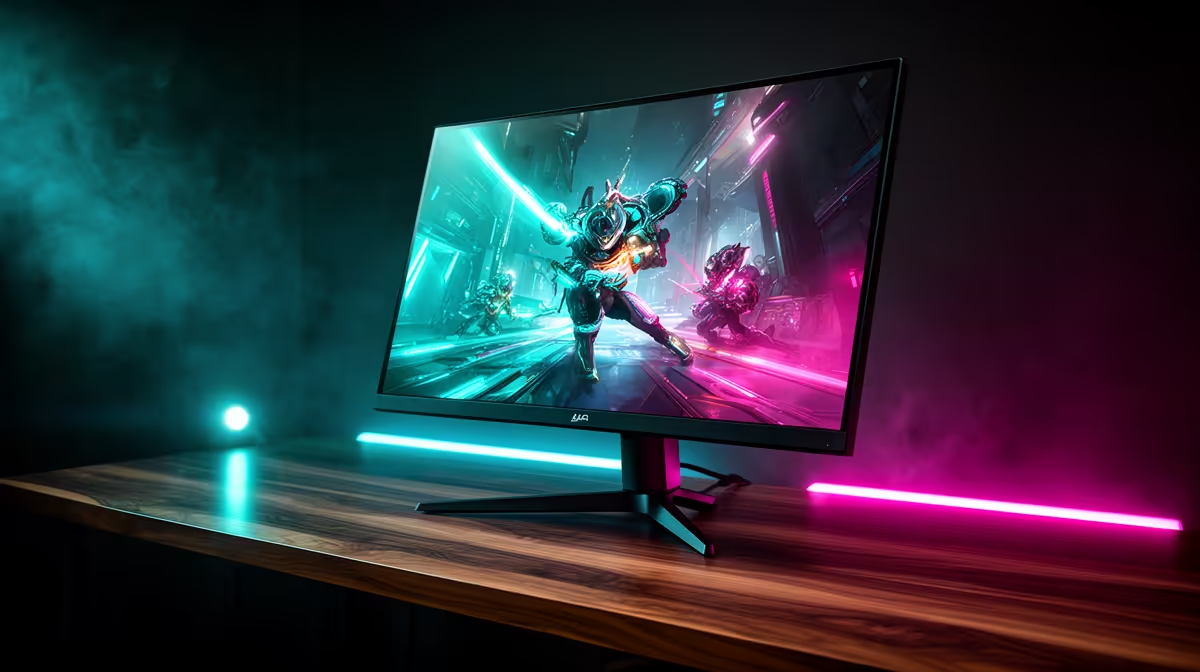
Staring at a blurry screen while the final circle closes? In South Africa, a killer gaming rig is only half the battle. Your gaming monitor setup is the window to your victory, and getting it right is crucial. This guide will walk you through creating the ultimate gaming monitor setup in South Africa, from choosing the panel to perfecting the placement. ✨
Choosing the Right Foundation for Your Setup
Before you even think about placement, you need the right screen. Your monitor’s specifications—resolution, refresh rate, and response time—are the building blocks of a great visual experience. For competitive gamers playing titles like Valorant or Apex Legends, a high refresh rate (144Hz or more) and a low response time (1ms) are non-negotiable for silky-smooth gameplay.
For those who love stunning visuals in single-player epics, colour accuracy and resolution are more important. Start by browsing the best PC monitor deals to see what fits your budget. Whether you prioritise speed or fidelity, you can find a huge variety of PC monitors to suit every need. A great gaming monitor setup starts with the right hardware.
The Perfect Monitor Setup for Your Space
Now that you have your screen, let’s talk ergonomics. A poor setup can lead to neck strain and fatigue, cutting your gaming sessions short. The goal is to have the top of the monitor at or slightly below eye level, about an arm's length away. This ensures a comfortable posture for those long raids and competitive matches.
Single vs. Dual Monitors
A single, high-quality display is perfect for focused gaming. However, a dual-monitor setup is fantastic for multitasking—game on one screen, have Discord, OBS, or a guide open on the other. There’s no single right answer; it depends on your space and how you play. Explore all our gaming monitors to find the size and style that works for you. For ultimate immersion, many South African gamers are opting for curved monitors that wrap the action around their field of view.
Cable Management Magic 🔧
Tangled cables are a vibe-killer. Grab some zip ties or a cable sleeve. Run your monitor's power and display cables along the back of your desk or down a monitor arm. A clean setup not only looks better but also prevents accidental snags during an intense gaming session. It’s a small detail that makes a massive difference to your gaming space.
Beyond the Basics: Specialised Monitor Setups
Ready to take your visuals to the next level? A specialised monitor setup in South Africa can cater to very specific needs, giving you a competitive or creative edge.
For content creators and lovers of cinematic games, nothing beats the pixel density of stunning 4K and 5K monitors. The level of detail in games like Cyberpunk 2077 or Red Dead Redemption 2 is simply incredible. And for the gamer on the move, or those who need a second screen for their laptop at a LAN, portable monitors are an amazing, flexible solution.
Calibrating Your Monitor for Peak Performance
Your monitor looks good out of the box, but is it accurate? Proper calibration ensures you see the game exactly as the developers intended. Incorrect brightness or contrast can mean you miss an enemy hiding in the shadows.
You don’t need expensive hardware to get started. Windows has a built-in Display Color Calibration tool (just search for it in the Start Menu). It will guide you through setting your gamma, brightness, contrast, and colour balance. Taking 10 minutes to run this tool can dramatically improve your visual experience, making your gaming monitor setup truly your own. 🚀