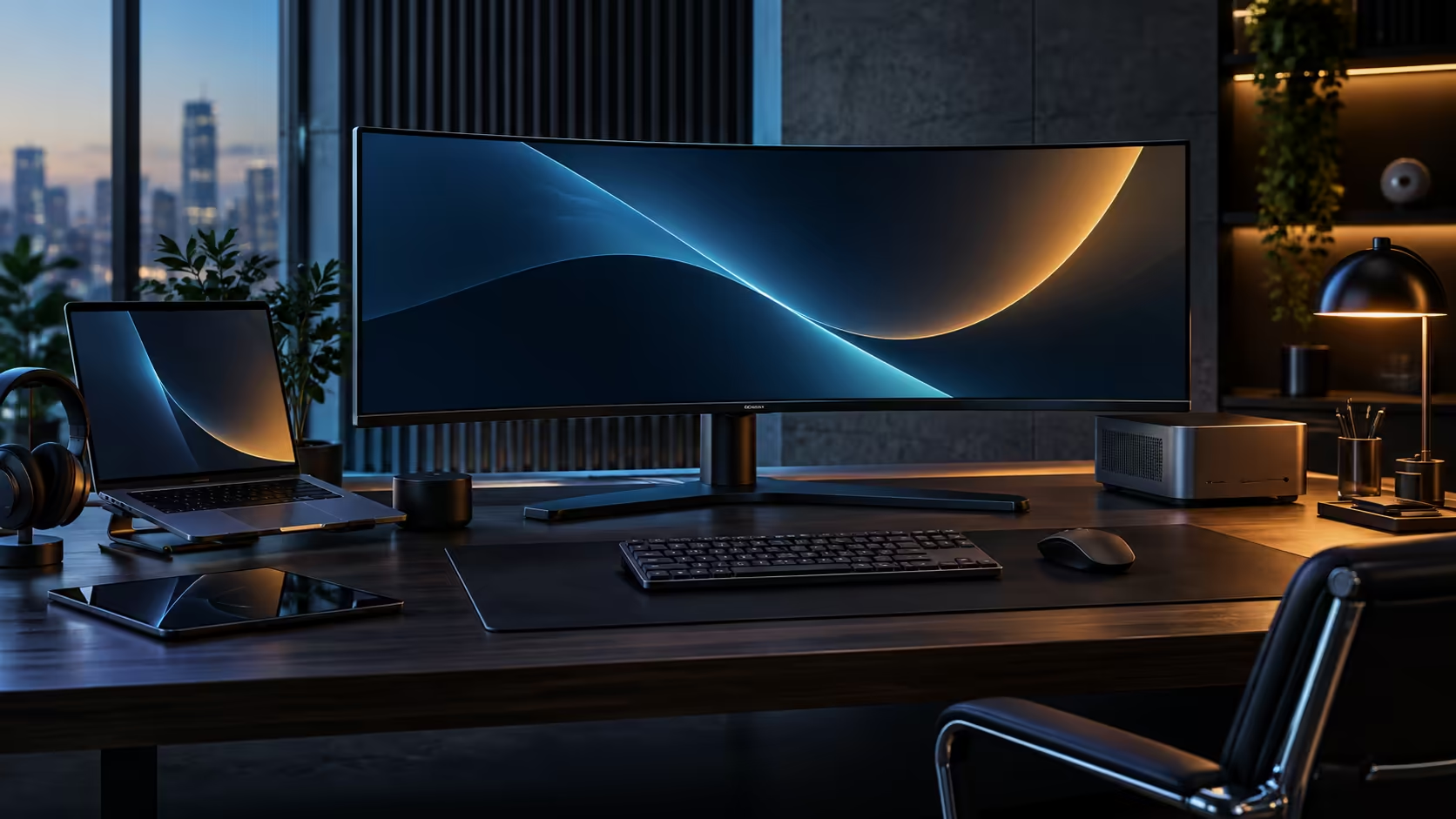
Count the cables on a typical laptop desk and the number is usually higher than anyone expects: charger, monitor lead, USB hub, network cable, and often a webcam and speaker lead on top of that. A USB-C hub monitor with built-in LAN takes that pile and turns it into three cables, and the fix is mostly about moving devices from the laptop to the screen rather than buying anything new.
Quick Answer
Move your keyboard, mouse and network cable onto the CU34E4CW's own ports instead of the laptop, and the desk drops to three cables total: the monitor's power lead, the network run into the wall, and one USB-C cable to the laptop. The hub, the RJ45 socket and the 90W charger all live inside the R7,999 panel rather than sitting on the desk as separate boxes.
🧹 Where the clutter actually comes from
Most desk clutter is not the laptop itself, it is everything plugged directly into it that could instead be plugged into something else.
A typical clogged desk has the laptop's own charger, a USB-A hub for the keyboard and mouse, a separate network adapter for wired internet, and sometimes a clip-on webcam, each with its own cable running to the laptop's two or three USB-C ports. Every one of those devices is happy to plug into a monitor instead, provided the monitor has the right ports, which is exactly what turns a docking-capable screen from a display into the hub for the whole desk.
🔌 The three-cable rebuild, step by step
Rebuilding the desk around the monitor is a short, mechanical task rather than a redesign.
Unplug the keyboard and mouse from the laptop and plug them into the monitor's USB-A ports instead. Take the household network lead that currently ends at a USB adapter on the laptop and move it to the panel's RJ45 socket instead. Pull any standalone USB hub out of the chain entirely, since the built-in one takes over that job without you needing to route anything through it. What is left is one USB-C lead running from the panel to the laptop, and that single connection now handles the picture, the peripherals, the network and the 90W charge together.
What is left on the desk afterward is the monitor's own power cable, the network cable running into the wall, and the one USB-C cable to the laptop. Everything else that used to be a separate lead running to the laptop directly now runs to the monitor instead.
🗄️ Managing the cables that remain
Three cables is a big improvement over six or seven, and a little routing makes it look like fewer still.
A cable tray or clip fixed to the underside of the desk keeps the monitor's power and network leads out of sight rather than draped across the floor. Since only one cable now travels between the laptop and the monitor, that single USB-C lead is worth choosing in a length that reaches comfortably without excess slack coiled on the desk. If two or three different people share the same desk on a rotating basis, labelling the network and power cables at the wall end saves confusion later about what unplugs from what.
For general cable tidying beyond what a docking monitor solves on its own, the USB hub range covers extra ports if you still need more than the monitor provides, and wired networking is worth a look if your current network cable or router setup needs an upgrade to match a fully wired desk. Compare the CU34E4CW itself against the wider office monitor range before making the switch.
Frequently Asked Questions
How many cables does a fully docked desk actually need?
Typically three: the monitor's own power cable, a network cable into the wall, and one USB-C cable running to the laptop. Everything else connects to the monitor rather than the laptop.
Do I still need a separate USB hub if my monitor has one built in?
No, in most cases. The monitor's built-in hub handles the keyboard, mouse and other USB peripherals that a separate hub would otherwise manage.
Can I keep using my laptop's own charger alongside this setup?
Yes, though most people find it unnecessary once the monitor is supplying 90W over the same USB-C cable used for everything else.
Does the wired network connection on the monitor need any setup?
Generally no. Both major operating systems pick it up as an ordinary wired connection the moment a network cable is plugged in, with nothing further to install.
What if my current network cable does not reach my desk?
You will need a longer network cable or a nearby wall socket. The monitor's RJ45 port has no way to make an existing cable run longer.
Ready to cut your desk down to three cables?
Move your keyboard, mouse and network lead onto the monitor, then see what is left plugged into the laptop.