Quick Answer
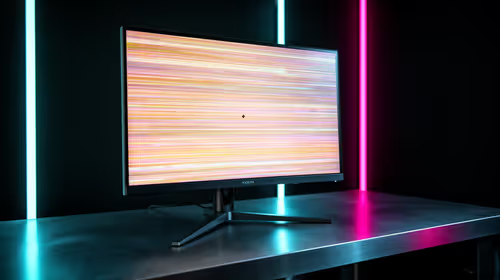
Ghosting on Windows 11 with a B850 motherboard is a display-setting issue, not a board fault. After a build Windows often reverts the panel to 60Hz. Set the monitor to its rated refresh in Windows 11, tune overdrive to Normal, and enable adaptive sync to remove the smearing.
Windows 11 Reset, Not The Board
A B850 motherboard hosts your hardware and plays no part in pixel response, so it cannot cause ghosting. What usually happens is that after building the PC, Windows 11 defaults the monitor to 60Hz, which makes a high-refresh panel smear. Open Settings, System, Display, Advanced display, and set the panel to its full rated refresh such as 144Hz or 240Hz to restore smooth motion.
Overdrive And Variable Refresh
Set overdrive or response time in the monitor's own menu to Normal or Medium; too high causes bright inverse-ghosting trails, too low leaves dark smears. In Windows 11, enable variable refresh under Settings, Display, Graphics, and turn on G-Sync or FreeSync in the GPU control panel. Use a DisplayPort 1.4 cable from the discrete GPU rather than the B850 board's output for full refresh support.
FAQ
Does a B850 board cause ghosting in Windows 11?
No. The board hosts the system but has no role in pixel response. Windows 11 usually reset the panel to 60Hz after the build, so set it back to its rated refresh to fix smearing.
How do I enable variable refresh in Windows 11?
Open Settings, System, Display, Graphics, and turn on variable refresh rate, then enable G-Sync or FreeSync in your GPU control panel. This keeps motion clean during frame-rate dips.
What refresh rate should I set?
Set the monitor to its full rated refresh, whether 144Hz, 165Hz or 240Hz, in Advanced display settings. A high-refresh panel left at 60Hz is the most common cause of smearing.
Windows tip
The B850 board is not the cause. Set the monitor to its rated refresh in Windows 11, enable variable refresh under Graphics settings, and tune overdrive to Normal for clean motion.