Quick Answer
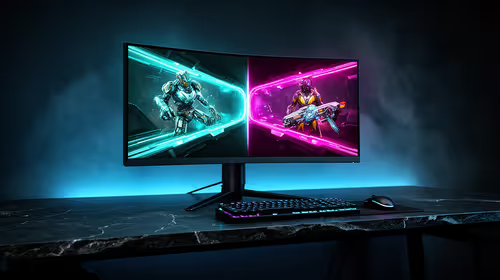
A monitor stuck at 60Hz is usually a display-path problem, not a reason to replace the whole gaming laptop. Pick the correct screen in Advanced display, use native resolution, then choose 144Hz or 165Hz if the monitor supports it. The CPU, board, RAM or SSD named in the build is rarely the direct cause; the display output path is.
Start With The Active Screen
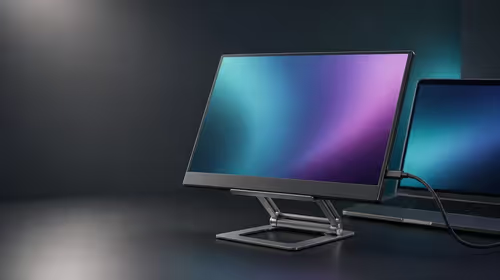
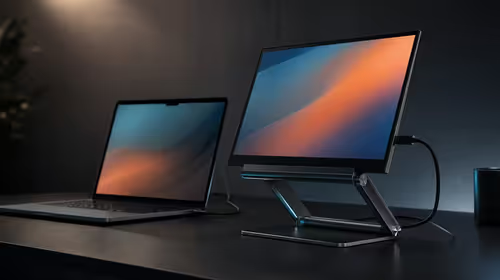
Start in Advanced display, then confirm the monitor menu and cable route before replacing hardware. Many SA setups have a laptop panel, an external monitor and a dock all connected, so confirm the active screen name before testing. A 1080p 144Hz monitor should not be judged by a duplicated 4K 60Hz desktop mode. After an upgrade, a moved cable or reset graphics driver is more likely than a broken new part.
Check Cable, Port And Output Route
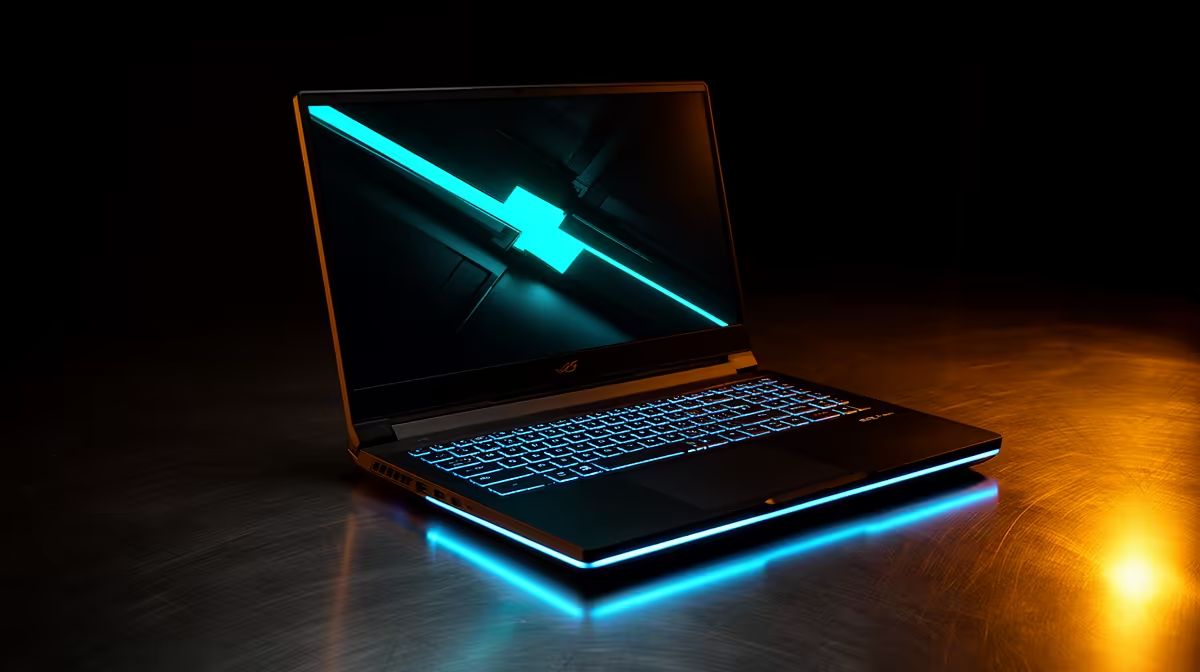
For a gaming laptop, connect through the discrete GPU output and avoid low-bandwidth docks or passive adapters when chasing 144Hz or 165Hz. HDMI 2.1, DisplayPort 1.4 and USB-C DP Alt Mode can all work, but the weakest link decides the final mode. A replacement cable is often a R250-R600 fix, while a proper gaming monitor can sit around R2,500-R7,000 depending on size and panel. Use a known model such as RTX 4060 gaming laptop as your reference point, then match the port spec to the monitor.
Confirm Performance Before Buying
Once Windows exposes the correct refresh rate, test one familiar game with fullscreen or borderless mode set deliberately. At 1080p, esports titles often target 120-240fps; at 1440p, a strong GPU target is 100-165fps. If the game runs at 90fps, a 240Hz monitor will still feel better for input latency, but it will not display 240 unique frames every second.
FAQ
Why does Windows only show 60Hz?
Windows usually shows only 60Hz when the wrong display is selected, the resolution is set too high for the cable, or the monitor input is capped. Test direct GPU or direct USB-C output before blaming the PC or handheld.
Do I need a new monitor for this fix?
Only buy after the current monitor fails a direct high-refresh test. If it is an older 60Hz panel, moving to a 144Hz or 165Hz option in the R2,500-R7,000 band is the real upgrade.
Can a CPU, SSD, keyboard or motherboard cause 60Hz?
Those parts can trigger a retest because cables moved or drivers changed, but they do not normally set the monitor refresh rate. The display mode is controlled by the monitor, cable, output port, driver and Windows profile.
Pro Tip
Save the working resolution and refresh rate after the restart. If 144Hz or 165Hz disappears again, retest the cable and exact output port before replacing the screen.