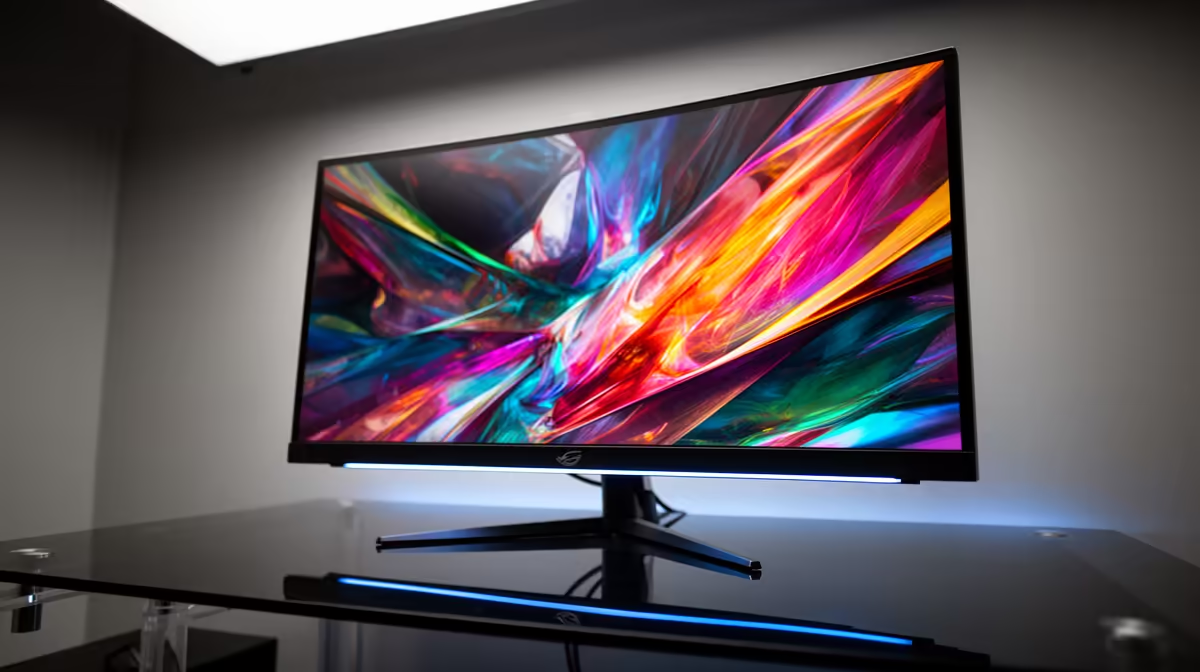
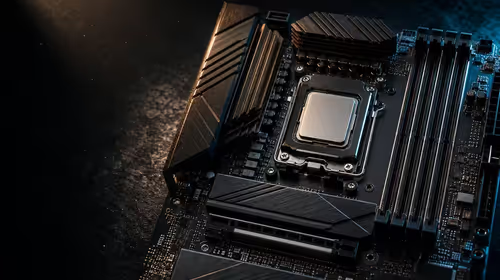
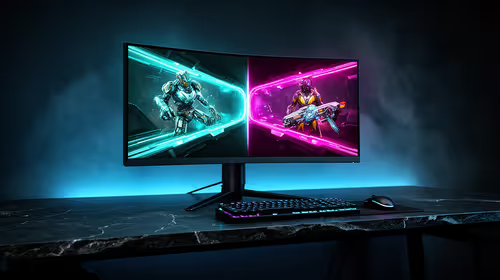
If an X870E motherboard is running below the refresh the screen supports, the cause is usually Windows defaulting low, a cable that cannot carry the rate, or a driver that did not apply the right mode.
Quick Answer
The rate lives in three places: Windows display settings, the monitor's on-screen menu, and the GPU control panel. Set it in all three, use a cable rated for the rate (around R450 to R1,200), and confirm the GPU driver is current before assuming the panel is faulty. It reads simple, but the order is what makes it work in practice.
Enable the panel's own high-rate mode
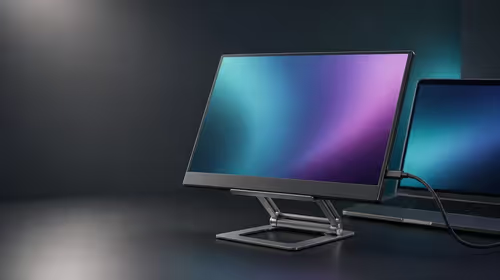
Many monitors ship with their high-refresh or overclock mode switched off in the on-screen menu, and Windows can only offer rates the panel reports. Open the monitor menu, turn on the high-rate or OC option, save, then set the rate again in Windows. Adaptive sync or FreeSync settings live in the same menu and often need enabling for a smooth result. Local buyers running an X870E motherboard get the steadiest result by following this order.
Reinstall the GPU driver cleanly
A driver that updated badly can drop the mode list to 60Hz only. Remove the current driver with DDU in safe mode, then install the latest stable build for your card. After the reinstall, set the refresh in both Windows and the GPU control panel so the two agree, then reboot and confirm the rate held. With an X870E motherboard, the proof is in repeating the same scene, not in guessing.
FAQ
Will a higher refresh rate hurt performance?
A higher refresh rate only shows frames the GPU already produces, so it does not reduce performance; it just removes the artificial 60fps ceiling. If frame rate is the limit, lower a few settings rather than the panel's refresh. This is where an X870E motherboard owners most often go wrong, so take it slowly.
Why is my refresh rate option greyed out?
A greyed-out rate almost always means the cable cannot carry it or the panel's high-rate mode is off. Swap to a DisplayPort 1.4 or HDMI 2.1 lead, enable the OC mode in the monitor menu, then reopen Advanced display settings and the higher rates should appear. It is the one habit that keeps a an X870E motherboard project from spiralling.
Does the cable really affect refresh rate?
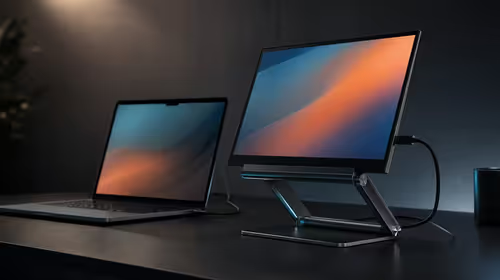
Yes, heavily. Refresh rate depends on bandwidth, and an under-spec cable trains down to a safe 60Hz rather than failing outright. For 144Hz and above at 1440p, a DisplayPort 1.4 cable is the safe default and costs around R450 to R900. That single discipline is what separates a tidy an X870E motherboard build from a frustrating one.
Pro Tip
After the rate sticks, run a UFO refresh test to confirm the panel is truly drawing 144Hz, 165Hz, or 240Hz and not just reporting it.