Quick Answer
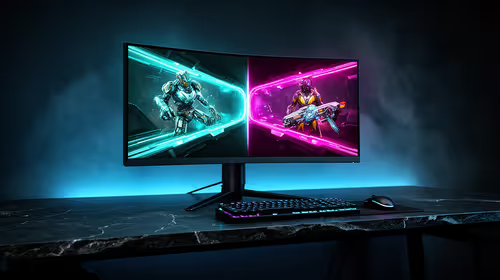
To fix screen flickering on a 240Hz monitor, prove the display chain before replacing parts: cable, port, refresh rate, VRR, graphics driver, and monitor firmware. A known-good DisplayPort 1.4 or DP 2.1 cable and a clean driver install solve many 144Hz-240Hz flicker cases. For SA buyers, keep replacement spending cautious: gaming monitor pricing can sit roughly R4,000-R35,000 depending on size, panel and refresh rate, so the cheapest fix is often a certified cable, a driver reset, or one stable refresh-rate setting.
Prove The Display Signal First
Use a single monitor and connect it directly to the GPU or dock, with no adapter in the middle. Set Windows to the panel's native resolution, then test 60Hz, 120Hz and the monitor's rated maximum such as 144Hz, 165Hz or 240Hz. If the flicker disappears at a lower refresh rate, suspect cable bandwidth, VRR behaviour, HDR mode, or a monitor overdrive setting rather than the 240Hz monitor alone.
Check Drivers, Firmware And Power
Update or clean reinstall the graphics driver, then restart before changing more options. On AMD systems, temporarily disable Enhanced Sync, Anti-Lag and Radeon Chill; on NVIDIA systems, test with G-Sync or Compatible VRR off before turning it back on. For AM5 boards or a 240Hz monitor, also test stock BIOS settings because unstable EXPO, PBO or Curve Optimizer values can show up as display instability even when games still launch.
South African Buying Clues
Do not buy a new gaming monitor until the symptom follows one part across another cable or screen. In Johannesburg, Durban or Cape Town homes, many desks mix long DisplayPort cables, USB hubs, 2.4GHz receivers and high-refresh monitors on one power strip, so a tidy signal path matters. A 240Hz monitor paired with a 1440p 165Hz or 4K 240Hz display should be stable once the cable, driver and refresh mode are correct.
FAQ
Can a 240Hz monitor really cause screen flickering?
It can be involved, but it is seldom the first part to blame. The flicker is normally caused by the display path, GPU driver, monitor mode, cable bandwidth, USB power behaviour, or an unstable BIOS profile.
What refresh rate should I test first?
Start at 60Hz or 120Hz because those modes reduce bandwidth pressure and make the fault easier to isolate. Once stable, move back to 144Hz, 165Hz or 240Hz and retest VRR, HDR and overdrive.
When should I replace hardware?
Replace hardware only when the flicker follows the same monitor, cable, GPU output or gaming monitor after clean settings and another test screen. That evidence is stronger than a single crash or one bad game session.
Signal test
Test one direct cable, one monitor and one refresh rate before reconnecting hubs, docks, extra screens or wireless receivers.