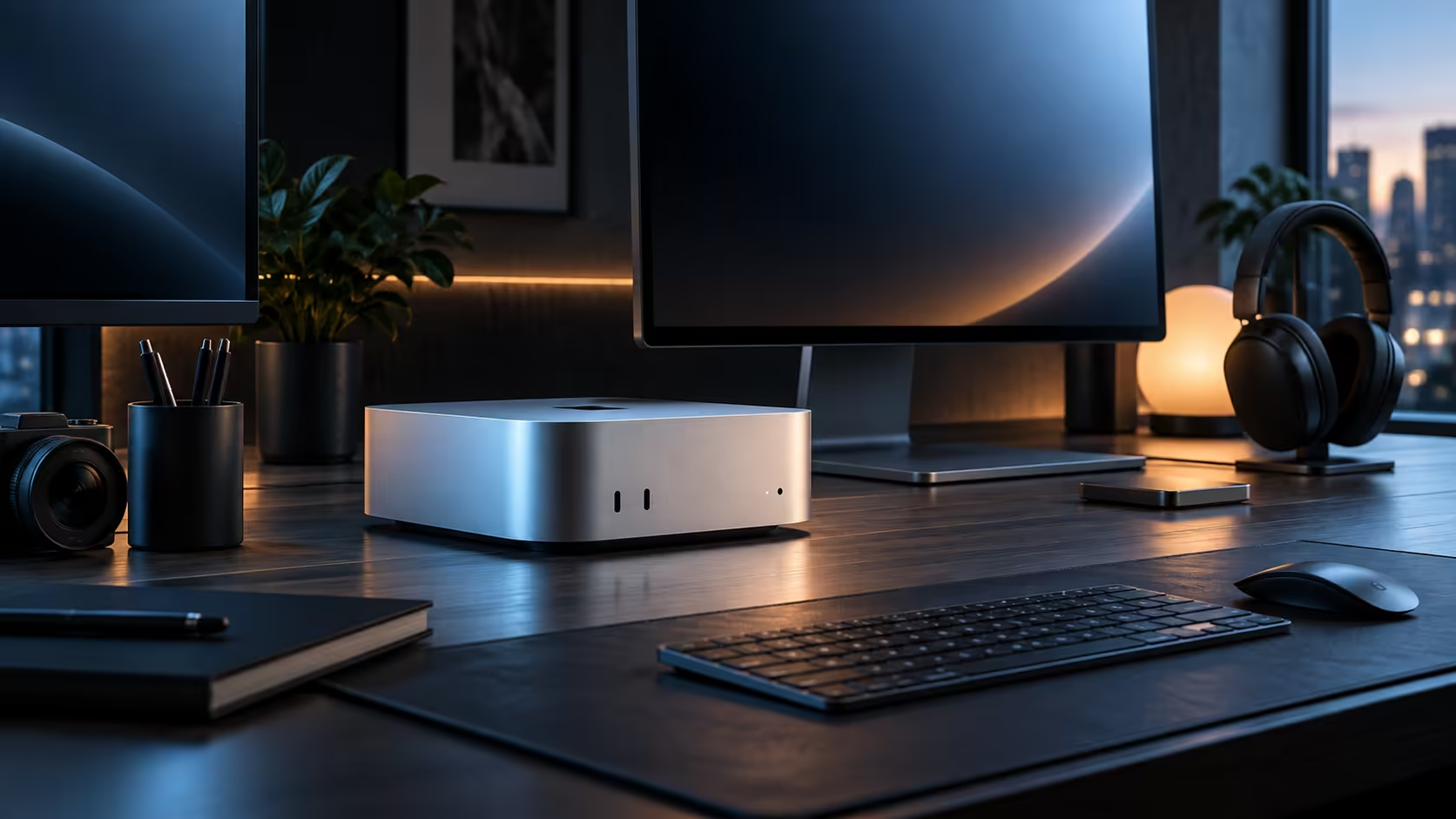
Most people buying their first Mac Mini for a home desk only ever plan for two screens, and that is genuinely the easier setup to get right. A third monitor is where the questions start, because it depends on a display limit Apple sets per chip rather than on how many ports happen to be on the case.
Quick Answer
Plugging in two screens over this machine's Thunderbolt 4 and HDMI causes zero drama. A third is a genuinely different question, one Apple answers per chip rather than with one flat number for every model. Straight out of the box, this R21,699 machine is already a capable two-screen desktop.
🏠 The most common mistake first-time buyers make
Assuming that five USB-C style ports means five monitors is the single biggest misunderstanding people bring to a first Apple silicon purchase, usually carried over from years of plugging things into a Windows tower that treated every port the same. On a Mac, the display engine inside the chip, not the socket count, decides the real ceiling, and it is worth checking that figure before a single cable is bought.
🖥️ Getting the first screen right sets up everything else
Plug your main monitor into any of the machine's Thunderbolt 4 ports and let macOS settle on its native resolution before touching any settings. Open System Settings, then Displays, purely to confirm the numbers shown match your monitor's own specification sheet rather than to change anything yet. A first screen that is correctly set up rarely causes trouble once a second one joins it.
➕ Adding a second screen without breaking the first
The second monitor can go on either a remaining Thunderbolt port or the HDMI output, whichever matches what that specific panel accepts. Once it is connected, drag the two rectangles in Displays into the same left-to-right order they sit on your actual desk, and drag the white menu bar onto whichever one should be the primary screen. Getting this arrangement right the first time avoids constantly hunting for windows that opened on the wrong monitor.
🚧 Before you buy stands for a third
Look up the exact display ceiling Apple publishes for this chip before ordering a third monitor, since the honest answer depends on the resolution mix across all three panels, not a flat yes or no. Three screens at 1920x1080 ask far less of the chip than three matched at 3840x2160, so a lower-resolution third panel is often the easier and cheaper route to the same practical outcome.
If display count alone is deciding your purchase, the Mac Mini page and the mini PC category are both worth checking for other configurations first.
Frequently Asked Questions
Do I need to buy anything extra to run two monitors on this machine?
No, Thunderbolt 4 and HDMI between them cover two screens with nothing more than the right cables for whatever inputs your monitors already have.
My second monitor shows a black screen even though it is plugged in, what now?
Rule out a charging-only lead first by swapping in a cable you know carries video, and reach for whatever cable originally shipped in the monitor's own box before pointing a finger at the machine itself.
Will a cheap USB-C hub let me add a fourth screen?
No, a basic hub only splits data; it cannot create video bandwidth the chip's display engine does not already provide.
Does mixing monitor brands or sizes cause any setup problems?
No, macOS handles mismatched sizes and brands without complaint; the only thing worth matching between two screens is roughly similar brightness and colour, purely for visual comfort rather than any technical requirement.
Should I buy a monitor arm before or after setting up my two screens?
After is usually easier, since seeing exactly how the two panels sit at your actual desk height first makes choosing the right arm or stand a much more informed decision than guessing beforehand.
Does the order I connect the two monitors in matter?
No, macOS reliably and correctly detects both screens regardless of connection order; only the left-to-right arrangement you set afterwards in Displays actually affects how the desktop behaves day to day once both screens are up and running properly.
🔌 Cabling two screens without a mess
Route each monitor's cable along the back of the desk toward the machine, keeping the two runs separate rather than twisted together, and label each cable near the Mac Mini end if the two ports look identical once several other things are plugged in nearby. A small cable clip or two at the point where both cords meet the desk edge keeps the whole two-screen setup looking genuinely tidy rather than merely functional underneath the surface of the desk itself, day after day.
Ready to set up your first multi-monitor Mac Mini desk?
Get one screen running perfectly before adding a second, and check the ceiling before a third.