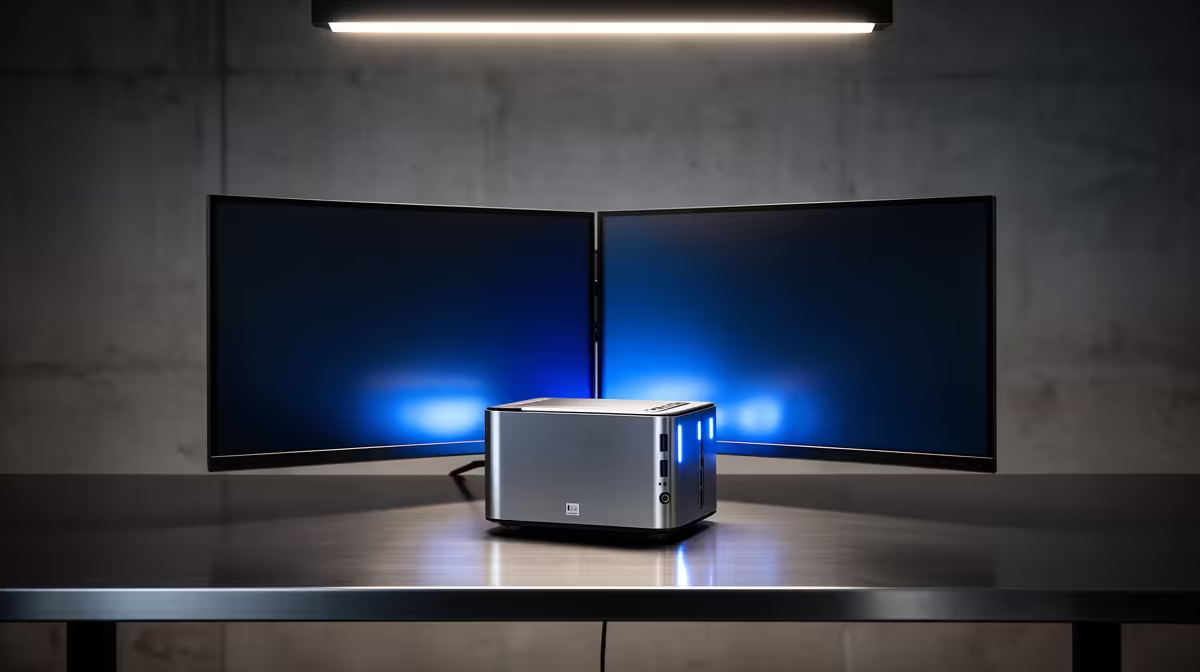
A mini PC looks like it has only one obvious video output, but most modern models quietly hide a second one inside their USB-C port. Running dual monitors on a mini PC is usually a case of pairing the HDMI output with a USB-C port that carries a DisplayPort video signal, no docking station required. The trick is confirming your specific machine actually supports it before you buy a second screen.
Quick Answer
Use the HDMI port for your first display and a USB-C port that supports DisplayPort Alt Mode for your second. Check the spec sheet to confirm the USB-C port carries video, since not all of them do. Once both are connected, set the display arrangement in your operating system and you have a working dual-monitor setup with no extra hardware.
How a mini PC drives two screens
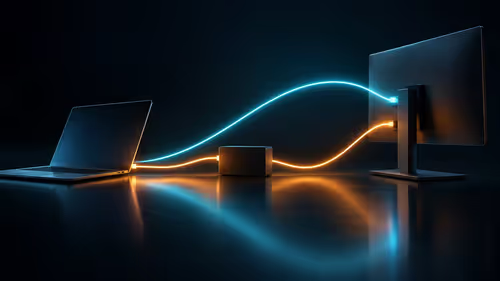
A mini PC's HDMI port is the easy one: plug a monitor in and it works. The second display comes from a USB-C port, but only if that port supports DisplayPort Alt Mode, the feature that lets a USB-C connector carry a full video signal alongside its usual data and power roles. When it does, a single USB-C cable or a USB-C to HDMI or DisplayPort adapter drives a second monitor directly from the machine.
This is why two mini PCs that look identical on the outside can differ here. The presence of HDMI tells you nothing about whether the USB-C port outputs video, so the spec sheet is the only reliable source.
Step 1: Confirm DisplayPort Alt Mode support
Before buying a second monitor or cable, read your mini PC's specification and look for explicit mention of DisplayPort Alt Mode, USB-C video output, or a stated number of supported displays. A USB-C port marked only for data or charging will not output video, no matter what adapter you plug into it. This is the single check that prevents the most common frustration with this setup.
If the specification confirms video support, you can confidently plan around it. The mini PC range at Evetech lists display output details per model, so it is worth comparing the spec lines before you commit to a particular machine for a two-screen desk.
Step 2: Connect the first monitor over HDMI
Plug your primary display into the HDMI port using a standard HDMI cable. Power on the mini PC and confirm you get a picture. Getting one screen working first gives you a known-good baseline, so if the second monitor misbehaves later, you know the problem is the USB-C path and not the machine as a whole.
Set this as your main display in the operating system once both are connected, since the main display is where your taskbar and primary windows will live.
Step 3: Connect the second monitor over USB-C
Now connect your second monitor to the USB-C port. If the monitor has a USB-C input that accepts DisplayPort Alt Mode, a single USB-C cable does the job. If it has HDMI or DisplayPort inputs, use a USB-C to HDMI or USB-C to DisplayPort adapter or cable instead. The video travels out of the USB-C port and into the second screen the same way HDMI feeds the first.
If nothing appears, the most likely cause is that the USB-C port does not support video, which is exactly why step one matters. A cable rated only for charging or data, rather than full video, can also be the culprit, so use a cable or adapter that explicitly states DisplayPort Alt Mode support.
Step 4: Arrange and tune the displays
With both monitors showing a picture, open your operating system's display settings to arrange them. Drag the on-screen rectangles so they match the physical left-to-right position of your monitors, which makes the mouse cross between them naturally. Set each display's resolution and refresh rate, and pick which screen is primary.
For mismatched monitors, set each to its own native resolution rather than forcing them to match, so neither looks soft. Scaling can be adjusted per display if one is much higher resolution than the other. To round out the setup with the right cables and adapters, the best-selling PC range at Evetech is a useful place to see the accessories and machines other dual-screen users pair together.
Frequently Asked Questions
How do I know if my mini PC's USB-C port outputs video?
Check the specification for DisplayPort Alt Mode or USB-C video output. A port listed only for data or charging will not drive a display. The spec sheet is the only reliable way to confirm before buying a second monitor.
Can a mini PC really run two monitors without a dock?
Yes, if it has both an HDMI port and a USB-C port that supports DisplayPort Alt Mode. That combination drives two displays directly. A dock is only needed if you want more screens than the built-in ports allow.
My second monitor isn't showing a picture, what's wrong?
The most common cause is a USB-C port that does not support video, so confirm the spec first. After that, check you are using a cable or adapter rated for DisplayPort Alt Mode rather than a charge-only or data-only cable.
Do both monitors have to be the same resolution?
No. Set each monitor to its own native resolution in display settings so neither looks soft. If one is much sharper than the other, adjust scaling per display so text stays a comfortable size on both.
Can I run 4K on the second display over USB-C?
Often yes, depending on the mini PC's USB-C and DisplayPort Alt Mode version. Check the specification for the maximum supported resolution and refresh rate on the USB-C output, as capability varies between models.
Planning a two-screen mini PC desk? Compare display outputs across the mini PC range and best-selling builds at Evetech to pick a machine that handles dual monitors out of the box.