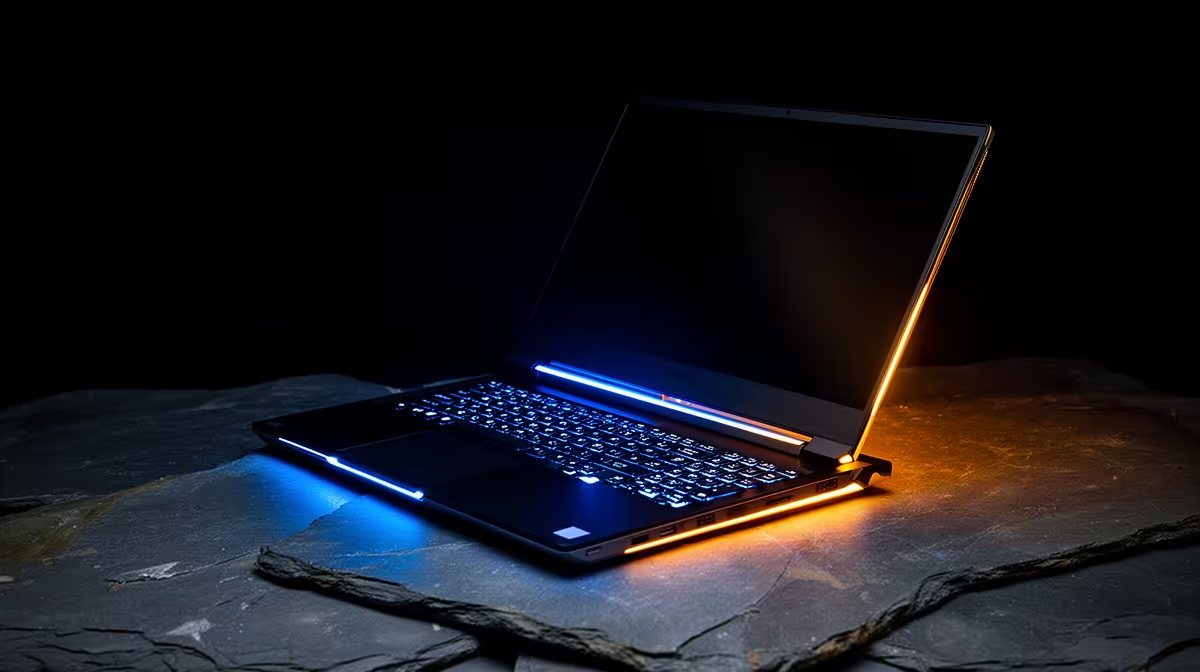
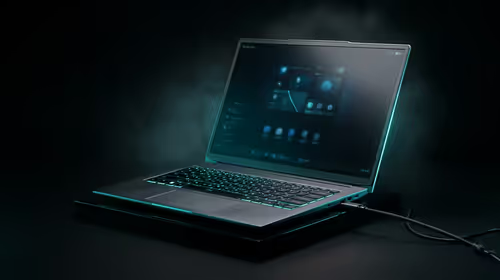
So, you’ve just unboxed your shiny new Lenovo gaming laptop. The smell of fresh tech is in the air, and you’re itching to drop into your first match. But hold up... before you jump into Apex Legends or Warzone, a proper setup can make all the difference between victory and a frustrating lag-fest. This guide will walk you through the essential first steps for your Lenovo gaming laptop setup, ensuring you get peak performance from day one. 🚀
Step 1: The First Boot & Initial Checks
The moment you press that power button for the first time is magic. Let Windows 11 do its thing—connect to your Wi-Fi, sign in with your Microsoft account, and let it run through its initial configuration. Don’t rush this part.
Once you’re at the desktop, do a quick hardware check:
- Keyboard & Trackpad: Make sure all keys work and the trackpad is responsive.
- Display: Check for any dead pixels (stuck black or coloured dots).
- Ports: Plug something into the USB and headphone ports to confirm they’re active.
This initial check is crucial, whether you've invested in powerful yet affordable models like the IdeaPad Gaming 3 or a top-tier beast. Finding an issue now is much easier than discovering it mid-game.
Step 2: System Updates & Debloating
Your next mission is to get your system up to date and clean out unnecessary software (often called "bloatware"). This is a critical part of any good Lenovo gaming laptop setup.
Run Windows Updates
Even a brand-new laptop has likely been sitting in a box for a while. Go to Settings > Windows Update and click Check for updates. Install everything it finds, including optional updates, which often contain important driver patches. You might need to restart a few times. Don't skip this!
Remove Unwanted Software
Manufacturers sometimes pre-install software you’ll never use. Go to Settings > Apps > Installed apps and uninstall any programs you don’t recognise or need. Be careful not to remove essential system software from Microsoft, Intel, NVIDIA, AMD, or Lenovo itself. A cleaner system is a faster system, especially for the latest Lenovo LOQ gaming laptops that thrive on having resources free for gaming.
Performance Boost Pro Tip ⚡
Always plug in your laptop and set the Windows Power Mode to 'Best Performance' before gaming. Running on battery often throttles your CPU and GPU to save power, which can slash your frame rates. It's a simple tweak that makes a massive difference!
Step 3: Graphics Driver Optimisation 🔧
This is the most important step for gaming performance. Your laptop has a powerful graphics processing unit (GPU), but it’s only as good as its driver. The default drivers installed with Windows are often outdated.
- For NVIDIA GPUs (GeForce RTX): Download and install NVIDIA GeForce Experience. It will automatically detect your GPU and download the latest "Game Ready" driver. It also lets you optimise game settings with a single click.
- For AMD GPUs (Radeon RX): Download the AMD Software: Adrenalin Edition auto-detect tool. It will find the correct driver for your system and give you access to a powerful control panel for tweaking performance.
A fresh driver install ensures you have the latest optimisations for new game releases and bug fixes. This is non-negotiable for high-performance machines like the Lenovo Legion series, where every frame counts.
Step 4: Configure Lenovo Vantage
Unlike most bloatware, Lenovo Vantage is a genuinely useful tool. It's the command centre for your laptop. Open it up and explore these key settings:
- Thermal Mode: Switch this to
Performance Mode before you start gaming. This cranks up the fans and gives your CPU and GPU more power, resulting in higher and more stable frame rates. - System Update: Use the built-in tool to check for BIOS and firmware updates specific to your model. These can improve stability and performance.
- Network Boost: This feature can prioritise your game's network traffic to help reduce lag and ping spikes.
Taking a few minutes to get familiar with Vantage will pay off big time. It's the secret sauce to completing your Lenovo gaming laptop setup and unlocking its full potential.
With your system updated, drivers installed, and settings optimised, you're finally ready to install your favourite games and dominate. This simple setup process ensures you get the performance you paid for. If you're still deciding on your next machine, be sure to explore the full range of Lenovo gaming laptops to find the one that fits your style and budget. Happy gaming! ✨
Ready to Find Your Perfect Match?
A proper setup is key, but it all starts with the right hardware. For maximum power, choice, and value in South Africa, a new gaming laptop is hard to beat. Explore our massive range of laptop specials and find the perfect machine to conquer your world.