Quick Answer
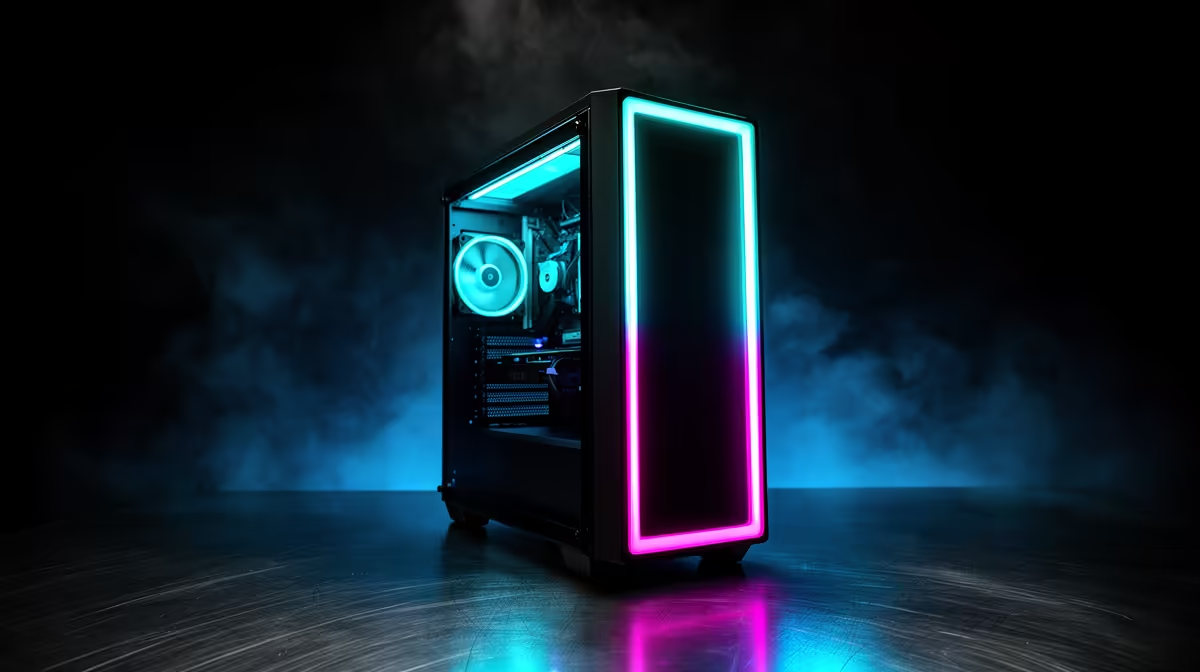
Your gaming PC is most likely struggling because of driver changes, weak signal, router band steering or USB interference, not because every part suddenly failed. Reproduce the symptom in one game, record FPS, temperature and error timing, then fix the part of the system that changed. Start with repeatable evidence before replacing parts.
Prove The Symptom First
Use the same game, same map or benchmark, same resolution and same graphics preset. On Vumatel or Openserve fibre, a good line can still feel bad if the PC falls from 5GHz to 2.4GHz Wi-Fi. For SA buyers, this matters because a R1,500 cooling fix, a R3,000 SSD or a bigger GPU are very different decisions. Do the evidence pass before spending on the wrong category.
Check Drivers, Heat And Power
Open the graphics driver panel, Windows update history and Event Viewer, then compare CPU, GPU and storage readings under load. A Intel AX210 Wi-Fi adapter gives you a concrete reference for the class of hardware involved. Useful SA repair anchors are R600-R1,500 for fans, R1,200-R3,500 for a cooler, and R2,000-R4,500 for a quality 750W power supply. If the PC was stable before a driver or Windows update, test a clean driver install before changing hardware.
Separate Local Performance From Network Trouble
For online games, test offline or in a training area before blaming fibre or Wi-Fi. Openserve, Vumatel and Rain 5G connections can all show different ping and jitter, but they will not explain a GPU temperature spike or a 30fps local benchmark. If Wi-Fi is the symptom, test Ethernet once and then compare 2.4GHz against 5GHz.
FAQ
What should I check first on a gaming PC?
Check temperatures, FPS, driver date and the exact error timing. A CPU above 90C, GPU above 85C, repeated blue-screen code or sudden power-off gives a clearer clue than a vague feeling that the PC is slower.
Is this usually a Windows update problem?
Sometimes, especially when the issue starts on the first boot after an update. Treat the update as the trigger, then verify with driver rollback, chipset driver refresh and the same game test before buying hardware.
When should I replace a part?
Replace a part only when the symptom follows that part across repeatable tests. If cooling fails, compare coolers; if Wi-Fi drops, compare adapters; if FPS stays low at 1440p, compare GPU options.
Use one repeatable benchmark.
Record FPS, temperature and error timing before you compare Evetech parts, then buy for the proven fault instead of the loudest symptom.