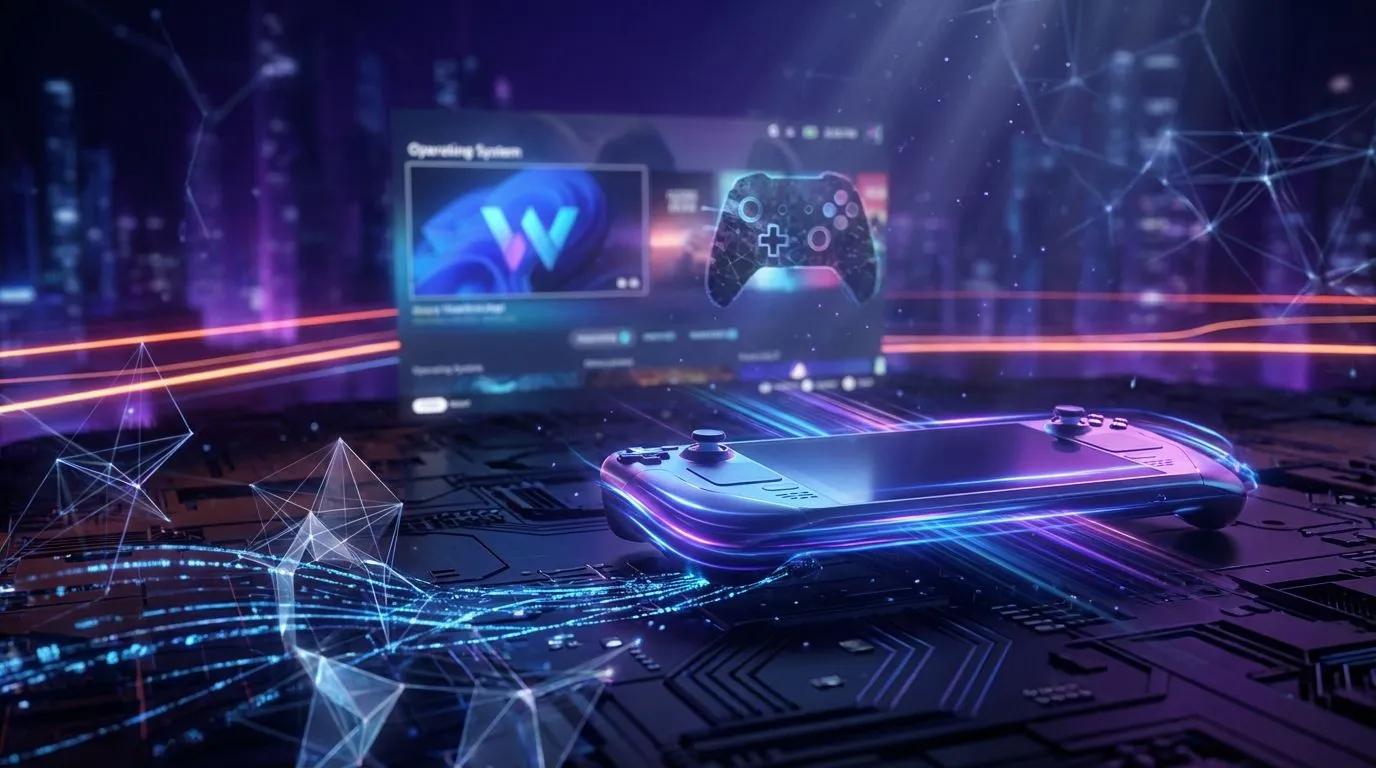
So, you've just unboxed your shiny new handheld gaming PC... awesome! The promise of AAA titles on the go is intoxicating. But before you dive into Helldivers 2, that standard Windows 11 desktop can feel a bit clunky on a 7-inch screen. Don't stress. This Windows 11 handheld setup guide is your key to unlocking its true potential, turning that portable powerhouse into a streamlined gaming machine ready for any challenge in South Africa.
Your First Hour: Taming Windows 11
Out of the box, Windows 11 isn't perfectly tailored for a handheld experience. Your first mission is to perform a bit of digital housekeeping to make it faster and more intuitive. This initial handheld setup is crucial for a smooth experience down the line.
Initial Updates & Debloating
First, connect to Wi-Fi and run Windows Update until it tells you there are no more updates. This is non-negotiable. It ensures you have the latest security patches and foundational drivers.
Next, it's time to declutter. Windows 11 comes with apps you'll likely never use on a gaming device, like Microsoft Teams or the stock Mail app.
- Go to Settings > Apps > Installed apps.
- Scroll through the list and uninstall anything you don’t need. Be ruthless! Every bit of freed-up space and memory helps.
This simple step is a core part of any good Windows 11 handheld setup, making the entire system feel more responsive. If you're just starting your journey, browsing the latest handheld gaming consoles can give you an idea of the amazing hardware available.
Get Your Drivers in a Row 🔧
Manufacturer-specific software is the secret sauce for these devices. It manages custom controls, power profiles, and screen settings. Don't skip this.
For example, if you're rocking one of the powerful ASUS ROG Ally handhelds, Armoury Crate SE is your command centre. Make sure it's updated through its own interface and the Microsoft Store. This software is essential to optimise your console's unique features, like its variable refresh rate screen and customisable button mapping.
Always check for the latest GPU drivers directly from the source (AMD, Intel, or NVIDIA), but be mindful of manufacturer recommendations, as they sometimes use custom-tuned drivers for optimal stability.
Master Your Power: Performance vs. Battery Life ⚡
The biggest challenge with portable PC gaming is balancing raw power with battery life. This is where mastering your device's Thermal Design Power (TDP) comes in. TDP is essentially the maximum amount of power, in watts, that your processor is allowed to draw. More watts mean more performance... and less battery.
Most handhelds provide shortcuts to cycle through power profiles:
- Low Power (e.g., 10-15W): Perfect for indie games, emulation, or stretching battery life on a long flight.
- Balanced (e.g., 15-20W): A good middle-ground for many modern titles.
- Turbo/Performance (e.g., 25-30W+): Unleashes the full might of the hardware for demanding AAA games, best used when plugged in.
Devices like the Lenovo Legion Go offer granular control through their Legion Space software, allowing you to fine-tune these settings for each game. Experimenting here is a critical step to truly optimise your console for how you play.
Pro Tip: Unify Your Libraries ✨
The default Windows UI isn't great for gaming. Install a frontend launcher like Playnite. It scans all your game libraries (Steam, Epic Games, Xbox Game Pass, etc.) and presents them in a beautiful, unified, controller-friendly interface. It completely transforms your handheld, making it feel like a dedicated console.
Creating a True Console Experience 🚀
The final piece of this Windows 11 handheld setup guide is making Windows itself less intrusive. You want to launch straight into your games, not fiddle with a tiny desktop.
Optimise Your Startup
Configure your chosen launcher (like Steam in Big Picture Mode or Playnite) to start automatically when Windows boots. This gives you that instant, console-like feel. You can do this in the Task Manager under the "Startup apps" tab.
This level of customisation is what makes the platform so exciting. With new hardware like the upcoming MSI Claw entering the market, the ability to properly set up and optimise your device is more valuable than ever. By following these steps, you've transformed a powerful-but-clumsy mini-PC into a sleek, dedicated gaming machine.
Ready to Grab Your Ultimate Portable Powerhouse?
A well-optimised handheld is a thing of beauty. Whether you're a seasoned pro or just starting your portable journey, having the right hardware is key. Explore our full range of PC Components and find the perfect machine to take your games anywhere.