An old street address appearing in a new form is easy to miss when the rest of the details look familiar. Chrome autofill addresses can save typing, but the browser cannot decide whether a saved entry still describes where you want something sent. Review the stored item and the final form before submitting personal information.
Quick Answer
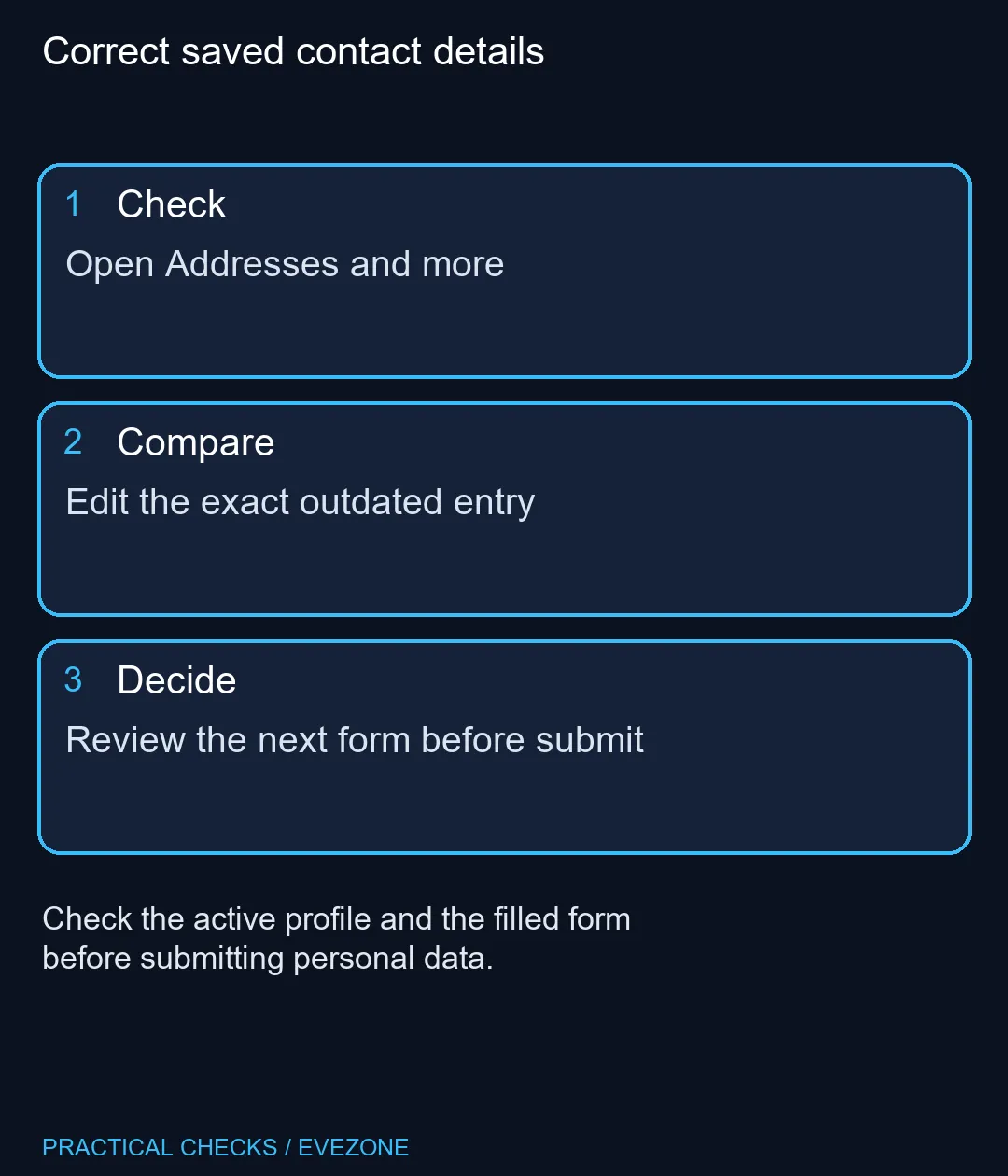
Open Chrome Settings, then Autofill and passwords, and select Addresses and more. Edit or remove the specific outdated entry, then check what fills into your next form. This settings repair costs R0; a new keyboard or laptop will not correct an old address stored in the active browser profile.
🏠 Find the entry in the right profile
Check the profile icon first, particularly on a shared family or work computer. Different Chrome profiles can present different saved details. Editing your personal entry will not necessarily change what appears in another person's profile or in a website's own account settings.
Within Addresses and more, locate the exact item you want to change. Read the name, street details and contact fields rather than relying on the first line alone. If several similar entries exist, decide which one is current before deleting anything.
✏️ Edit carefully and test a form
Save a correction to the identified entry, then visit a suitable form and inspect the suggestion. Check each populated field, including the suburb, postal code and phone number. Chrome uses form-field labels to help place autofill data, and a form can split an address differently from the saved layout.
Do not submit a test order just to see whether autofill worked. You can inspect populated fields before the submission step. On a shared machine, avoid leaving your personal details in an unfinished form when you walk away.
If the same old address still appears, work out whether it came from Chrome or the site's own saved account details. Changing one does not automatically repair the other. Use the website's account controls for information saved by that service, and keep the browser settings change scoped to Chrome's entry.
🔐 Understand where details are saved
Chrome can handle information stored on the device or associated with a signed-in account. Read the current account and saving controls before assuming an edit affects only one computer. A managed browser may also have settings controlled by your organisation.
Avoid clearing all browsing data as the first response to one incorrect suggestion. That can remove unrelated information while leaving a website's account address untouched. A targeted edit makes the result easier to check and avoids rebuilding useful saved entries unnecessarily.
Browse intel laptops on special or asus laptops only if you also have a genuine computer replacement requirement. For this problem, the R0 settings route is the useful starting point. Finish by reviewing the next real form before submission, because a correct saved record still cannot guarantee every website places each value in the right field.
Frequently Asked Questions
Where can I edit Chrome's saved addresses?
Use Settings, Autofill and passwords, then Addresses and more. Select the particular entry you need to correct.
Will changing Chrome update a shopping site's account address?
Not automatically. The website can keep its own saved account details, which require separate review.
Why does the old address remain after an edit?
Check the active Chrome profile, duplicate entries and whether the suggestion comes from the website rather than the browser.
Must I clear all cookies to fix one address?
Start with the specific saved entry. Broad deletion can remove unrelated data without correcting a site's own address record.
Can I check autofill without placing an order?
Yes. Inspect the filled fields before the submission step and leave the form without completing a transaction.
Should I trust every filled field after saving a correction?
No. Review the actual form, especially fields such as suburb and postal code which websites can arrange differently.
Correct saved contact details
Open Addresses and more.