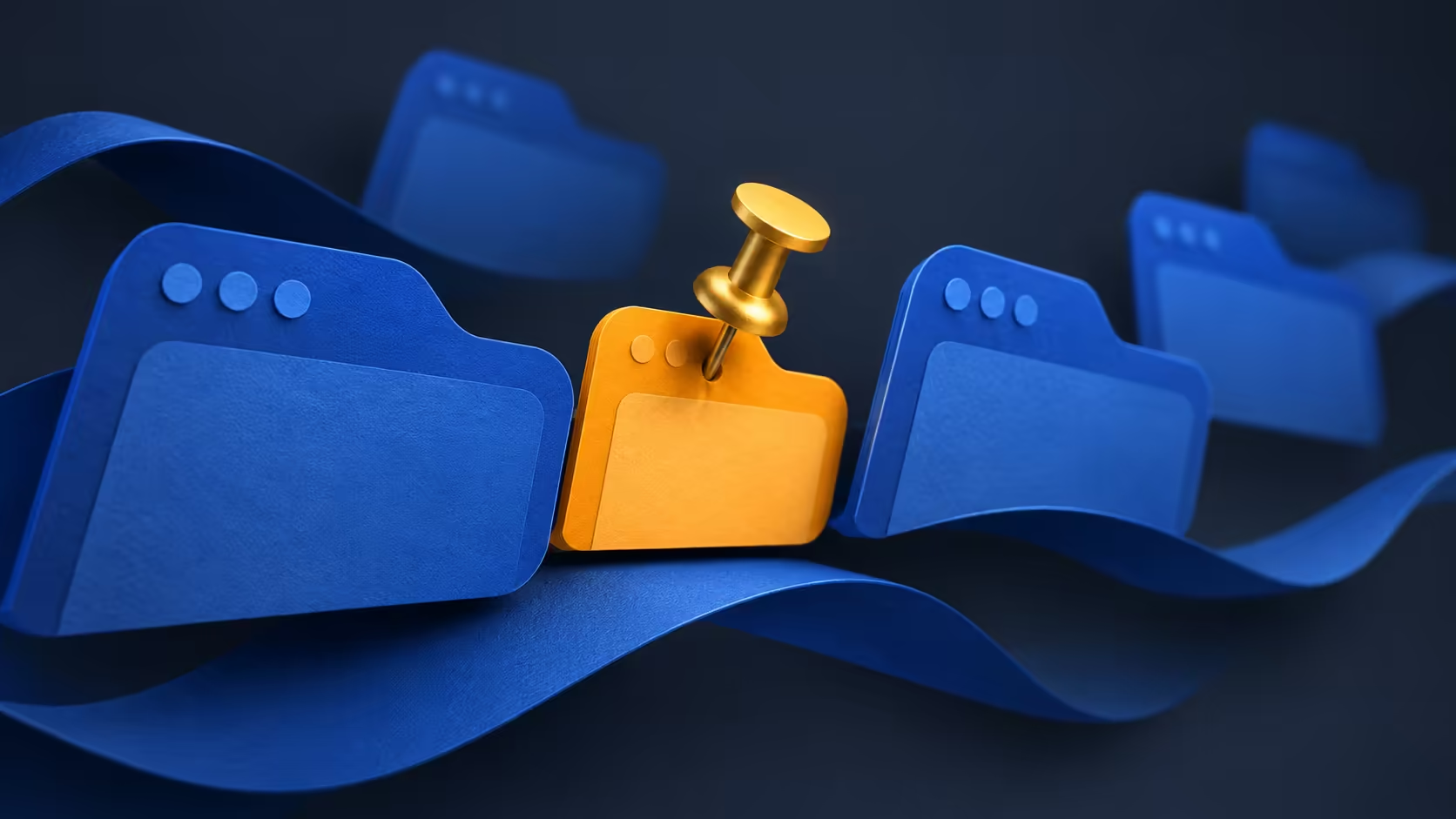
An important page can disappear among a row of almost identical tabs. Chrome pin tab keeps a small, recognisable entry near the start of the browser's tab strip. It is handy for a page you return to all day, but an open tab should not become the only place you keep an essential address.
Quick Answer
On desktop Chrome, right-click the page's tab and select Pin. To reverse it, right-click the pinned tab and choose Unpin. This is a R0 organisation change; save important addresses as bookmarks as well, rather than buying more hardware to fix a crowded tab strip.
📌 Pin the right page
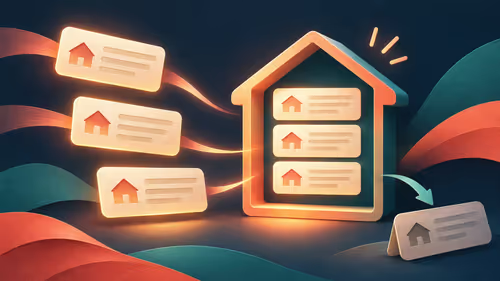
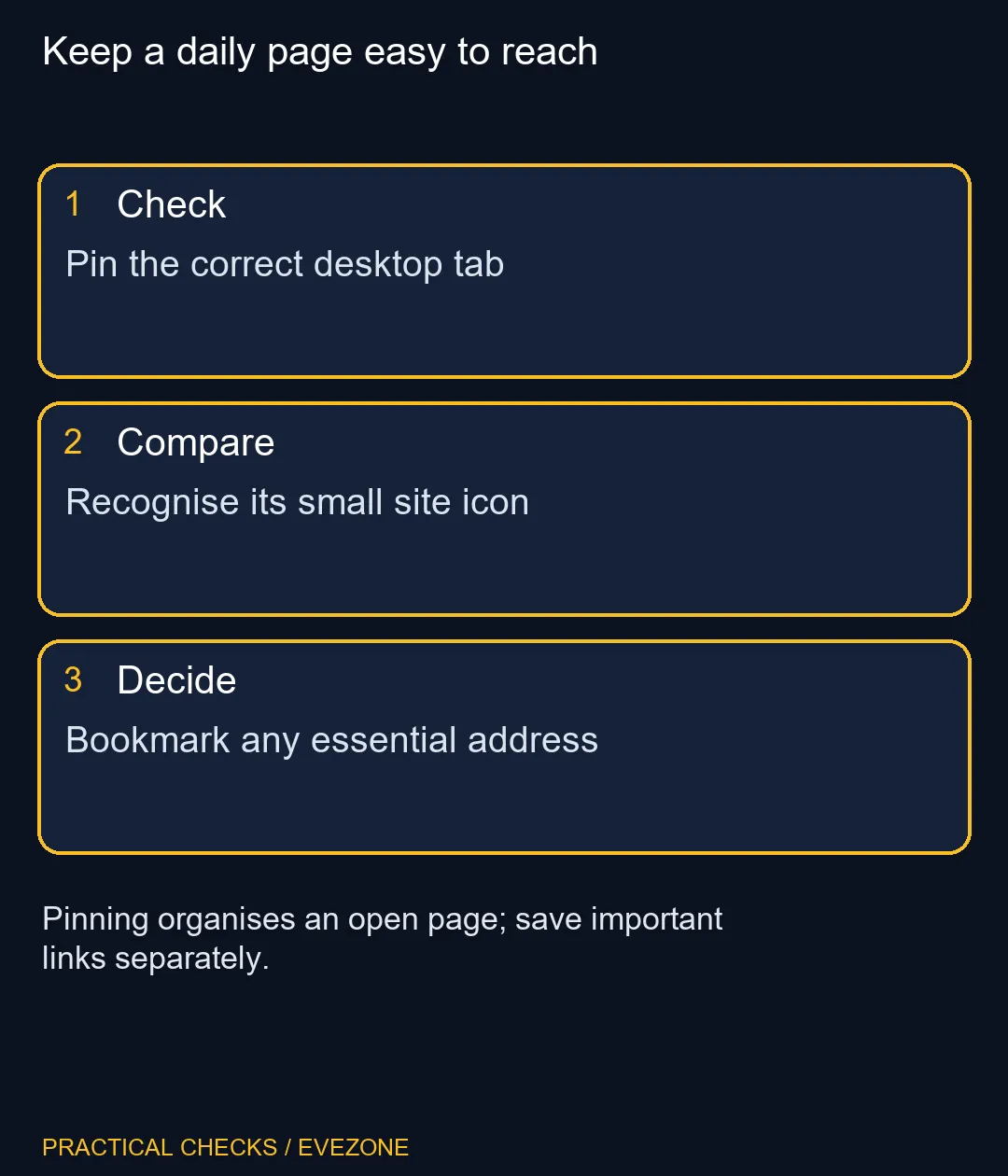
First open the page you actually need and verify its contents. Right-click its tab at the top of Chrome, rather than the body of the page. Choose Pin and notice how the tab becomes smaller, showing the site's icon instead of the full page title.
Use the feature selectively. Pinning every open page recreates the same navigation problem in smaller spaces. Start with a few everyday destinations and keep pages for temporary research among normal tabs. If several pages share an identical icon, consider whether pinning makes them easier or harder to identify.
🗃️ Save the address separately
A pinned page is still part of a browser session. A bookmark stores an address you can return to independently. For a critical reference, save a bookmark with a useful name, then confirm that you can reopen the correct page from it.
Do not confuse a pinned browser tab with a shortcut on the Windows taskbar. They occupy different places and serve different jobs. The tab keeps a page within the browser strip; an operating-system shortcut is a separate action. Read the menu you are using before assuming a missing shortcut means pinning failed.
When lending a computer, remember that a pinned page can still show the session you are signed into. Its small size does not make its contents private. Close or sign out of sensitive services as appropriate, and check which Chrome profile is active before using personal accounts on a shared machine.
🧭 Keep navigation separate from speed
Pinning does not promise to reduce a page's memory use or make the website load faster. If you are trying to diagnose a slow PC, observe which task is slow and inspect resource use separately. A neat tab bar and a performance repair are different outcomes.
For an everyday browsing machine, try the R0 navigation changes first. asus laptops and hp laptops are relevant when the whole computer needs replacement, but compare them against your real workload rather than the number of visible tabs. A new laptop will not automatically organise the pages you leave open.
Finish by unpinning one test tab and pinning it again. That confirms you know how to reverse the change. Keep only the pages whose icons you recognise easily, and revisit the pinned set when your daily routine changes instead of allowing it to grow indefinitely.
Frequently Asked Questions
How do I pin a tab on desktop Chrome?
Right-click its tab in the tab strip and choose Pin. The pinned entry becomes a smaller icon-based tab.
How do I undo pinning?
Right-click the pinned tab and choose Unpin to restore a normal tab entry.
Is pinning the same as bookmarking?
No. Keep a bookmark when you need a saved address independently of the current browser session.
Does a pinned tab guarantee lower memory use?
No. Pinning changes organisation and quick access, rather than promising a particular resource saving.
Why has the page title disappeared?
Pinned tabs are smaller and show the site icon. Unpin the tab if you need its full title visible.
Does this put the page on the Windows taskbar?
No. Pinning a Chrome tab and creating an operating-system shortcut are separate actions.
Keep a daily page easy to reach
Pin the correct desktop tab.