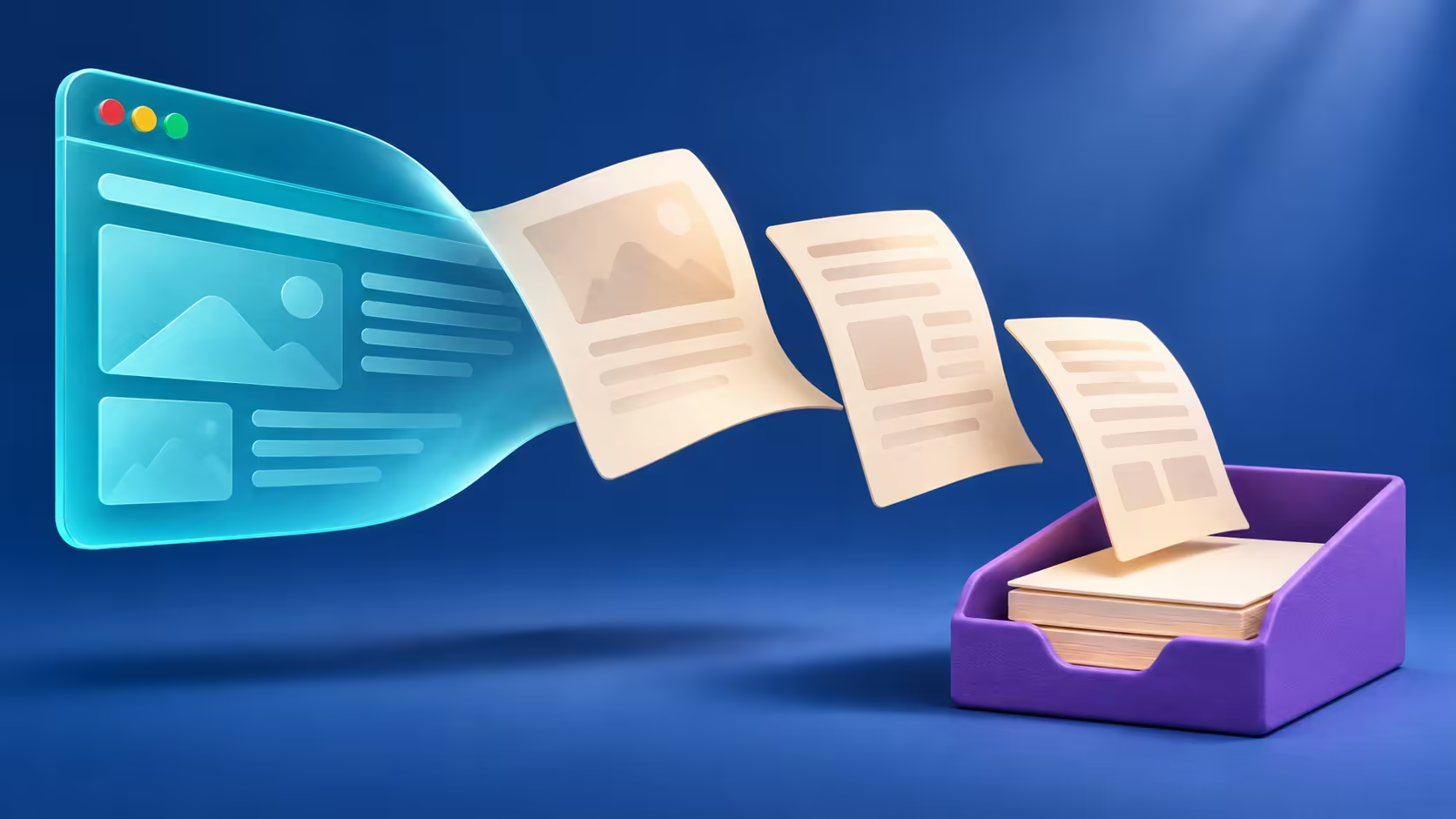
A saved link can change or disappear, while a local document is easier to file with your notes. Chrome print to PDF creates a document from the page's print layout. Check the preview carefully, because menus, interactive sections and the visible website can become a different arrangement on paper-sized pages.
Quick Answer
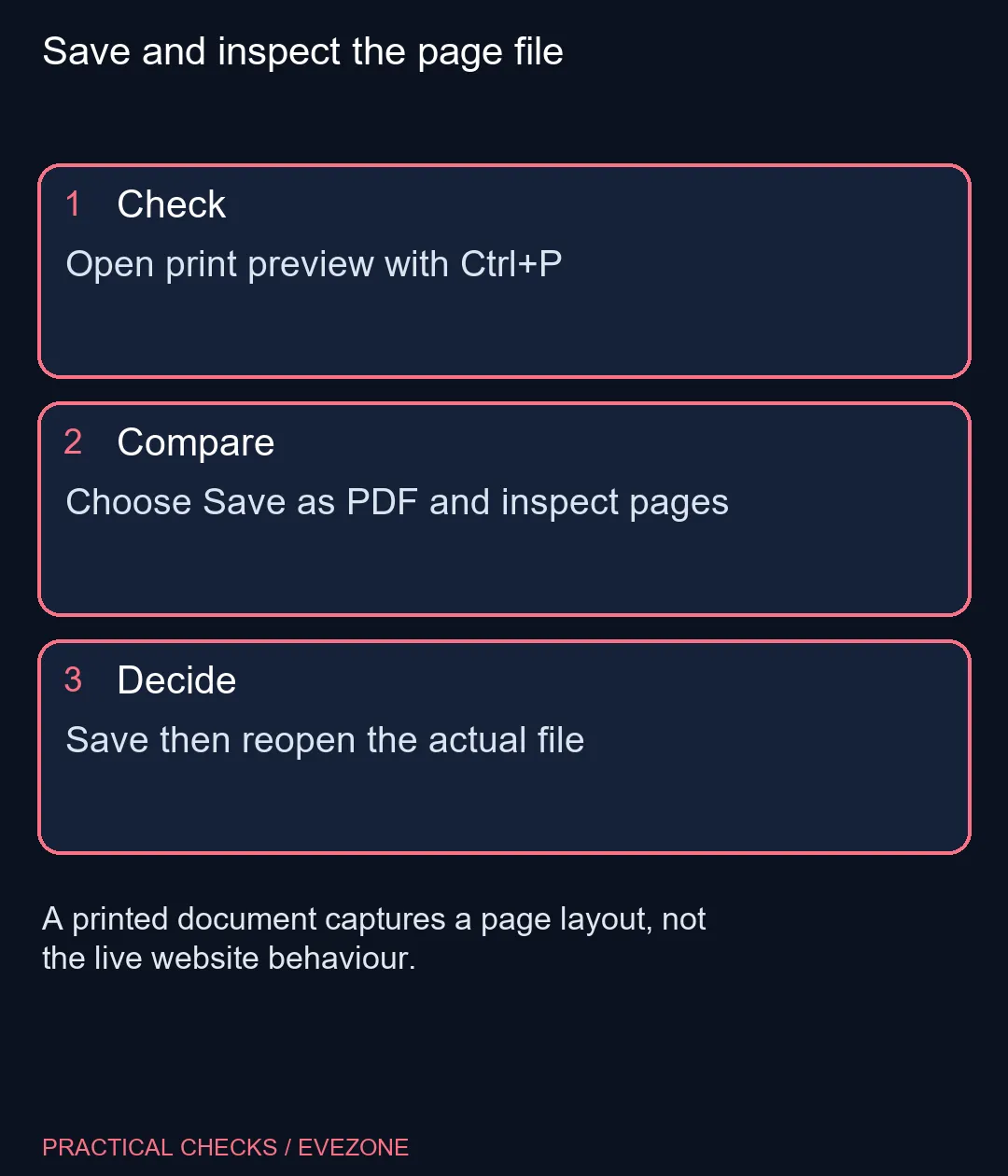
In desktop Chrome on Windows, press Ctrl+P, select Save as PDF as the destination, inspect the preview and save the file. Reopen that file to check the result. The built-in first attempt costs R0; there is no need to buy a printer or install a PDF extension for this basic task.
📄 Inspect the preview before saving
Open the required page and wait for its relevant content to load. Expand any section whose text you need, then open print preview. Review the page count and scroll through the preview rather than checking only the first sheet.
Choose the destination deliberately. A physical printer, a system print driver and Chrome's Save as PDF option can appear in related controls, but they produce different results. For a local document, select the PDF destination and check the available layout and page options before proceeding.
🔍 Check the saved document itself
Use a meaningful filename and a folder you can find again. After saving, open the resulting PDF from that folder. Read the beginning and end, inspect any tables and confirm that text has not been cut off at page edges.
A PDF does not preserve the website's live behaviour. A search box, moving chart or account workflow may not work as it did in the browser. If the information changes frequently, note when you saved it and retain the page address separately so you can return to the current version.
For a long article, a page-range setting can help save only the needed section, but verify the output contains the context that makes it understandable. Removing a heading or qualification can make a short excerpt misleading. Keep enough surrounding information for someone reopening the document later.
💾 Distinguish saving from storage trouble
If the save fails, first check the chosen destination and whether you can save a small ordinary file there. Try a local folder you are permitted to use. A managed work folder may have access restrictions which should be handled with its administrator, rather than bypassed through an unknown extension.
Check available space when a real storage problem remains. all ssds can help compare replacement or expansion drives, while external ssds covers portable storage options. Neither purchase is required simply because you have not yet found the PDF destination in the print dialog.
For important files, keep an additional copy and test opening it on the device where it will be read. The R0 preview-and-reopen routine catches many layout mistakes before you share the result. A file being present in a folder proves it was saved; reading the actual output proves it contains what you intended.
Frequently Asked Questions
How do I open Chrome print preview on Windows?
Press Ctrl+P while the required page is active, then review the destination and preview.
Do I need a physical printer to save a PDF?
No. Chrome's Save as PDF destination creates a local document without printing paper.
Will the PDF behave like the original website?
No. It is a document representation of the print layout, rather than a copy of every interactive feature.
Why should I reopen the file?
The saved output may have unwanted page breaks, missing sections or clipped tables which are easier to spot in the final document.
Can I save only some pages?
Use the page controls offered in print preview, then confirm the saved document still includes the necessary context.
Should I install a PDF extension immediately?
Try Chrome's built-in destination first. Diagnose a specific remaining limitation before adding software.
Save and inspect the page file
Open print preview with Ctrl+P.