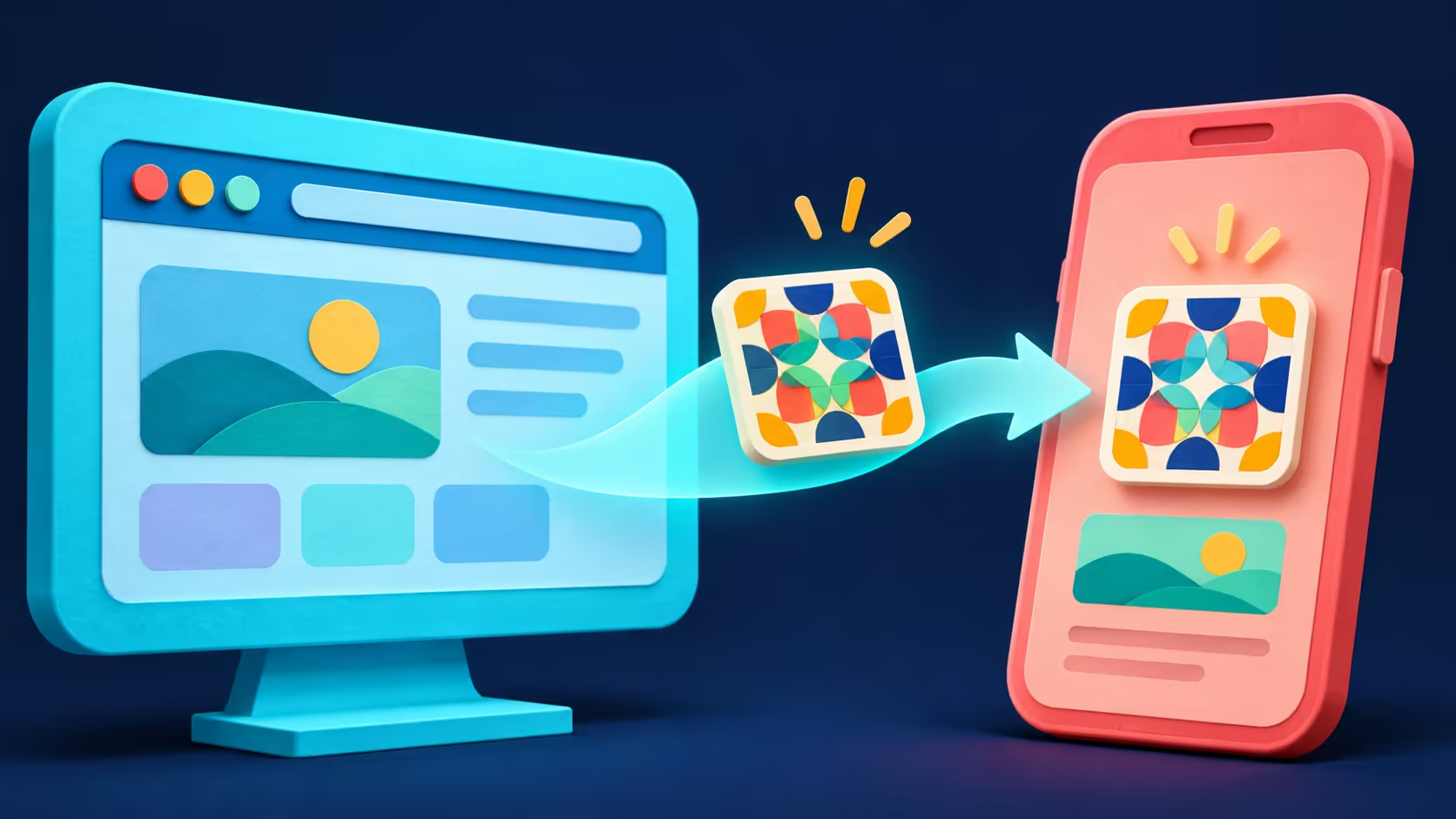
Moving a useful page from a desktop to a phone should not require retyping a long address. A Chrome QR code turns that address into something another camera can scan. The useful check comes after scanning: make sure the phone opens the intended page before putting the code in a presentation, a shared document or a message.
Quick Answer
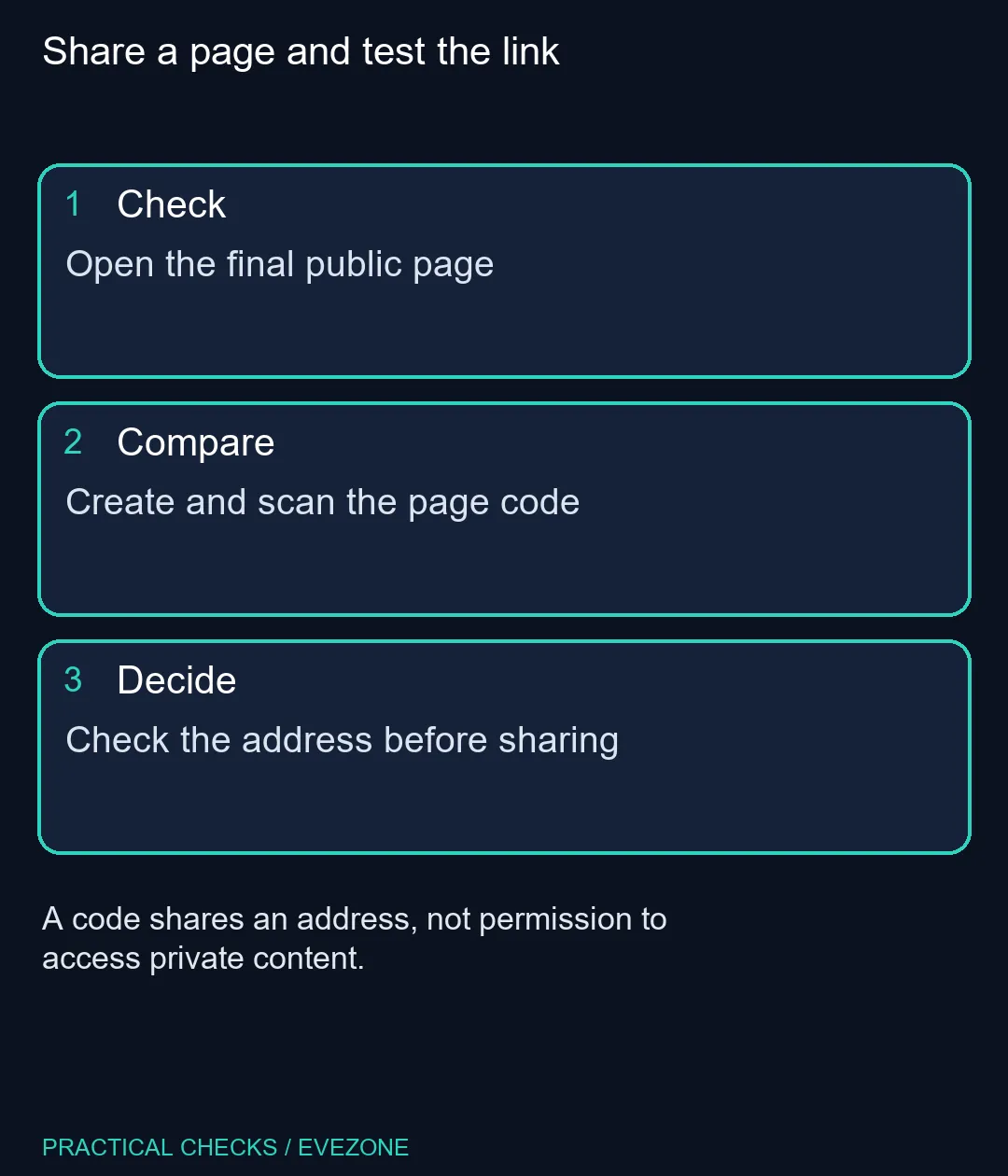
In desktop Chrome, open the page, select More, then Cast, save, and share, followed by Create QR code. Scan it with the other device and inspect the destination. This built-in sharing task needs no new hardware: R0 is the sensible first spend before considering a replacement computer.
📱 Share the final destination
Navigate to the exact public page you want someone to see. Avoid creating a code from a temporary login, a search result you did not intend to share or a page whose address contains private session information. Read the address bar before using the sharing menu.
Chrome offers options to copy the link, download the code or scan it using another device. For a one-person handoff, copying the ordinary page address may be simpler. The address-bar keyboard shortcuts provide a quick way to select and copy that address without installing a sharing extension.
🔎 Test with the receiving device
Scan the code using the phone you expect to use, then read the address shown before opening it. Confirm the page is recognisable and that its important content is visible on the smaller screen. A successful camera scan only proves that an address was decoded.
Private pages can still require a login. Sharing a code does not transfer your account or grant another person access. If the page works only in your signed-in desktop session, test an appropriate public alternative or explain the access requirement to the recipient. Do not share private session-bearing addresses.
For printed use, test the actual print or slide rather than only the full-sized downloaded image. A code that scans on your desktop monitor may become too small or soft after placement. Keep enough surrounding space and contrast, and check it from the distance a reader will use.
💻 Keep the fix proportionate
This is a browser sharing feature, not a test of gaming performance. If the menu is different, confirm you are using desktop Chrome and check its current menu wording. Work devices may also have managed settings; ask the administrator rather than adding unapproved extensions to bypass them.
If your machine otherwise works, keep the R0 approach. Browse intel laptops on special only when you have a broader replacement need, such as a failing device or insufficient performance for your actual work. hp laptops gives another category to compare by ports, memory and screen size when that separate buying decision arises.
Keep a plain-text link beside a code when the destination matters. It lets a reader understand where they are going and provides another way to open the page if their camera struggles. That small addition makes the shared material more useful without changing the computer.
Frequently Asked Questions
Where is the desktop QR command?
Open More, then Cast, save, and share, and choose Create QR code for the current page.
Does the code contain the whole website?
It shares a page address. The receiving device still needs to open that destination and meet any access requirements.
Can a code bypass a private page login?
No. A private destination can still require the recipient's own authorised account access.
Must I install an extension?
No extension is needed for Chrome's documented desktop page-sharing command.
Why should I test the printed version?
Printing or resizing can make the code harder to scan. Test the actual version the reader will receive.
What if the receiving camera struggles?
Provide the ordinary page link as an alternative and check that the code has enough size, contrast and clear space.
Share a page and test the link
Open the final public page.