Rebuilding yesterday's research tabs wastes time, but reopening everything can also bring back a cluttered session. Edge open previous tabs is a startup preference you can choose deliberately. It works best when you distinguish session recovery from saving the work that matters.
Quick Answer
Open Edge Settings, find the Start, home and new tabs area, and choose Open tabs from previous session under When Edge starts. The change needs R0 in extra hardware. Save important documents and bookmark useful pages separately, because restoring a URL does not promise to recover every unsaved form or sign-in.
🗂 Decide which reopening job you need
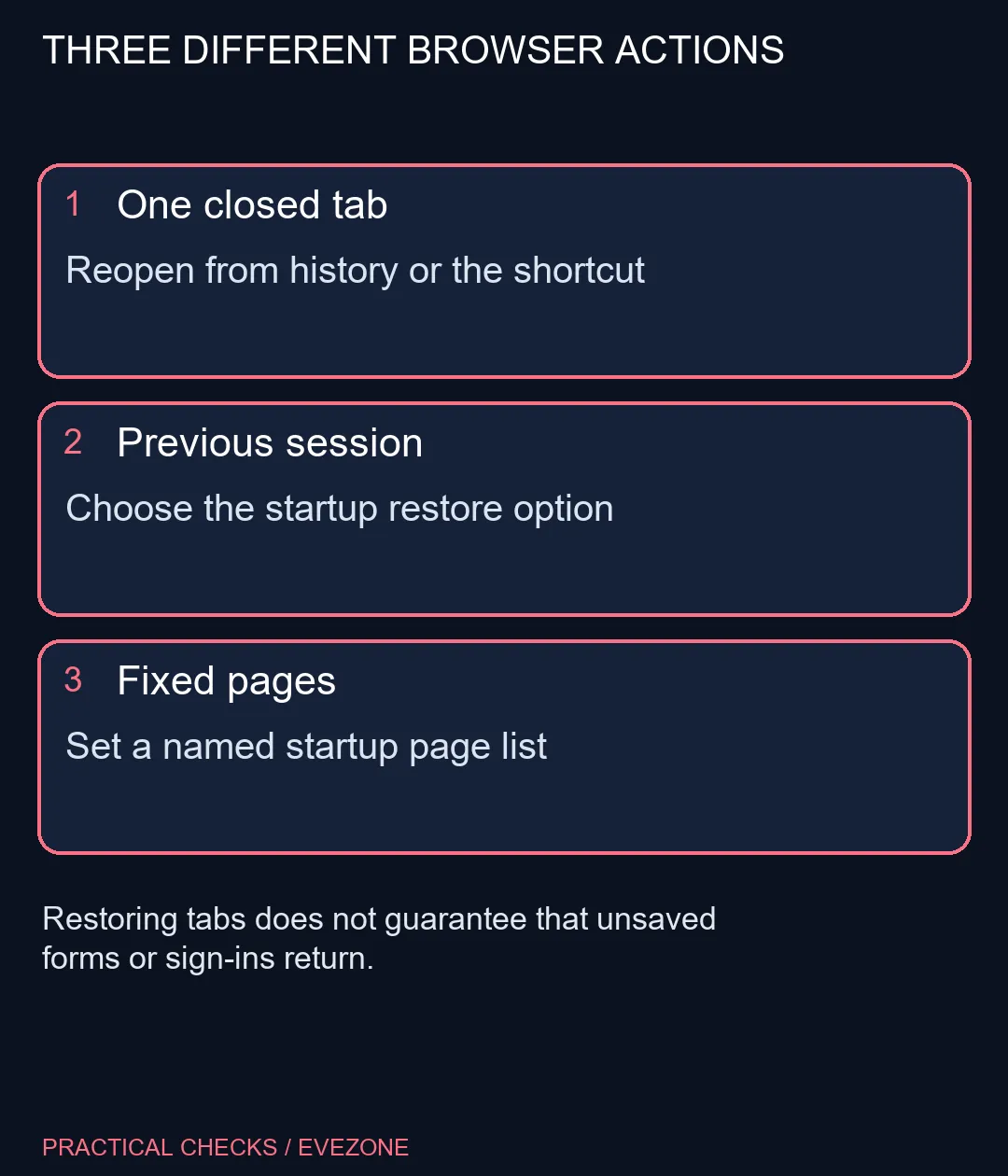
One accidentally closed tab is different from a whole browser session. Use Ctrl+Shift+T or the recently closed history when the problem is a single page. Setting future startup behaviour is unnecessary if you only want to undo one mistaken close.
A fixed collection of daily sites is another case. Edge can open specified pages rather than continuing whatever happened to be open last time. That choice suits a repeated workflow, while session restoration follows a changing set of tabs.
🔄 Configure startup, then test a small session
In the startup settings, inspect the choices before selecting the previous-session option. The Home button and new-tab appearance have separate settings nearby. Changing the Home destination alone does not establish what Edge will reopen after exiting.
For a test, keep two harmless pages open, close the browser normally and launch it again. Check the result before relying on the option for a larger research task. Multiple windows, managed settings and unusual shutdowns can complicate recovery, so avoid treating one successful test as a backup strategy.
Do not test by closing a page with an unfinished submission or other unsaved work. Save it through the application's own supported mechanism first. Browser session features cannot guarantee that a remote website will recreate the same state.
💻 Keep the restored session useful
Close pages you no longer need before ending the day. The aim is to return to useful context, not to preserve every temporary search indefinitely. If many restored tabs make the machine uncomfortable to use, reduce that set before deciding the laptop lacks enough memory.
When replacement has broader justification, compare asus laptops against the apps and workload you actually use. The gaming keyboards category is relevant to shortcut comfort, but neither purchase is required to choose startup behaviour. Keep bookmarks for durable references and proper saved files for important edits; use session restoration as a convenience alongside them.
Frequently Asked Questions
Where is the previous-session option?
Open Edge Settings and the Start, home and new tabs area. Under When Edge starts, choose Open tabs from previous session or the equivalent wording.
Is this the Home button setting?
No. A home page opens from the Home button. Startup choices decide what opens when the browser launches.
Can I reopen only one closed tab?
Use the recently closed history or Ctrl+Shift+T. That is a separate action from configuring every future browser startup.
Will an unsaved form definitely return?
Do not rely on it. A restored URL is not a guarantee that every page state, sign-in or unsaved edit can be recovered.
What if I want the same fixed sites?
Choose the option for opening specified pages instead of continuing a changing session. Review the list before using all currently open tabs.
Does this need more laptop hardware?
The setting itself costs R0 in additional hardware. A large restored session can still make it sensible to close tabs you no longer need.
Building a calmer daily browsing routine?
Choose a small useful startup session and save important work independently of the browser tabs.