Several small gesture changes can leave a laptop difficult to use without any hardware being broken. Reset touchpad settings Windows 11 is useful when you want to return the supported input preferences to their starting point. The essential boundary is simple: a touchpad defaults button is different from resetting the computer.
Quick Answer
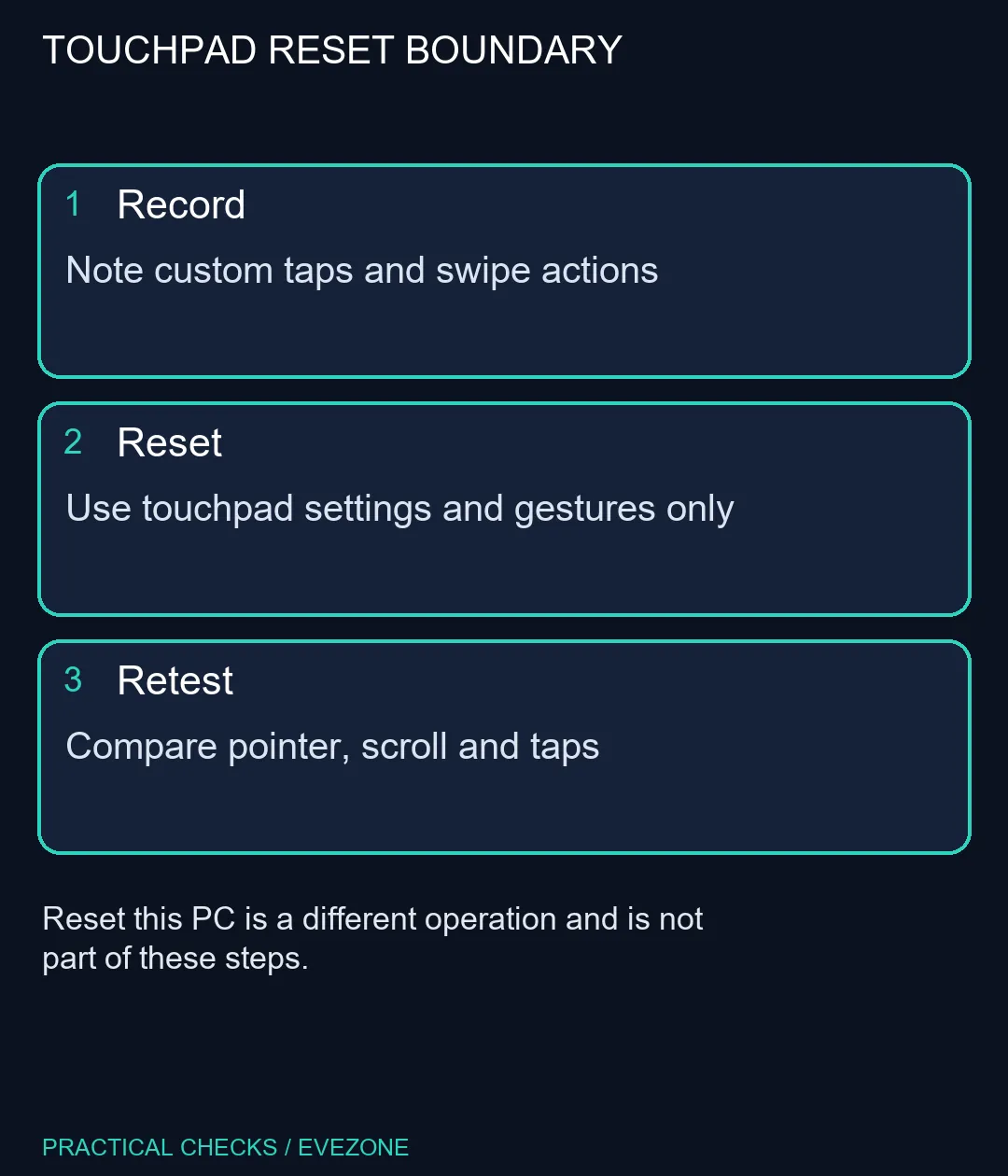
Note your customised gestures, open Bluetooth and devices, Touchpad, and inspect the main Touchpad section for its defaults control. This settings check costs R0 in additional hardware. Do not choose Reset this PC or erase files as part of a touchpad preference reset.
📝 Save the settings you might want back
Write down the current tap choices, scrolling direction, cursor speed and multi-finger actions. A screenshot of each expanded section can make comparison easier. If only one action is wrong, changing that action directly may be less disruptive than restoring every preference.
Keep another input method available if the touchpad is unreliable. A keyboard or an already-working mouse can help navigate the page without repeated accidental gestures. Finish important edits and save open documents before experimenting with input controls.
🔄 Find the device settings, not system recovery
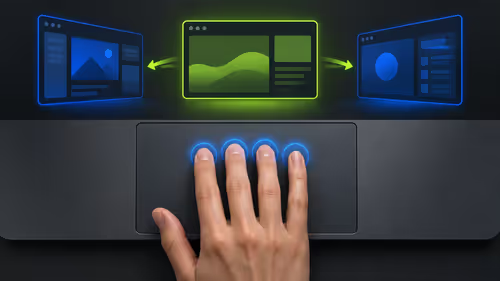
On supported Windows 11 laptops, the Touchpad page contains the relevant settings and may expose Reset beside the defaults description. Samsung documents that this control can be grey if the settings have never been changed. Other manufacturers can arrange their controls differently.
Read the label before clicking. Reset touchpad settings and gestures to defaults describes the input preferences. Reset this PC belongs to Windows recovery and is not the step described here. If the touchpad control is absent, stop and consult the laptop maker's instructions instead of using a similarly named recovery option.
Do not uninstall the device just because a defaults button is unavailable. Driver repair is a separate diagnosis, with different consequences and model requirements. A preference issue rarely benefits from changing several unrelated system components at once.
🧪 Retest one movement at a time
After the reset, check ordinary pointer movement, one-finger tapping, two-finger scrolling and the gestures you normally use. Reapply a useful custom choice only after confirming the default behaviour. That sequence helps reveal which preference was causing the problem.
The gaming mice category can help if you need a separate pointing device, while asus laptops provides laptop choices when replacement is justified for broader reasons. Neither purchase is established by an awkward swipe. If the touchpad remains completely unresponsive, gather the exact model and symptom for supported troubleshooting; a defaults reset does not diagnose physical damage.
Frequently Asked Questions
Will this erase my files?
The touchpad settings reset concerns input preferences. Do not select Reset this PC, which is a different recovery operation.
Where is the reset option?
In Windows 11 open Bluetooth and devices, Touchpad, then expand the main Touchpad section where the model exposes the defaults control.
Why might Reset be grey?
Samsung notes it may be grey if settings have never been changed. Device-specific interfaces can also differ.
Should I record my gestures first?
Yes. Note the tap, scroll and swipe preferences you want to restore later, so resetting them does not remove useful custom behaviour unnoticed.
Does a reset reinstall the driver?
The settings reset and driver reinstall are different actions. Do not move to uninstalling devices unless a model-specific diagnosis requires it.
What if the pointer never moves?
Use a supported alternative input method and check the model guidance. A settings reset is not proof that damaged hardware has been repaired.
Sorting out a laptop input problem?
Keep settings changes separate from recovery and test the touchpad before spending on replacement hardware.