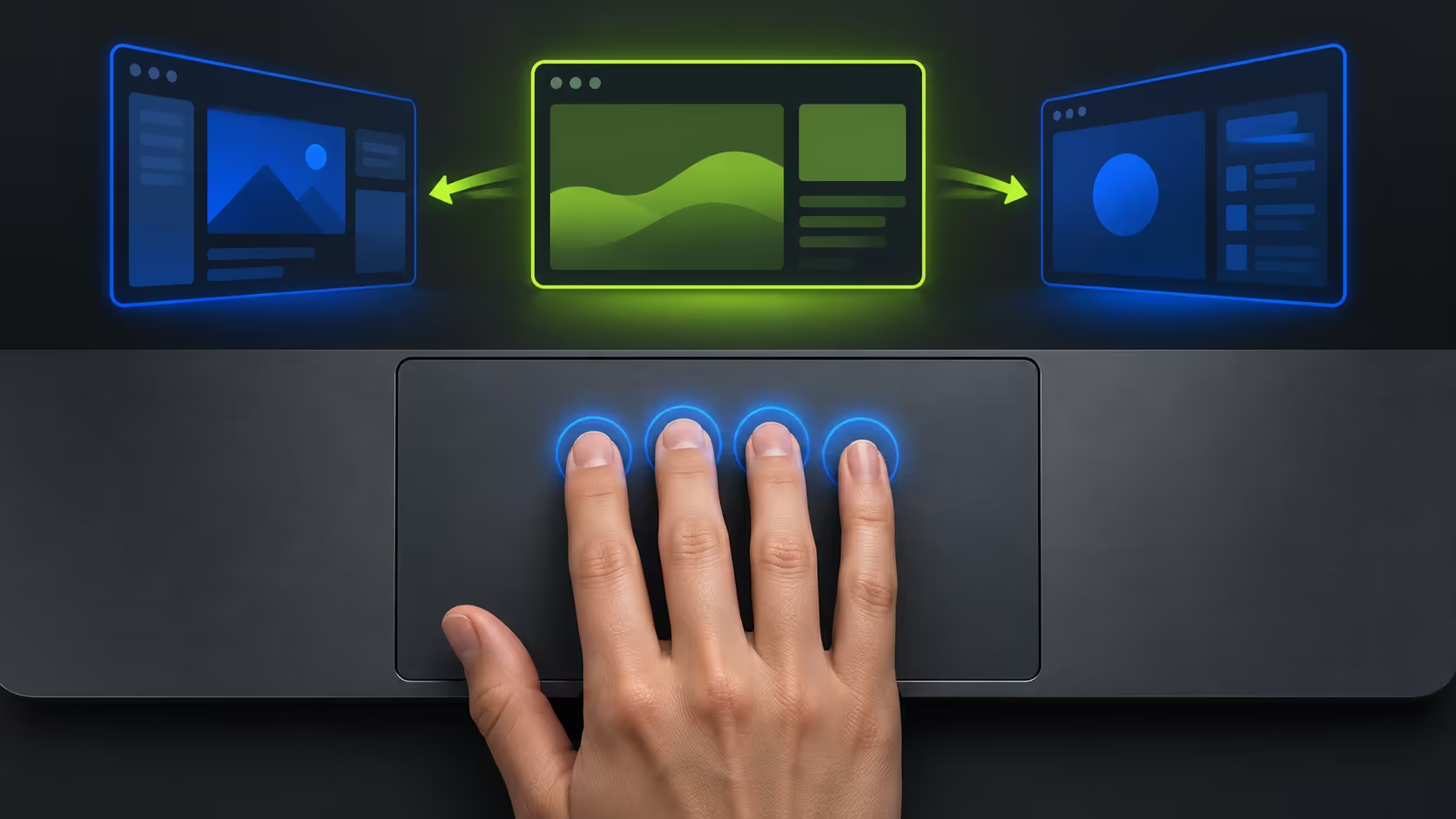
A desktop that suddenly changes can look like a lost application when it was only a touchpad gesture. Four finger swipe Windows 11 controls deserve a look if this happens while your hand crosses the laptop deck. Check what the gesture is assigned to do before chasing display or keyboard faults.
Quick Answer
Open Settings, Bluetooth and devices, Touchpad, then expand Four-finger gestures where supported. The documented sideways action switches desktops, but assignments can be customised. Reading and changing the supported option needs R0 in extra hardware; it does not require replacing a working input device.
🖐 Count fingers and identify the input surface
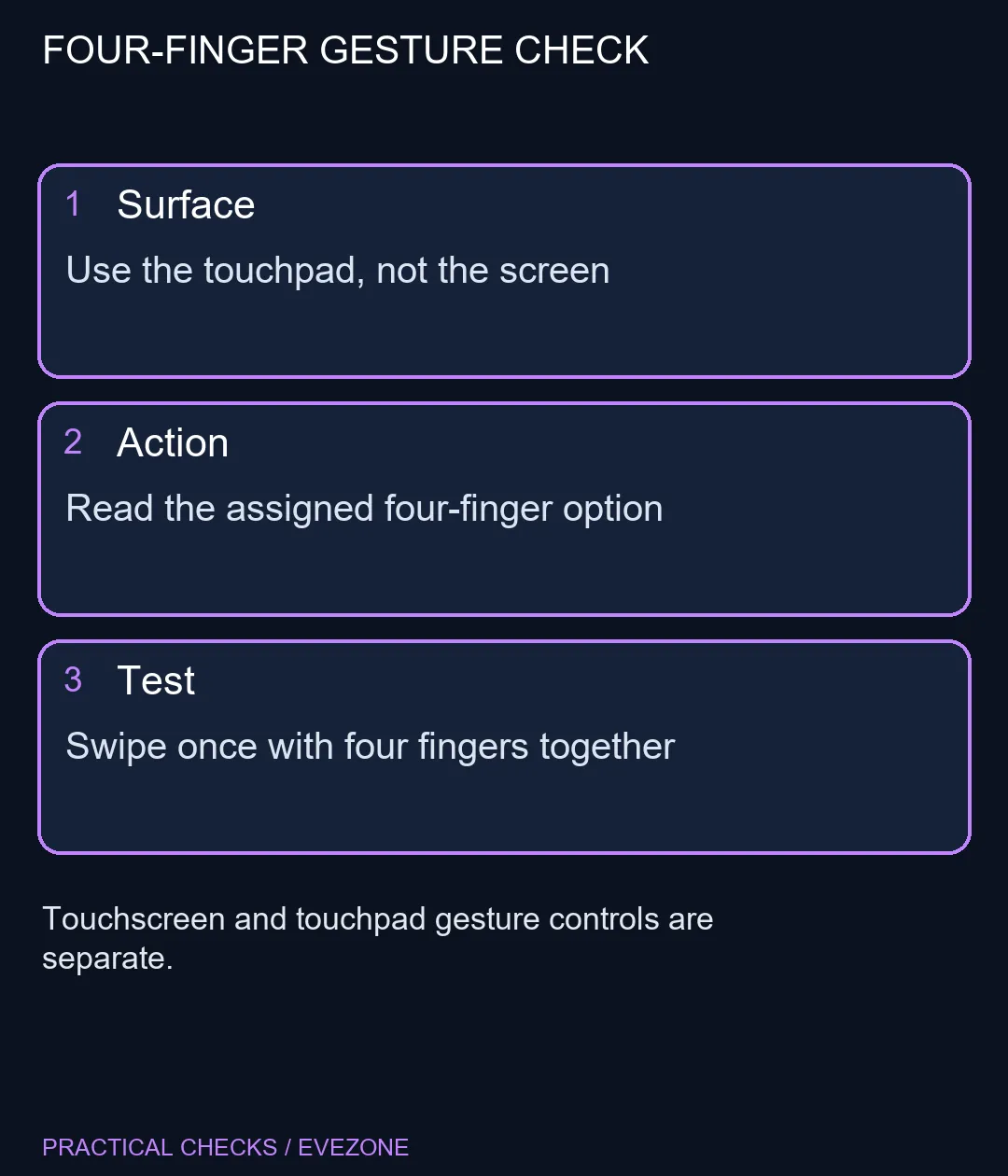
Use the laptop touchpad with four fingers placed together and make one deliberate sideways swipe. Keep the palm and thumb away from the active area. Start with no unsaved work so an unexpected switch is merely an observation rather than an interruption.
A touchscreen has separate gesture controls and its own interaction surface. Turning off screen gestures is not a reliable way to change the touchpad. Likewise, a three-finger action can be assigned differently from the four-finger one, even when the motions look similar.
⚙ Read the assignment before changing it
Inspect the expanded four-finger section. Note the current choice or save a screenshot for yourself before selecting another available action. If your goal is simply to prevent accidental switching, use Nothing where the interface offers that choice and repeat the original movement.
Menu availability depends on the laptop and its driver. A missing section is not proof that Windows is corrupt. Check the exact model's input documentation and current supported driver before looking for a workaround. Avoid installing a generic touchpad package intended for another machine.
A connected mouse does not establish whether the touchpad remains active. Check the laptop's separate mouse-connected behaviour if the unwanted gesture happens while you use an external pointer. Keep those two controls distinct so the test has a clear result.
💻 Keep the gesture that helps your work
Desktop switching is useful when you intentionally separate tasks. It becomes a nuisance when your resting hand triggers it. Choose the assignment around your normal hand position rather than trying to copy another person's settings.
Browse gaming mice for an external control option only if it solves a comfort or access problem. When considering asus laptops, check touchpad support for the exact model; a laptop category listing alone does not guarantee every gesture. If the setting change resolves the symptom, leave the hardware in service and keep a note of the configuration that worked.
Frequently Asked Questions
What does a four-finger sideways swipe do?
The documented default touchpad action switches desktops. A custom assignment or manufacturer driver can change the result.
Where are the options in Windows 11?
Open Settings, Bluetooth and devices, then Touchpad. Expand Four-finger gestures if that section is offered.
Is this a touchscreen setting?
No. A laptop touchpad and a touchscreen are separate input surfaces. Check the relevant control rather than toggling both.
Why is the section missing?
Available options depend on the hardware and driver. Check the laptop maker documentation before assuming a setting can be added.
Can I stop accidental desktop switching?
Choose a different four-finger assignment or Nothing where offered, then test the change. Keep other gestures unchanged during the test.
Do I need a new touchpad to check it?
No. Reading the assignments and testing supported gestures costs R0 in extra hardware. Missing support still needs model-specific investigation.
Making a laptop easier to control?
Check the touchpad assignments first and choose peripherals around how you actually use the desk.