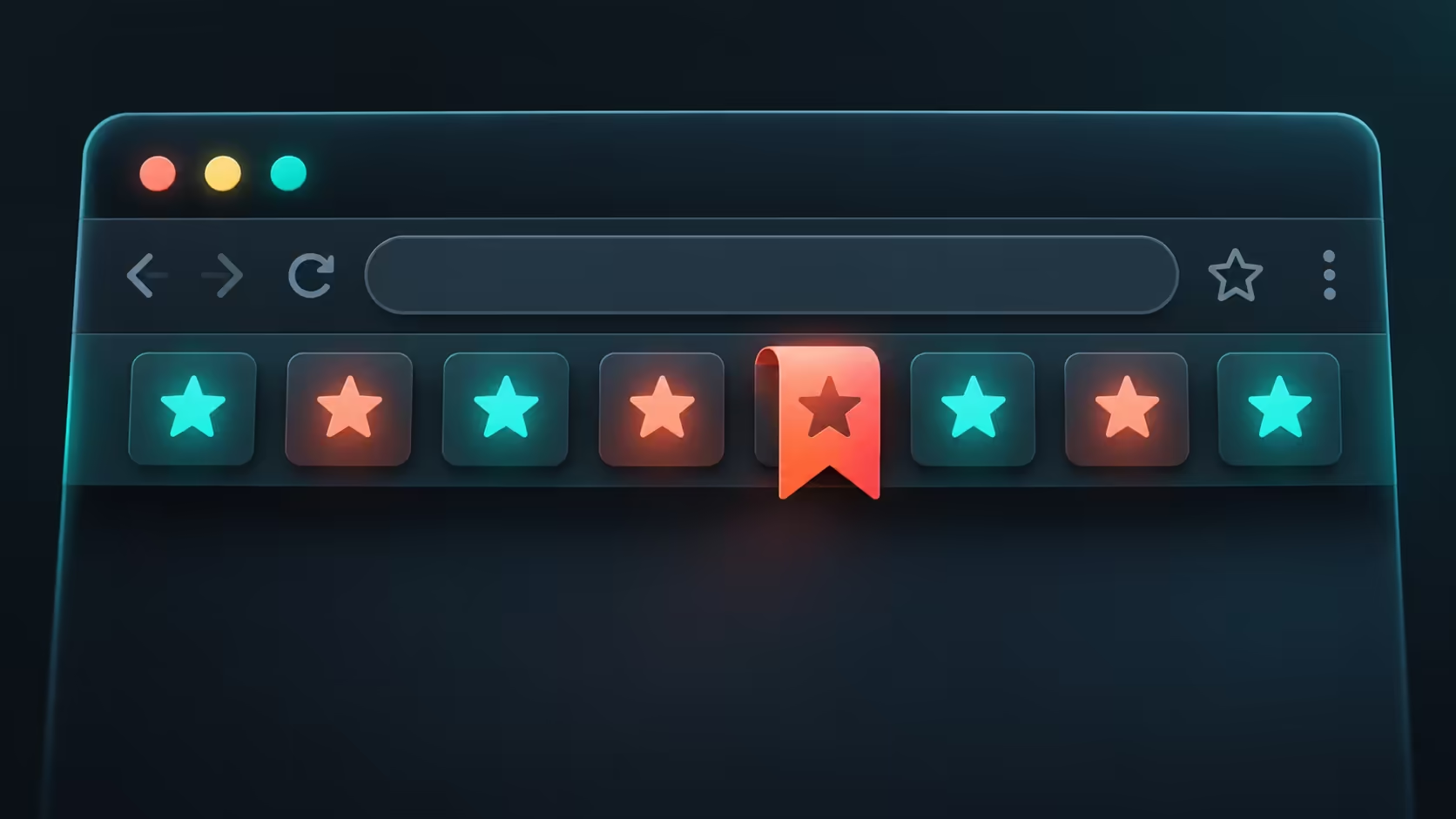
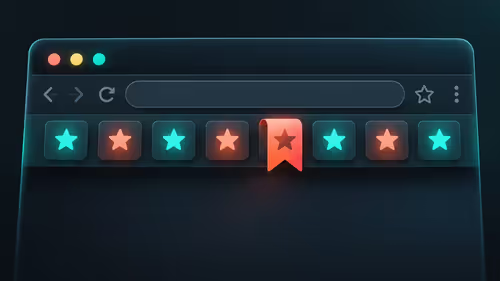
A familiar row of saved links can disappear while every website still loads normally. Edge favourites bar missing is a visibility question first. Before rebuilding bookmarks from memory, check whether the bar was hidden or set to appear only on new tabs.
Quick Answer
Press Ctrl+Shift+B in desktop Edge to toggle the favourites bar, or open the toolbar appearance settings and choose Always. The built-in check costs R0 in extra hardware. A hidden row is different from missing saved entries, so inspect the favourites list before creating replacements.
⭐ Compare a new tab with an open website
Open a fresh tab, then visit an ordinary page. If the bar appears on the first and disappears on the second, the Only on new tabs choice is a likely explanation. That behaviour can be deliberate when somebody wants more vertical room for reading.
If the bar is absent in both places, try the shortcut once with the browser focused. Shortcuts sent while another app has focus cannot tell you anything about Edge. Keep the test simple and observe the row beneath the address area rather than looking for a change to the website itself.
⚙ Choose the visibility setting that suits the desk
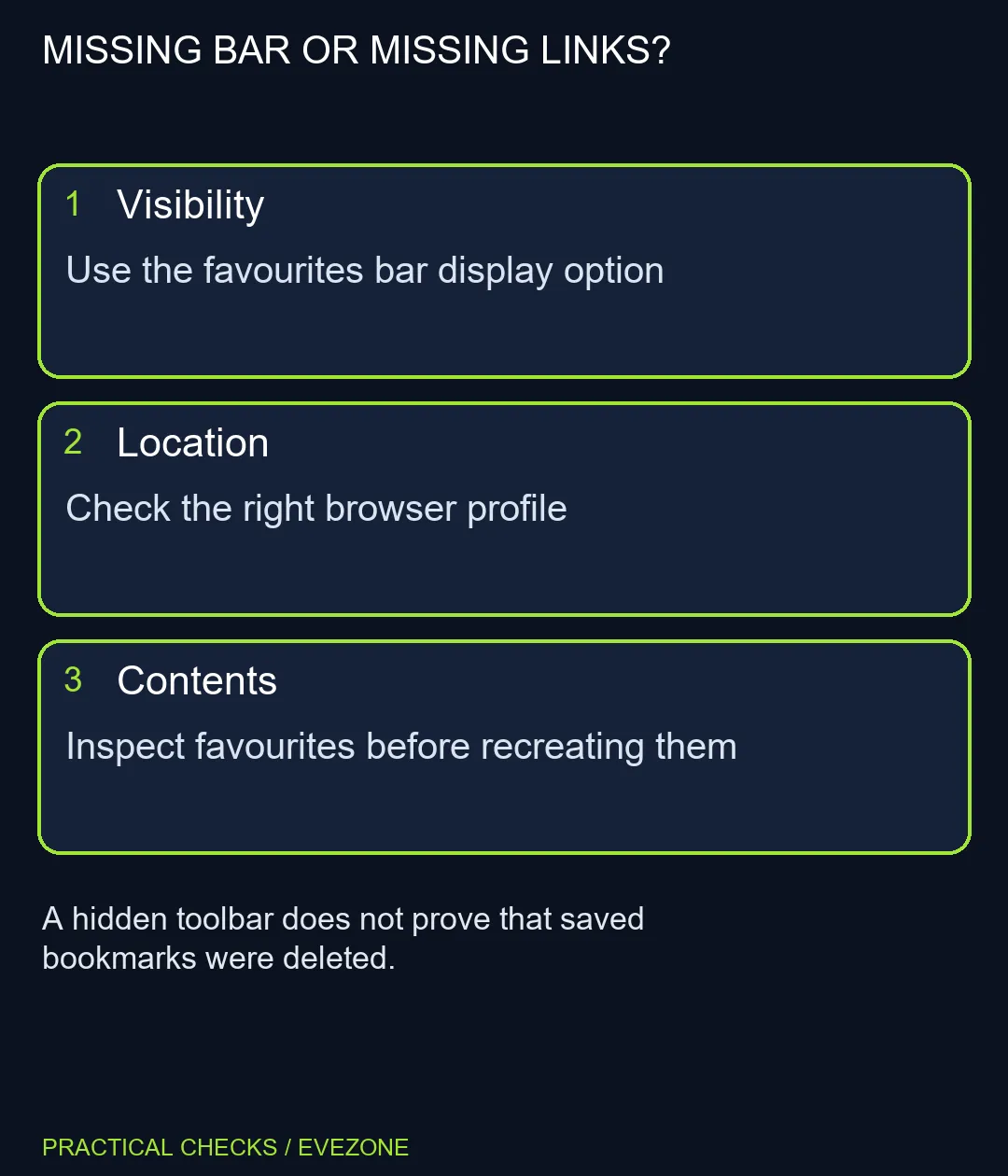
Open Settings and Appearance, then inspect the toolbar section for the favourites display dropdown. Microsoft documents Always, Never and Only on new tabs. Select the mode you want and compare the same page again. Menu groupings can move as the browser changes, so use the feature name rather than copying an old screenshot blindly.
Always keeps the saved-link row available during normal browsing. Only on new tabs trades that immediate access for a cleaner reading area. Never suits users who reach favourites another way. None of those choices establishes whether the underlying saved list is complete.
Do not reset the whole browser to change one row. A broad reset can alter unrelated preferences while leaving the original visibility question poorly understood.
🔖 Check the profile before recreating links
If the row returns but the expected entries do not, inspect the active profile and its saved favourites. A separate work or personal profile can hold a different collection. Avoid deleting either list while you identify which one you normally use.
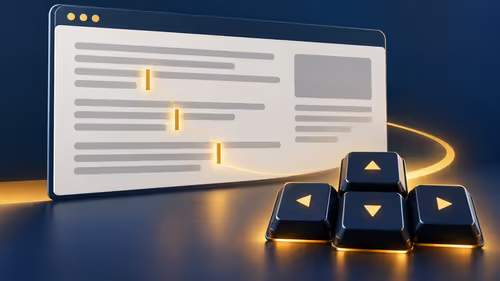
The gaming keyboards shortcut route may already solve access without a mouse. If vertical space remains a problem, compare your display layout before browsing gaming monitors. A larger screen is an optional workspace decision, not a demonstrated fix for a hidden browser row. Once the intended favourites are visible, close and reopen a normal window to check that the chosen display mode remains in place.
Frequently Asked Questions
What shortcut shows the bar on Windows?
Ctrl+Shift+B toggles its visibility in desktop Edge. Check that Edge has focus before trying the shortcut.
Why does it appear only on a new tab?
The display option can be set to Only on new tabs. Select Always if you want the row visible while viewing websites.
Where is the display choice?
Open Edge Settings, Appearance, then the toolbar options. Look for the favourites bar dropdown; labels can vary with the version.
Does hiding the bar delete bookmarks?
The visibility setting controls the row. It is separate from deleting saved entries, so inspect the favourites list first.
What if my usual links are not listed?
Check that you opened the intended browser profile. Then inspect saved favourites and your applicable sync settings before recreating entries.
Must I buy a larger monitor?
No. Restoring the toolbar costs R0 in additional hardware. Consider screen space only after choosing the display mode you want.
Want saved links easier to reach?
Choose a browser toolbar mode that fits the screen you already use before changing the desk setup.