A fast-flashing line in a document can be distracting even when every key types correctly. Windows cursor blink rate refers to that insertion caret, not the mouse arrow. Separating the two saves time when a reader is adjusting comfort rather than diagnosing a broken keyboard.
Quick Answer
Inspect classic Keyboard Properties for a cursor blink control, then test a simple text editor. The check needs R0 in additional hardware. Some apps manage their own caret animation, so a different result in one program does not prove that the keyboard, screen or Windows setting has failed.
⌨ Identify the line you want to change
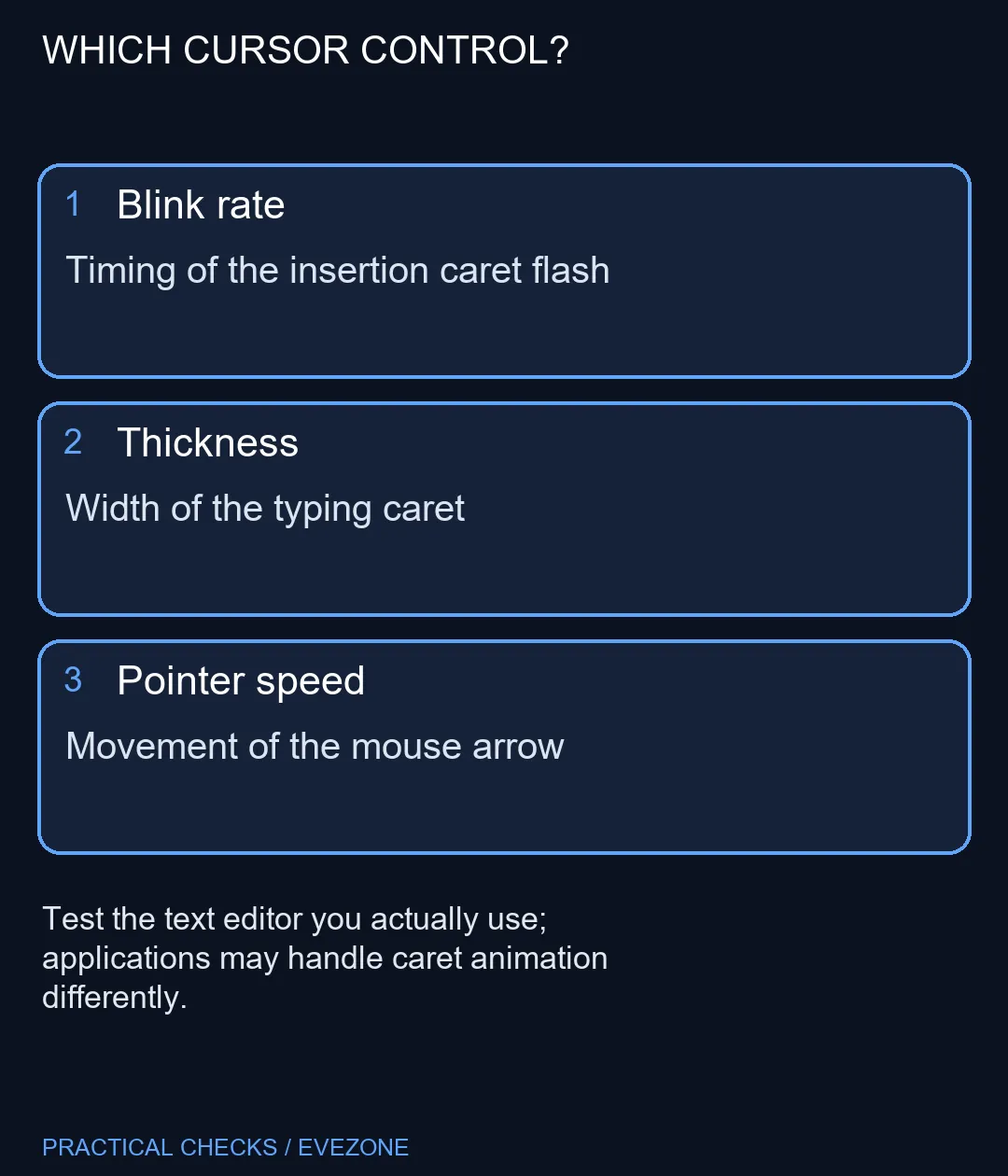
Click inside an ordinary text field and type a short disposable sentence. The insertion caret shows where the next character will appear. Moving the mouse leaves a separate arrow or text-selection pointer, which can have its own appearance and hiding behaviour.
A delay before a held letter repeats is another unrelated setting. If the symptom is unwanted repeated letters, record that separately. Changing the blink interval cannot repair a key that sends the wrong input, just as changing pointer speed cannot alter the timing of the text caret.
🔎 Use the classic control if it is available
Search Windows for Keyboard and look for the classic Keyboard Properties panel. Where a cursor blink-rate slider is offered, note the original position, adjust it and use the preview before applying. Keep the change small enough that you can easily return to your previous preference.
The documented classic interface has existed across older Windows versions, while current API documentation still describes the system caret interval. That history is useful, but the screen layout can vary. If your system does not expose the control, stop there rather than editing the registry from an unrelated tutorial.
Test the same sentence again. Compare one other editor if the first application behaves differently. A program can render its own caret, so the setting should be judged against applications that actually use it.
🖥 Match the remedy to the visibility problem
If the line is difficult to find because it is too narrow, text-cursor thickness is a separate accessibility choice. If the whole document is small, zoom or display scaling may be more relevant. Change one control at a time so the effect stays clear.
Neither gaming keyboards nor gaming monitors needs to be a purchase for this problem. Compare physical keyboards for key feel and layout, and displays for the viewing requirements you have measured. A software-drawn flashing line alone supplies no evidence that either needs replacing. Return to the original blink setting if the new timing makes reading less comfortable.
Frequently Asked Questions
Is this the speed of my mouse?
No. The blink setting affects the insertion caret in text. Pointer movement and keyboard character repetition have separate controls.
Where should I look for the setting?
Search Windows for Keyboard and inspect classic Keyboard Properties for a cursor blink control. Availability and labels can vary with the system.
Why does one app still blink differently?
An app can draw or animate its own caret. Compare a plain text editor before deciding that the system setting was ignored everywhere.
Will a new keyboard change the flashing?
A blinking insertion caret is drawn by software. Replacing keys is not a demonstrated remedy for its animation timing.
Does changing thickness stop the blink?
Thickness changes the caret width. It is a different visibility control and should be assessed separately from the timing.
How much does a settings check cost?
R0 in additional hardware. That does not include software licences, connectivity or any unrelated repair that might later be needed.
Want a clearer typing position?
Match the caret setting to the exact visibility problem before considering another keyboard or display.