You can hear teammates and still have no working microphone. A headset mic splitter for PC connects a compatible single headset plug to a desktop that splits headphone output and microphone input across two sockets. Take one look at the back of your tower before spending on the cable.
Quick Answer
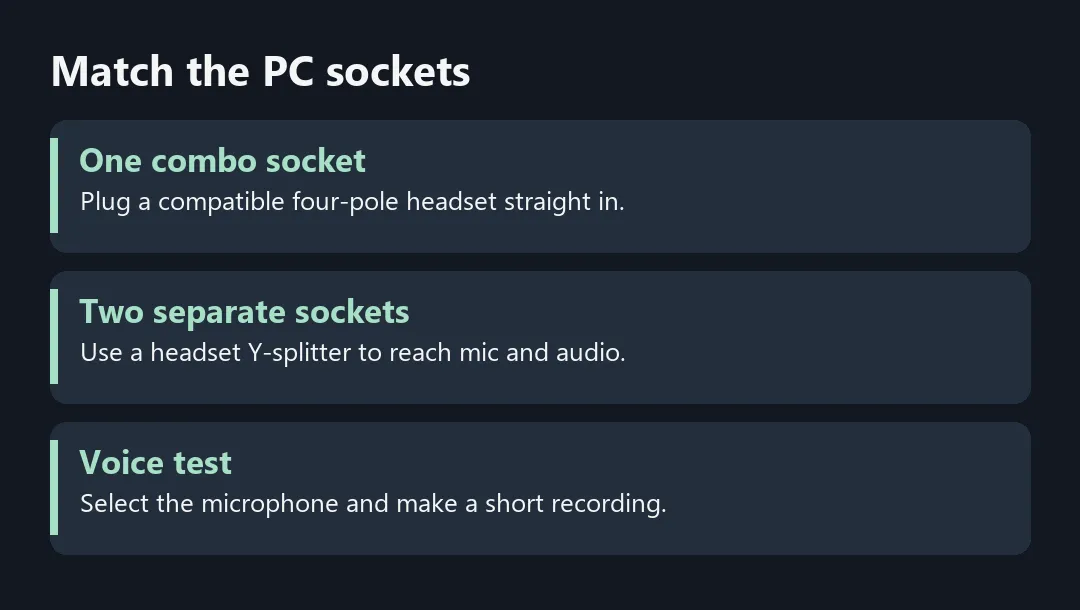
Use a 3.5mm headset Y-splitter when your headset has one compatible four-pole plug and the PC has separate mic and headphone jacks. A single compatible combo jack takes the headset plug directly. Checking the sockets and the selected recording input costs R0.
🎧 Check the equipment at each end
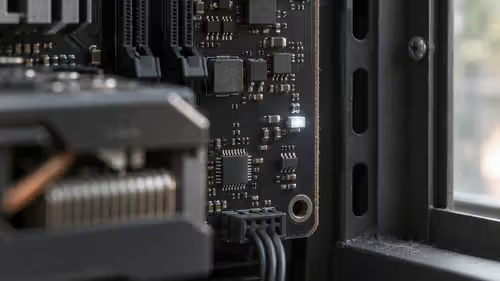
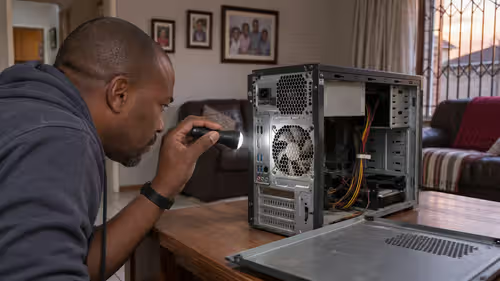
Find the headset symbol on a combined socket, or look for individual headphone and microphone symbols. On some desktop PCs, green identifies the headphone connection and pink identifies the mic input. Use the markings or manual if the plugs are all black. See whether the front and rear panels offer the same layout. A laptop can offer a combo jack while the tower next to it has individual paths, so swapping between the two can change the required cable.
Look at how the headset connects too. A wired model can have its own detachable boom and an in-line mute switch. Plug the boom in and take it off mute before you try to diagnose the computer. The Wired Headset category can help you compare the connections each package offers if you still need to buy.
🔌 Pick the cable by its job
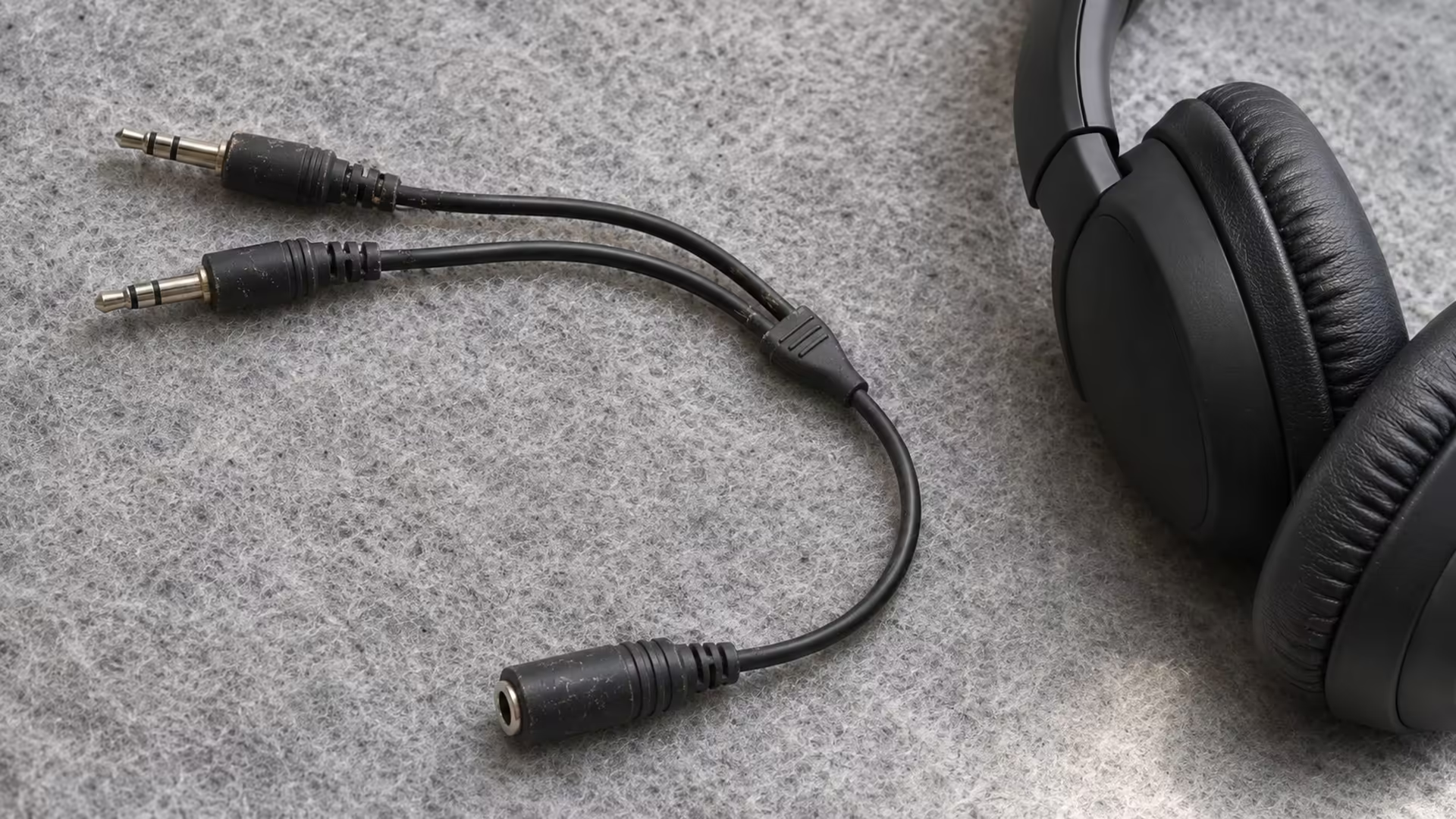
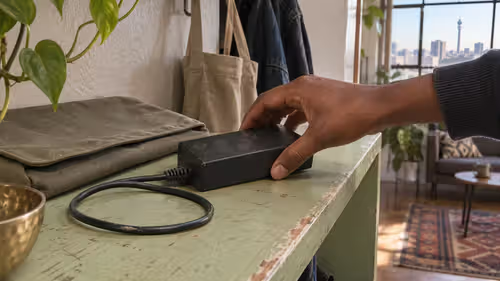
The headset splitter needs to take both paths from one plug and send them to the two correct sockets. A headphone-sharing cable sends the same output to two pairs of headphones. The shape of the Y can look similar on a product thumbnail. Read the description for a mic connection and check which ends are male or female. On a dual-jack PC the splitter should accept your headset plug, then provide the two plugs the PC needs. Fit the cable so it can move without pulling the socket when you turn in your chair.
🎙️ Record before loading the game
Select the PC microphone input in sound settings and watch its meter while you speak. Record ten seconds and play it back. If the voice recorder works but the game is silent, check the game's selected input and app permissions with the working headset still connected. Keep the recorder result as a reference before you change anything else.
If no meter moves, try the headset on a compatible combo device or test the PC input with a basic known-good microphone if you have one. If the first test works, you can check the adapter and port separately. Try the splitter and port one at a time so each check tells you something. Compare Gaming Headsets with the supported plug and included adapter in mind if you need a replacement for regular chat.
Frequently Asked Questions
What kind of splitter should I buy?
For one combo headset plug and two PC sockets, look for a headset splitter with separate mic and headphone plugs.
Will a headphone-sharing adapter work?
An adapter that copies headphone output to two listeners does a different job. Choose one marked for headset microphone and audio.
Do I need a splitter for one combo jack?
A compatible four-pole headset plug can go straight into a matching combo jack.
What if I already hear audio?
Check the microphone socket and input selection. Sound in your earphones confirms output only.
Will the splitter connect a USB headset?
A passive 3.5mm splitter is for analogue connections. A USB headset plugs into USB.
How do I check the mic before a match?
Record a brief clip with the input selected, then listen to it before joining the game.
Match the PC sockets
Check the headset plug and the desktop sockets before buying an adapter. Compare compatible options at Evetech.