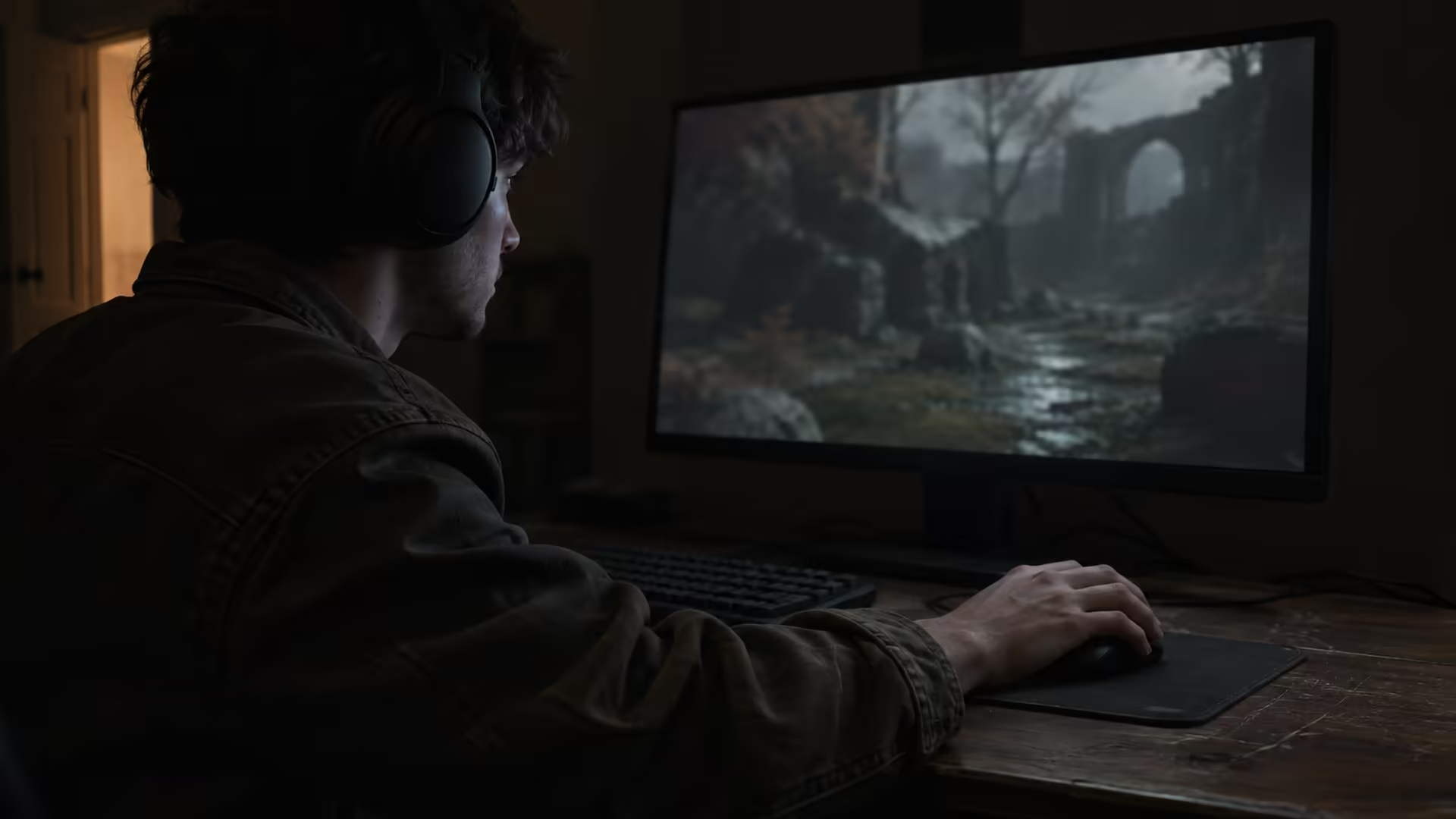
OLED monitor VRR flicker can show up in a game menu and vanish once you enter a level. Write down the scene and the setting, then see what changes when you turn variable refresh rate off. A monitor that pulses in one menu calls for a different follow-up from a screen that goes black on every input.
Quick Answer
Try the same game scene at fixed refresh with variable refresh rate off. Keep the cable, resolution and game settings the same. The check costs R0. If flicker disappears, look up firmware and VRR guidance for your exact monitor before changing hardware.
🌓 Capture the first pass
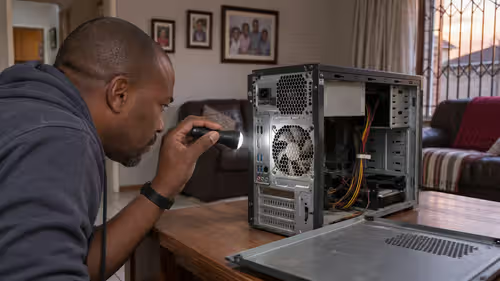
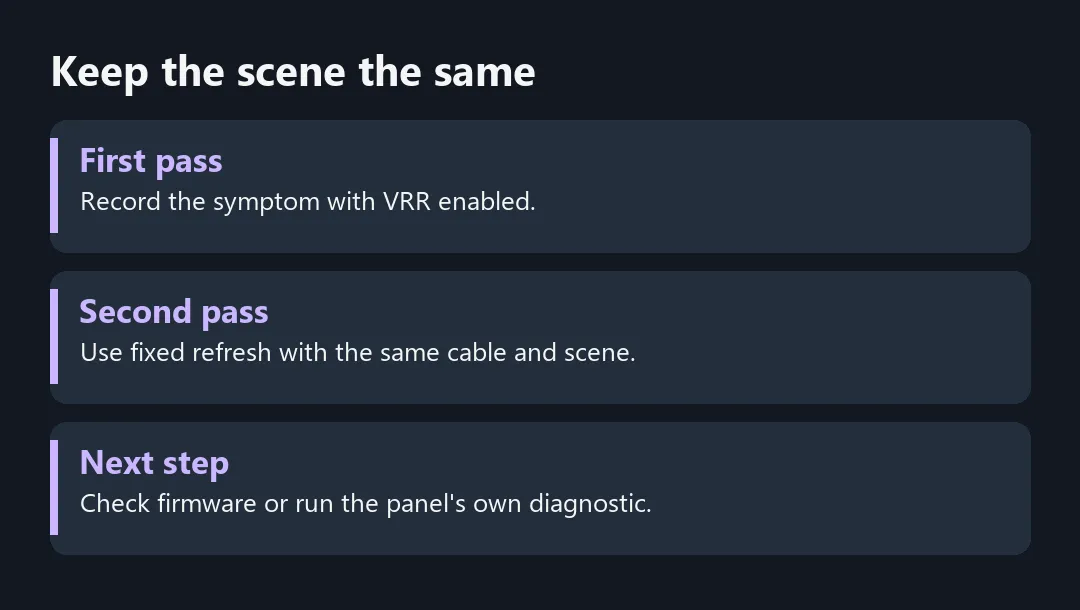
Open the game that shows the problem and find a menu or scene you can revisit. Note whether the image pulses, tears or disappears entirely. Make the description useful enough for another person to reproduce it. Write down the model, input, resolution and current refresh setting, including whether you have the graphics driver and the monitor both set to allow adaptive refresh. Use the same scene for your comparison instead of moving to another game with a different display mode.
The listed specs for OLED Monitors tell you which modes a display supports. The manual for your exact unit tells you where to find them. Some screens put their adaptive refresh control in the on-screen menu, and you may also need to check the matching setting on your computer.
🎮 Change just one variable
With the test noted, turn off VRR, return to the same game and move through the same sequence. Check whether flicker stops in that scene, and then decide whether to leave fixed refresh on for that title while you investigate. You may see tearing or a different appearance to motion. Note any new tearing or motion changes separately from the flicker you set out to reproduce.
🔧 Check the model's known behaviour
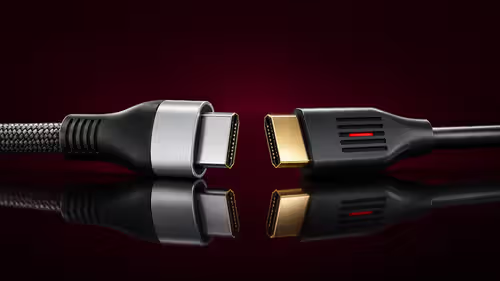
Dell names a firmware update for VRR or G-Sync flicker on its AW3225QF. Treat that as an example of a model-specific remedy. Look up the instructions for your exact screen and follow the maker's update steps if a fix applies. If flicker continues at fixed refresh, look for a built-in diagnostic you can run without the normal video source. If you need to swap the cable or port, record that as its own test.
For a new purchase, compare Gaming Monitors by the resolution and refresh modes you use, then test your own games on the display if you can. Keep the notes if you need help with your current monitor. "Flickers with VRR in one title, stable at fixed refresh" is a more useful report than a blanket claim about the panel.
Frequently Asked Questions
What is variable refresh rate?
It lets a compatible display vary refresh timing with the frames coming from the source within a supported range.
Does disabling VRR cost anything?
No. It is a reversible test of one setting.
Does a firmware fix apply to any OLED monitor?
Check the exact model. Dell's named firmware fix applies to the AW3225QF.
What if the screen flickers at fixed refresh too?
Check cable and input, then run any built-in diagnostics described by the monitor maker.
Should I change the cable during the VRR test?
Keep it the same for that comparison. Test a cable swap as a separate change.
Should I spend more for a higher refresh rate?
Try the display at fixed refresh first. If you shop later, consider the modes you use in your actual games.
Keep the scene the same
Compare the same game scene at a fixed refresh rate before replacing a monitor. Compare compatible options at Evetech.