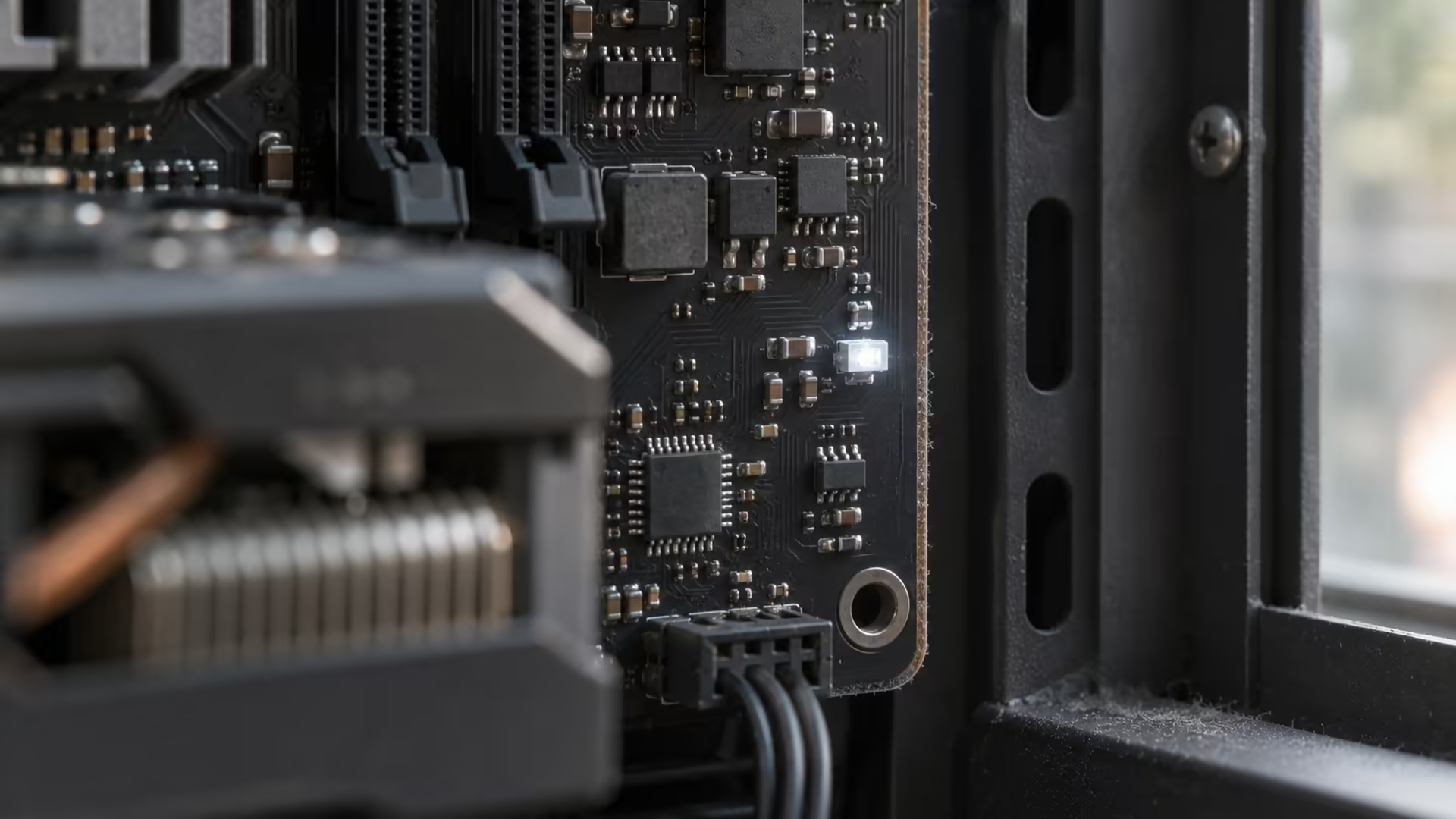
A white VGA light on motherboard startup gives you a place to begin when a newly built PC stays dark. Look for the word VGA printed next to the light. The colour alone might mean something else on another board, and a light that passes during startup is different from one that stays on.
Quick Answer
Read the board's diagnostic label and try one screen on the graphics card's output with the correct input selected. The first check costs R0. If the VGA light stays on and you still see no picture, power off and unplug before checking the card and its connectors.
🔍 Read the board before swapping parts
A board may test the CPU, memory, graphics and boot device in sequence. When one labelled light stays on, consult the manual for that model and revision. Write down when the light appears. "VGA stays on from cold boot and the screen never shows the logo" is different from "the logo appears and the screen goes black as Windows loads". If the startup logo appears, the screen receives a signal before Windows loads. Note the moment the picture disappears before you open the PC.
Keep a clear photo of the diagnostic labels if they sit below the graphics card. Use the handbook for All Motherboards to compare board features when you shop, but use the exact manual for the machine on your bench.
🖥️ Use one screen you can identify
Leave one display connected directly. Select the physical input you used on the display menu. On a desktop with a discrete card, plug into the card to test it. The ports clustered near the USB sockets belong to the motherboard, and whether they produce a picture depends on the processor and system configuration. Swap in a known-good cable or test the screen with another source if you have one, then check whether the symptom follows the display.
🧰 Check fit with the power off
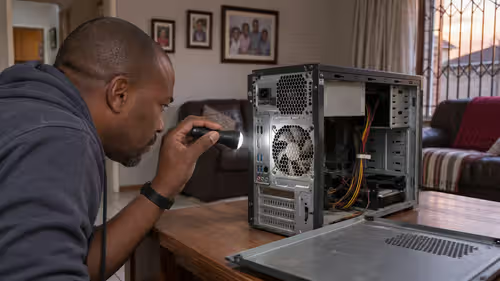
Switch the PC off and unplug it. With the system supported on a stable surface, check whether the card is seated evenly and the case bracket lines up. Look at auxiliary power connections if your model uses them. Follow the board and card manuals rather than forcing a connector or the slot latch. A heavy card can be awkward to handle alone, so stop if you cannot support it while releasing it.
If the same symptom persists with a known-good output path, write down the board, processor, graphics card and power supply models. A shop can use the notes to plan a bench test. When you compare All Graphics Cards, check physical clearance and the required power connections as well as the price. A clean test of the path you own now is cheaper than guessing which part you should replace.
Frequently Asked Questions
Does every white LED mean VGA?
No. Read the label printed beside that light and check the board manual.
What if the light goes out?
It may have been part of the normal startup sequence. Focus the check on a light that remains lit with the symptom.
Where should I connect the monitor?
Use an output on the discrete graphics card when you are testing that card.
Can I test the motherboard video port?
Only if the CPU and board support integrated video output in the configuration you are testing.
Should I reseat the graphics card while powered?
Shut down, switch off and unplug the PC before touching the card or any internal connector.
Does the light prove the graphics card failed?
It marks the graphics stage. Confirm the screen, cable, card seating and power before buying a replacement.
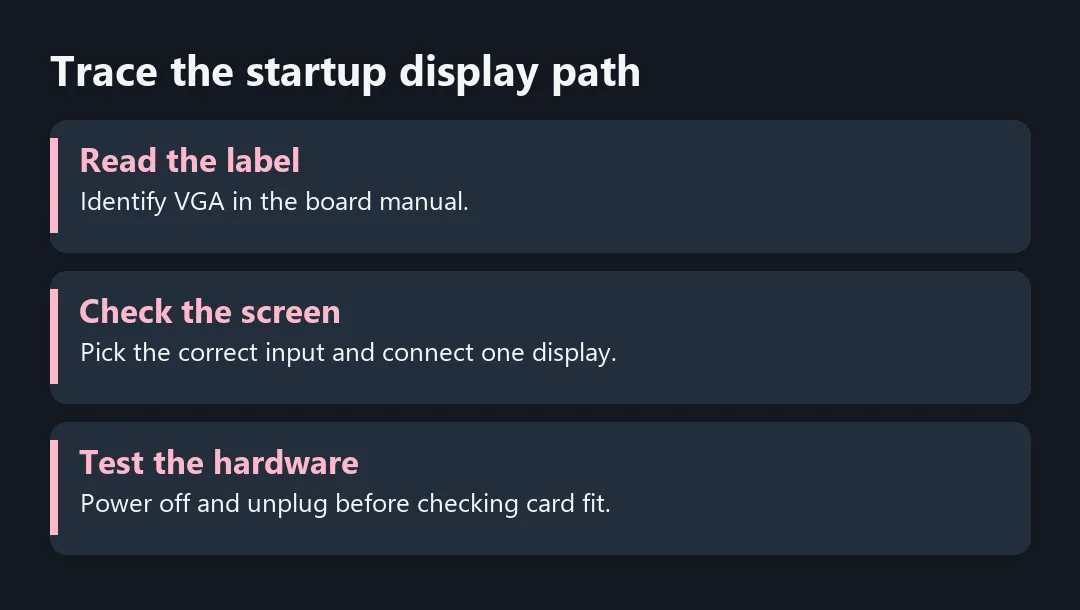
Trace the startup display path
Check the boot light label and trace the screen connection before pricing a graphics card. Compare compatible options at Evetech.