When Steam installed games appear uninstalled, open File Explorer before you start downloading. The games may still be in a library that Steam can no longer find. If that folder still opens, keep the files where they are while you check the Steam library path.
Quick Answer
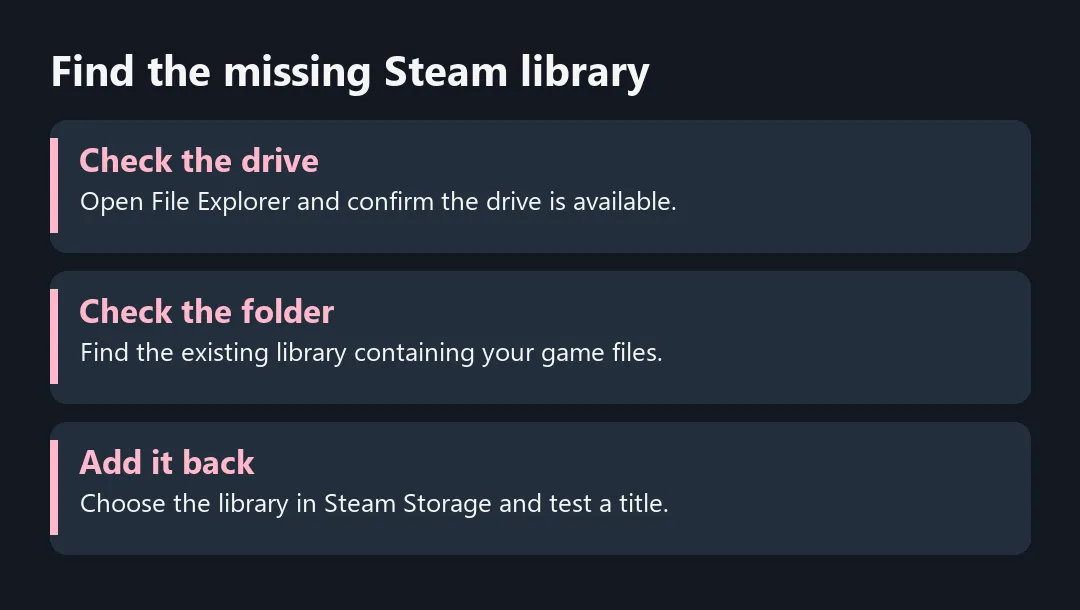
Check that Windows can open the drive that holds the games. If the files are still there, add that existing library folder in Steam Settings and Storage. Checking the path costs R0. Wait for Steam to recognise the contents before deciding which files to download.
💾 Check the drive and the folder
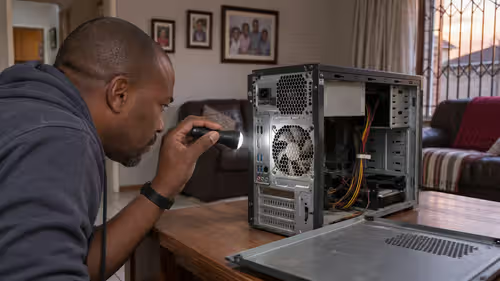
Open File Explorer and look for the drive you used when the games last ran. A drive can still be present under a different letter, especially if you rearranged storage. Open the drive and find the old library. Steam game folders generally sit below a Steam library's steamapps folder. Check that the title you expect is still there. Keep a copy of any saves you need before making changes if you suspect the drive has a fault.
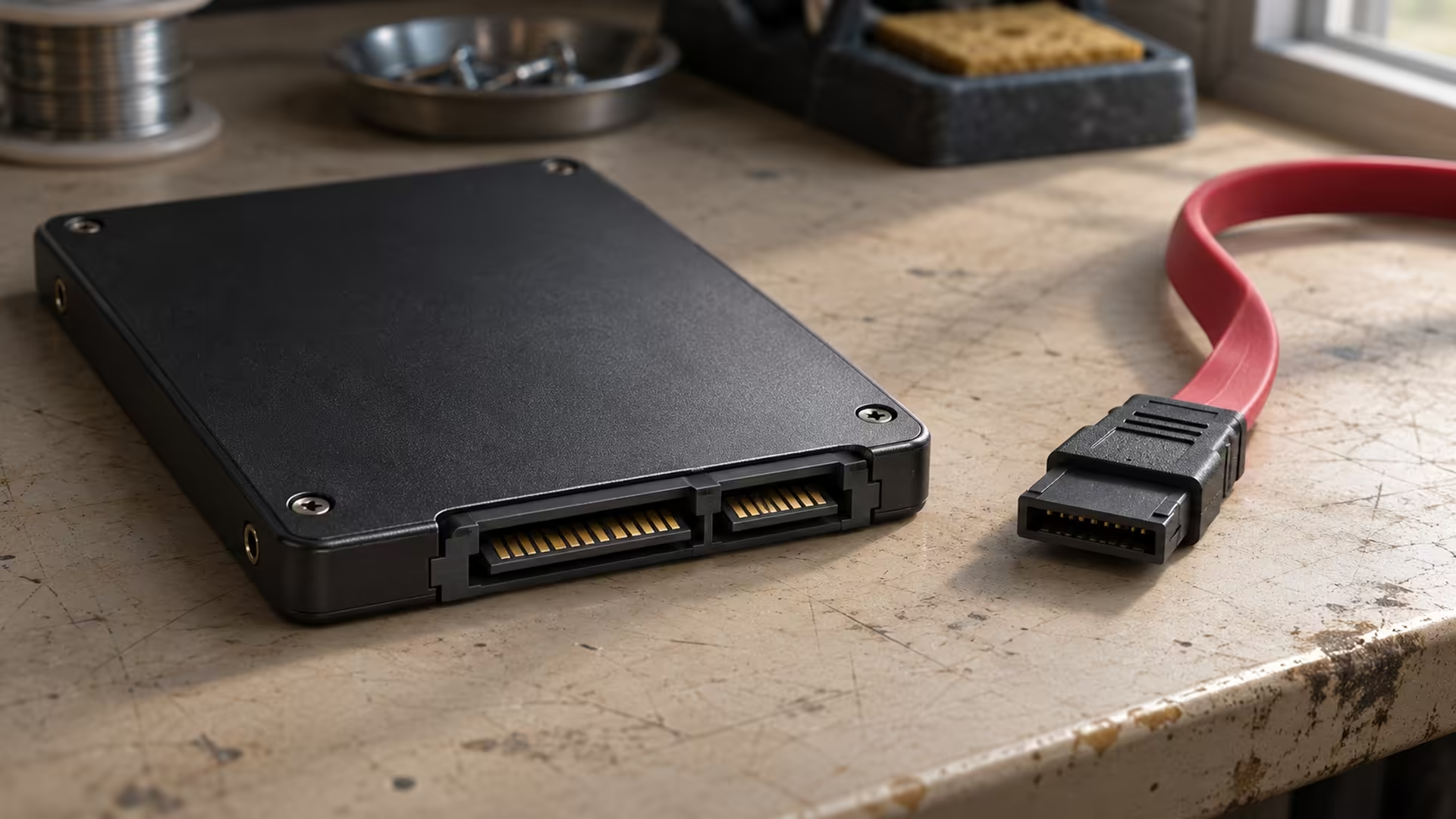
If Windows cannot see the drive at all, work on detection first. For an internal disk, review its connection only with the PC off and unplugged. If the disk no longer appears despite a known-good connection or you have errors reading files, find out what you need to recover before replacing it. Look at Internal SSDs only once you know which slot or bay you have available.
📁 Add that library back
In Steam Settings, open Storage and add the existing Steam library path on the detected drive. Select the folder that already holds the library, rather than creating another empty location with a similar name. Give Steam time to recognise the files. Check a game that stopped appearing as installed. If Steam still requests an install, review the destination before proceeding. Valve says the client can recognise existing files during the download process when they are in the expected installation folder.
🎮 Verify one title
When Steam shows the game as installed, launch it and check that the profile or save you need opens. If a file check shows missing items, let Steam verify the installed files. Check the library repair option if Steam keeps losing the ability to read or update it. Make one change at a time so you can tell whether Steam found the correct path.
If you have a failing SATA drive and need a replacement, check 2.5inch SSDs against your bay and interface. For a working drive, note the library path that Steam now uses before turning to the next game. Stable access and one successful launch give you enough information to decide whether any remaining download is needed.
Frequently Asked Questions
Why does Steam say a game is uninstalled?
Steam may have lost track of a library even when the installation is on disk. Confirm the drive and its folder first.
Should I immediately download a second copy?
Add the existing library location first. Steam can recognise valid files in the expected folder.
What if the drive is absent from File Explorer?
Check whether Windows detects the drive before changing Steam settings. Preserve the data and avoid formatting it as a first step.
What if the drive letter changed?
Compare the path Steam lists with the current drive location, then add the existing library at the correct path.
Does repairing a library delete a game?
Library repair addresses folder access. Check what Steam says before changing or removing files.
Do these checks cost anything?
The drive and library checks cost R0. Price a replacement only after you know the drive you have is unreliable.
Find the missing Steam library
Check location and drive detection so Steam can find existing game files. Compare compatible options at Evetech.