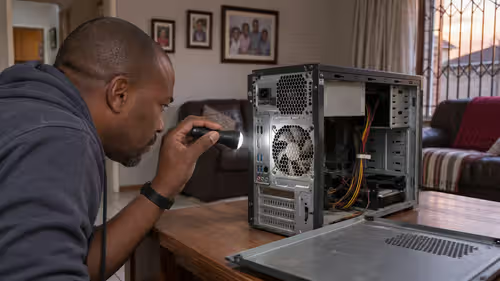
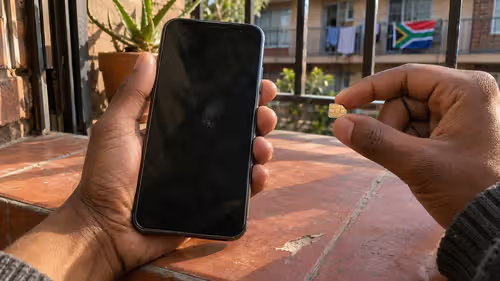
You plug in the DualSense after a match, put the PS5 into rest mode and pick up the controller the next morning to find it flat. Test it with the console awake before you spend money on another cable or charging stand.
Quick Answer
For a PS5 controller not charging in rest mode, select Settings > System > Power Saving > Features Available in Rest Mode. Set Supply Power to USB Ports to Always for a test. Connect a partly charged controller with the supplied USB cable before entering rest mode. This check costs R0.
🔋 Prove the controller can charge while the PS5 is awake
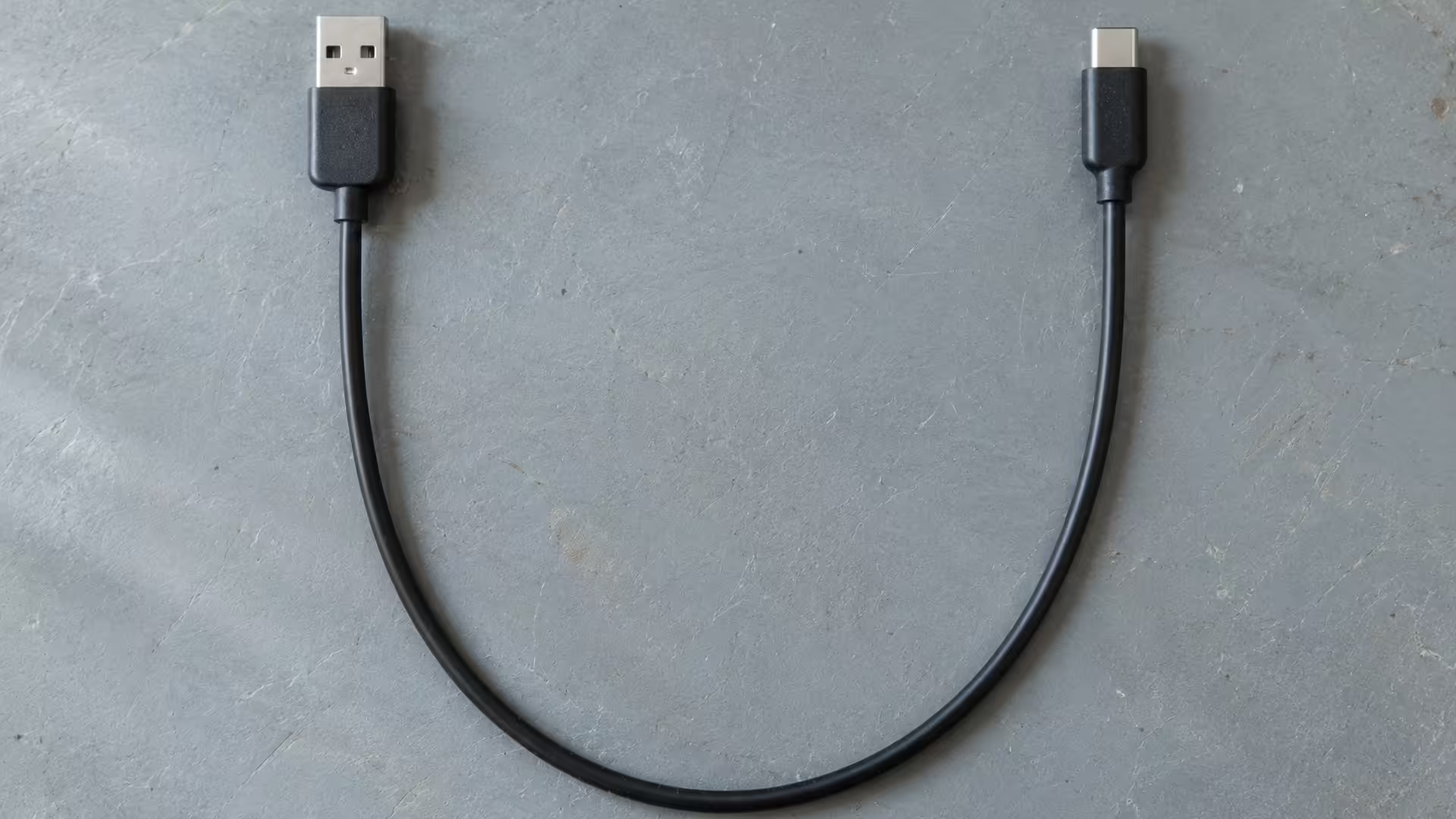
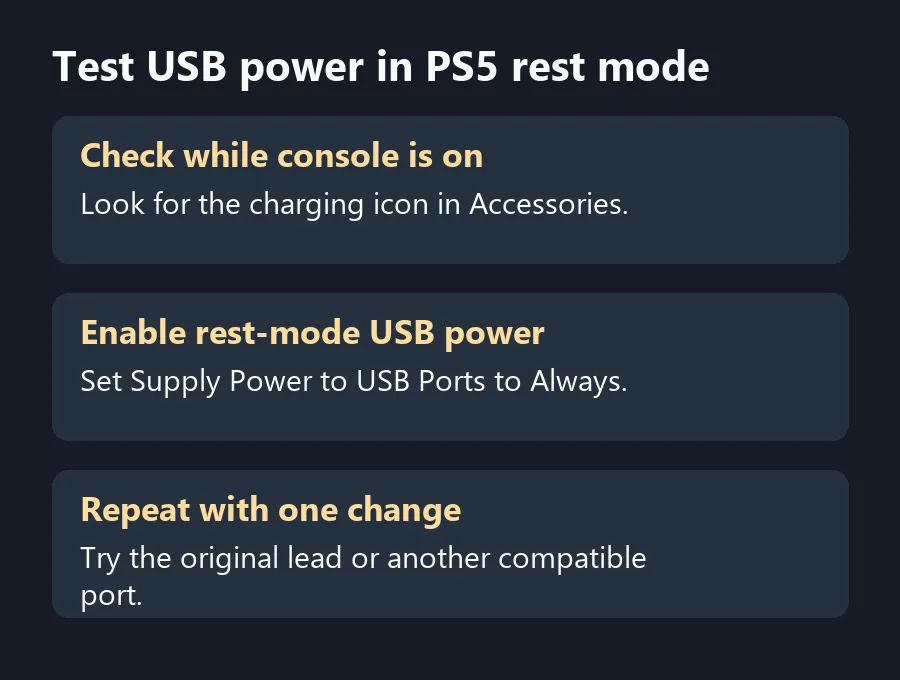
Turn on the console and connect your controller using the cable that came with it or the console. Press the PS button to open the control centre and select Accessories. Look for an animated battery icon. Use a controller that needs charging so a full battery does not cloud the result. If there is no charge indication while the console is on, check that the cable is seated at both ends and try another compatible USB port.
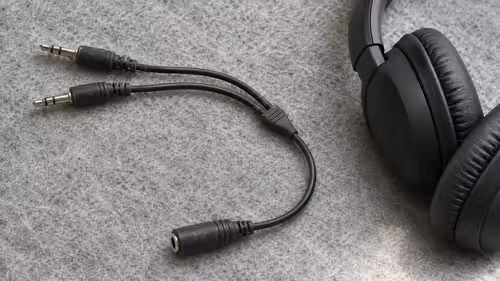
When you test another lead, choose one marked for charging and data. If possible, use a lead you already know works with the controller. Leave the USB hub out of the test and go straight to the console, so you can see what the console and controller do together.
🎮 Change the setting and repeat the test
Find Supply Power to USB Ports under the console's rest mode settings and choose Always for this test. Keep the same cable and port that showed charging while the system was awake. Enter rest mode from the console's power menu and give the controller time to charge. Wake the console and check the battery again in Accessories. You can keep the rest mode setting that suits how and when you play once you have compared the results.
If you use the 3 Hours option, check when you plugged in the controller. That setting supplies power for a window after you enter rest mode. Plugging it in late can miss that window. If your console offers Adaptive, its USB charging behaviour can also vary with the connected controller and battery. Use Always during the comparison for a clearer result.
🔌 Decide whether a cable or stand would help
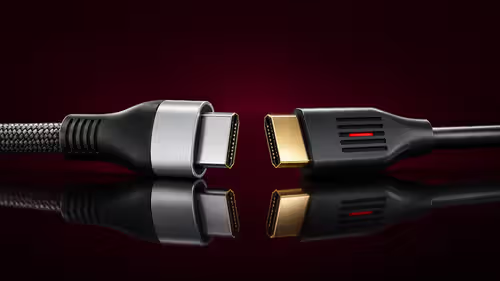
Check the port you plan to use, especially if you keep the console across the room or normally charge from one front socket. Compare Premium Cables only after another lead makes a difference or you know you need more reach. Check the connector at both ends and the cable's stated charging and data support on the product page.
If the problem follows the controller across compatible ports and leads, try a second compatible controller if you have one. Look for your exact controller on the stand's compatibility list and check how the stand gets power. A stand powered by the same PS5 USB port can still depend on that port's rest mode settings. Use Gaming Controllers to compare compatible device options if your testing points to the pad.
Frequently Asked Questions
Where is the PS5 rest mode USB power setting?
Go to Settings > System > Power Saving > Features Available in Rest Mode > Supply Power to USB Ports.
How can I tell whether a DualSense is charging?
Open Accessories from the PS5 control centre. Look for an animated battery icon.
Why does it charge when the PS5 is on?
The rest mode setting can change when USB power is available. Try Always and repeat with the same port and lead.
Can I start with a different cable?
Use the supplied cable first. For an alternate test, use a cable that supports charging and data.
What if I plug in after the PS5 has rested for several hours?
The 3 Hours power window may have elapsed. Wake the console before retesting or use Always to test.
Will any dock charge my controller?
Check the exact model and power source. A dock connected to the console can still depend on its USB power settings.
Check while console is on
Check the console's rest settings and cable before buying a charging stand.