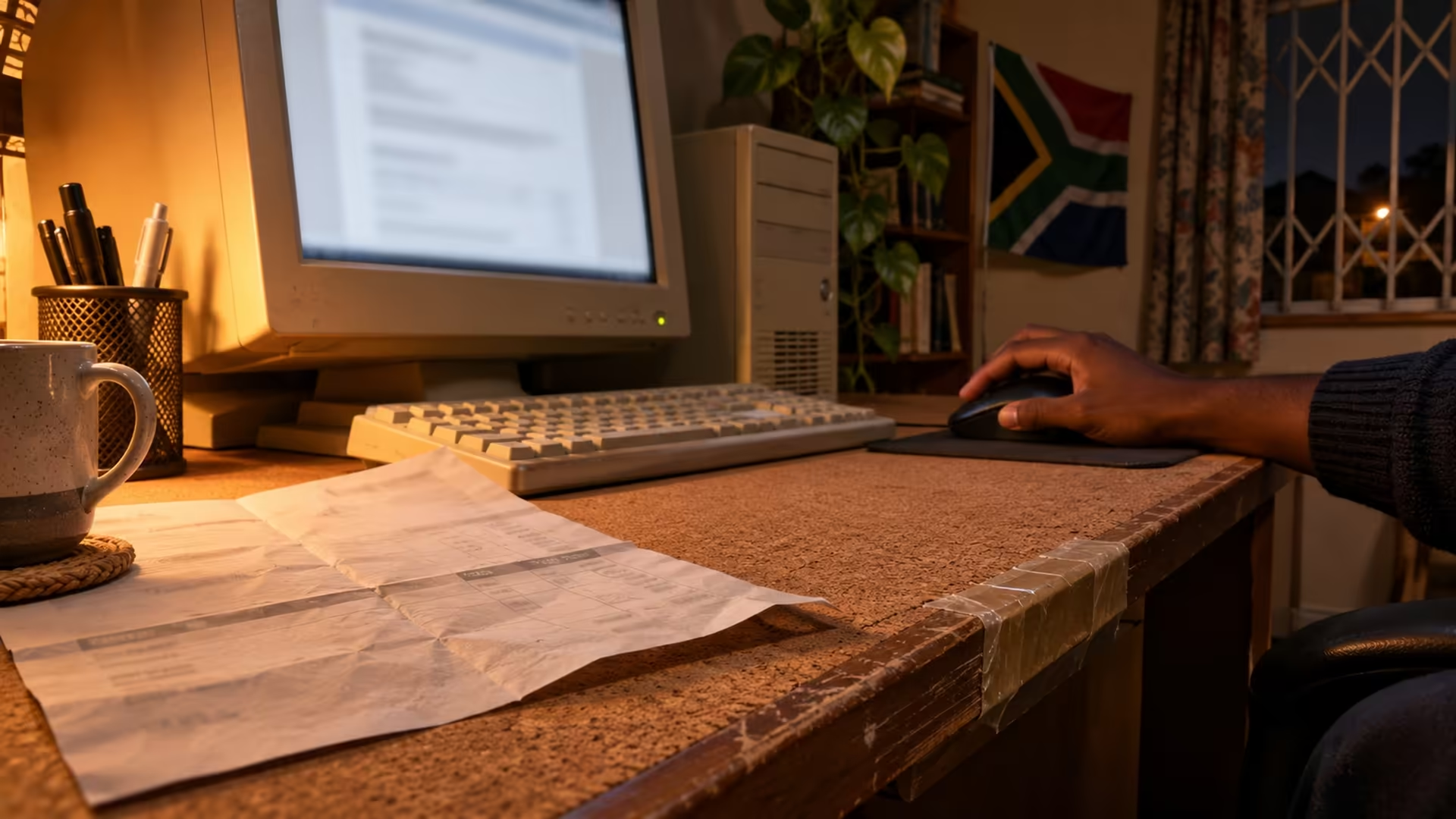
Double-clicking a PDF twice can leave you with no document and a dialog that reads A running instance of Acrobat has caused an error. Check for an existing Acrobat session first. The quickest comparison is to start the app on its own and see whether a different local PDF opens normally.
Quick Answer
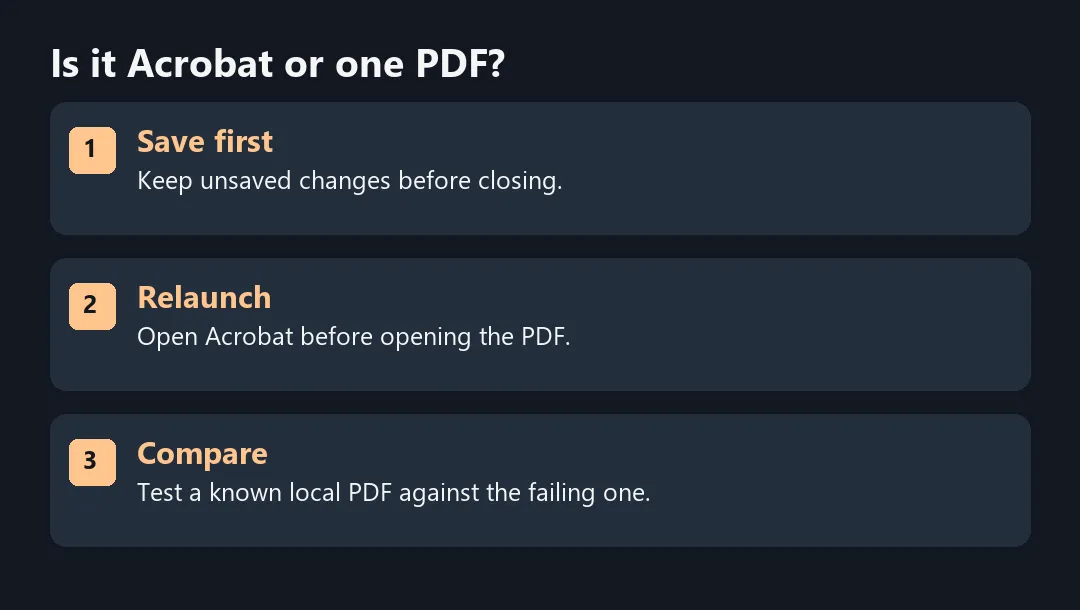
Save any work you can still reach, close Acrobat and reopen it by itself. If it is stuck, end the Acrobat task after saving or restart Windows. Then try a known local PDF. These checks cost R0 and help show whether the error is tied to the session or the file.
📄 Protect the open document
If Acrobat has a window open behind the error, check for an unsaved form or annotation before closing it. Save a copy if appropriate. Then close the app and wait briefly to see whether the window disappears. If it cannot close, use Windows Task Manager to check for the Acrobat process, or restart once your other work is saved.
Start Acrobat on its own from the Start menu. If the app starts, open a local test file from inside it. Check whether the dialog appears immediately or only after you pick the original document.
🔍 Compare the same action with a second PDF
Use a small local PDF that you previously opened. Avoid testing first from an email preview or another app because a file handoff adds a second variable. If the local test works, save a fresh copy of the problem file from its source and try opening it from Acrobat. Keep the original unchanged.
When multiple good files fail, look for the repair option in Help if the application still opens. If the computer is managed, ask the administrator before changing the installation.
💻 Decide whether you are chasing the right problem
Write down the Windows version, the Acrobat edition and when the error appears. If you only see it on this file or in one session, the result gives a support technician somewhere to start. Leave hardware off the shopping list unless other applications show a separate problem as well.
For a computer you were already planning to replace, compare memory and storage in Laptop Best Sellers. Check current model configurations in All Laptops on Special against the applications you need.
Frequently Asked Questions
Should I force close Acrobat with an unsaved file?
Save your work if you still can. Ending a process can discard changes in its open documents.
Can I restart instead of ending tasks?
Yes. After saving your work, a restart closes the session and gives you a clean test.
Should I start by reinstalling Acrobat?
First see whether Acrobat launches by itself after closing the previous session. Then compare two PDFs.
What if only one PDF fails?
Keep the original and try an independent local file. If that opens, ask the sender for a fresh copy of the failing PDF.
Where is the repair command?
When Acrobat can open, Adobe documents Help > Repair Installation for supported Windows installations.
Does this error mean my laptop needs an upgrade?
No. Test Acrobat and a second PDF first. The error alone does not indicate a hardware fault.
Does the running instance message apply to Windows 11?
Yes. Close and relaunch Acrobat on Windows first. Use the repair option if the app opens but the error keeps returning.
Is it Acrobat or one PDF?
Save your work and isolate a stuck Acrobat session before changing the PC.