A white pointer can be surprisingly hard to follow on a pale document. Windows mouse pointer shadow provides another way to separate the arrow from its background without increasing cursor speed or adding a line of trailing arrows. Try the effect on the pages where you actually lose the pointer.
Quick Answer
Open Settings, Accessibility, Mouse pointer and touch, and look for the pointer appearance options available on your Windows build. Enable the shadow if offered, then compare the same document with it on and off. This is an R0 hardware check: it changes visibility, not the mouse sensor, and cannot repair a cursor that no longer moves.
🖱 Change the visual problem you can identify
First establish whether the pointer is present but difficult to see. Move it onto a dark area and then onto a bright one. If it becomes obvious on one background, contrast may be the practical problem. If movement stops entirely, keep that as a separate symptom.
The accessibility page also offers pointer size and style controls. Change one item, use the pointer for a few minutes and decide whether it helped. Combining a new size, a new scheme and a speed adjustment immediately makes the result less informative.
Some installations expose more appearance controls through Settings, Bluetooth & devices, Mouse, Additional mouse settings. Window labels can vary with the installed build. Use the named appearance controls rather than installing a cursor package simply because a guide shows a different screenshot.
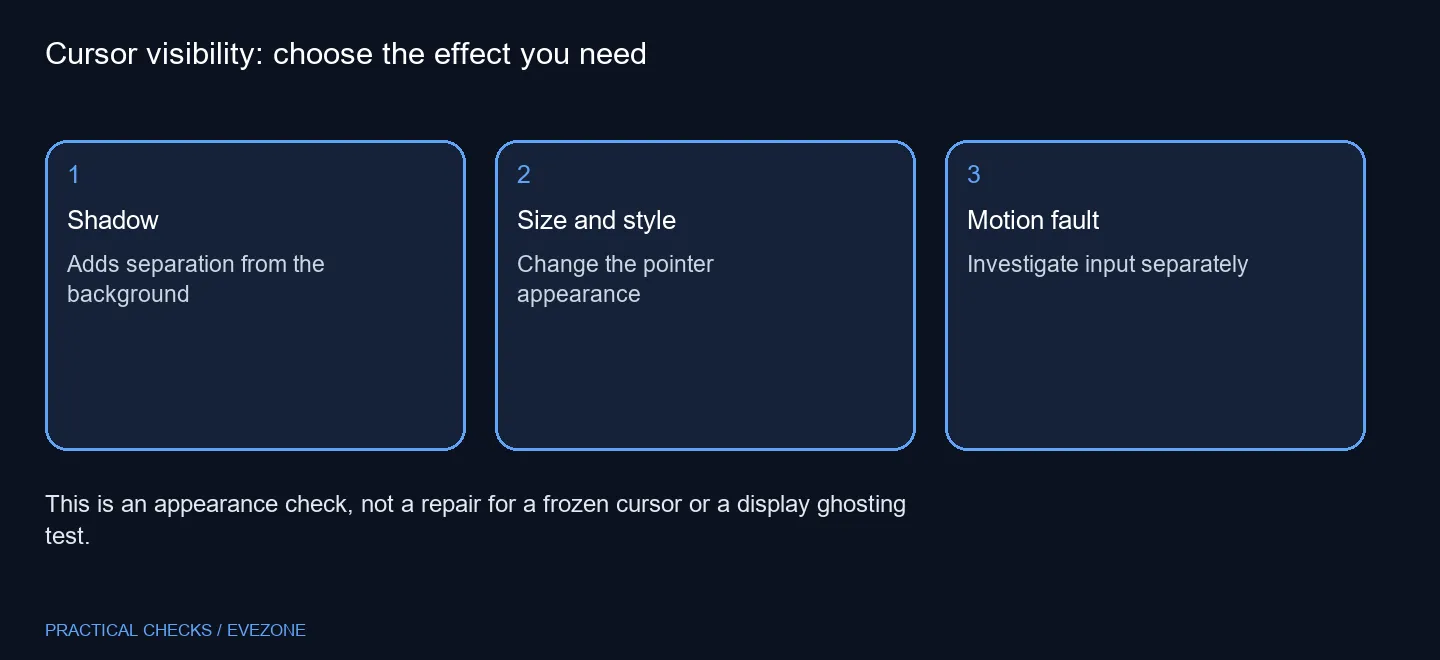
🔍 Test ordinary documents rather than a blank desktop
Open a text page, a photograph and the application where the pointer is hardest to find. A desktop-only test can flatter a setting that is less helpful over the pale spreadsheet or textured image you use all day.
A shadow is also different from pointer trails. If repeated arrows appear behind movement, inspect the trails option instead of assuming the monitor is displaying several independent cursors. Keep the distinction clear when describing the issue to support.
For a South African study desk, the useful saving is avoiding an unnecessary replacement. Browse gaming mice when you need different fit, buttons or connectivity, rather than expecting a new mouse to choose a more visible cursor style automatically.
🧭 Preserve the controls that already work
If your movement speed and clicking feel right, leave them alone while testing contrast. The aim is to see the current position more easily, not to rebuild the whole input setup around a small visibility issue.
Keyboard navigation can provide another way to reach controls while you compare the result. gaming keyboards is relevant if the physical keys themselves need replacing; it is not a requirement for enabling a pointer effect.
If a managed PC hides the relevant option, record the available controls and ask the person who manages it. Do not bypass an organisation's settings just to reproduce a screenshot. A clear description of which backgrounds cause the problem is more useful than a list of unrelated changes.
Frequently Asked Questions
What does the shadow change?
It adds a shadow under the pointer to help separate it from the background.
Does it change mouse sensitivity?
No. Pointer appearance and movement settings are separate controls.
Where should I look?
Check Settings, Accessibility, Mouse pointer and touch. Additional appearance options may also be in Mouse Properties.
Will it fix a frozen cursor?
No. A pointer that stops moving needs input troubleshooting rather than a cosmetic change.
Is this the same as pointer trails?
No. Trails follow movement; a shadow adds visual separation beneath the current pointer.
Must I buy a new mouse?
No. Testing the built-in appearance setting requires R0 additional hardware spend.
Can you follow the pointer comfortably now?
Keep the appearance setting that works, and choose new Evetech input hardware only for a separate physical need.