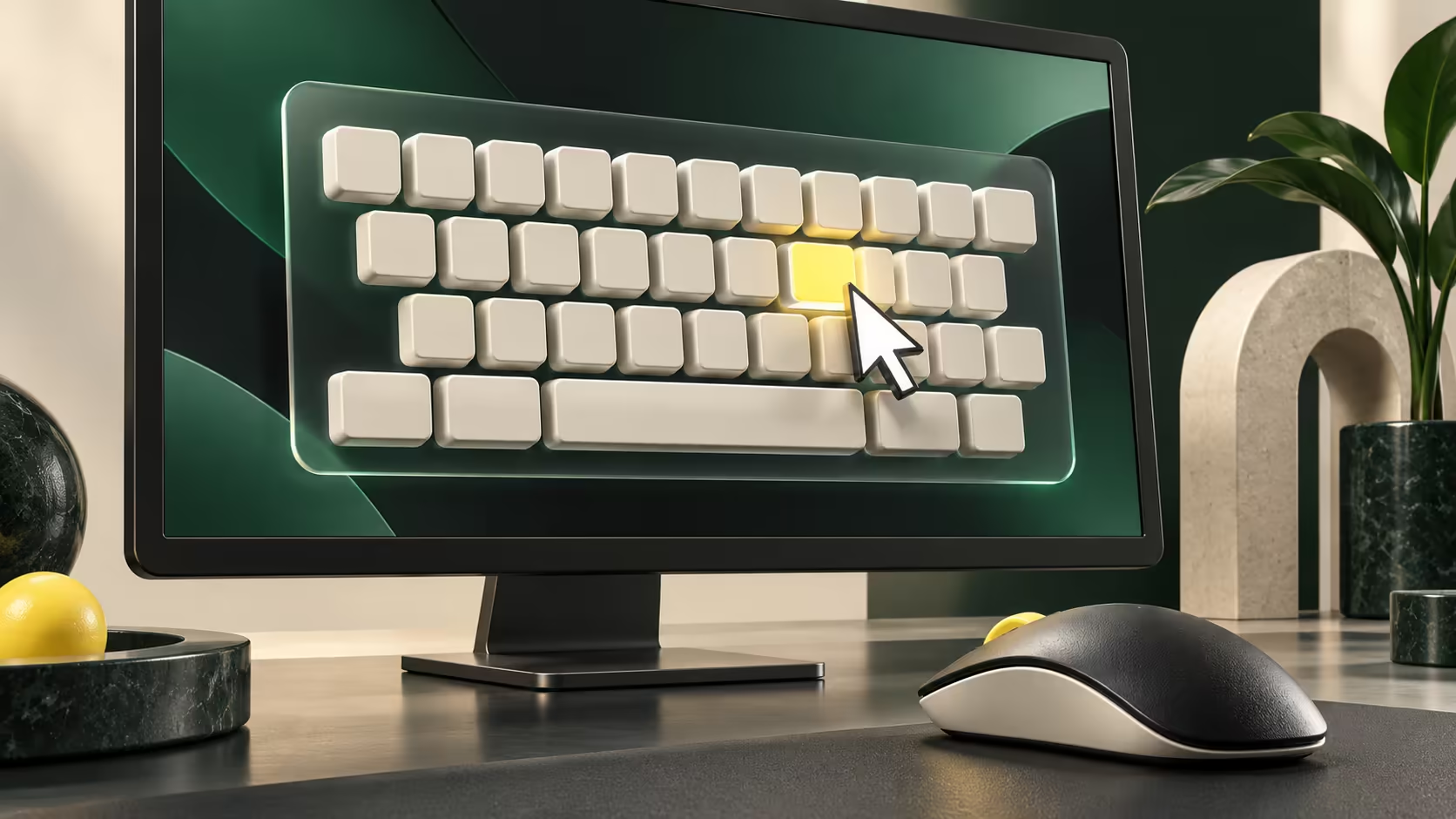
A failed key does not always have to stop you finishing a short piece of typing. Windows on-screen keyboard lets you select visible keys with a mouse or another pointing device. It is especially useful when the keyboard is partly unresponsive but the rest of the desktop still works.
Quick Answer
In Windows 11, open Settings, Accessibility, Keyboard and switch on On-Screen Keyboard. You can use a mouse to click its keys without owning a touchscreen. At sign-in, choose it from the Accessibility menu instead. The tool requires R0 additional hardware spend, but it supplies an alternative input path rather than repairing the physical keyboard.
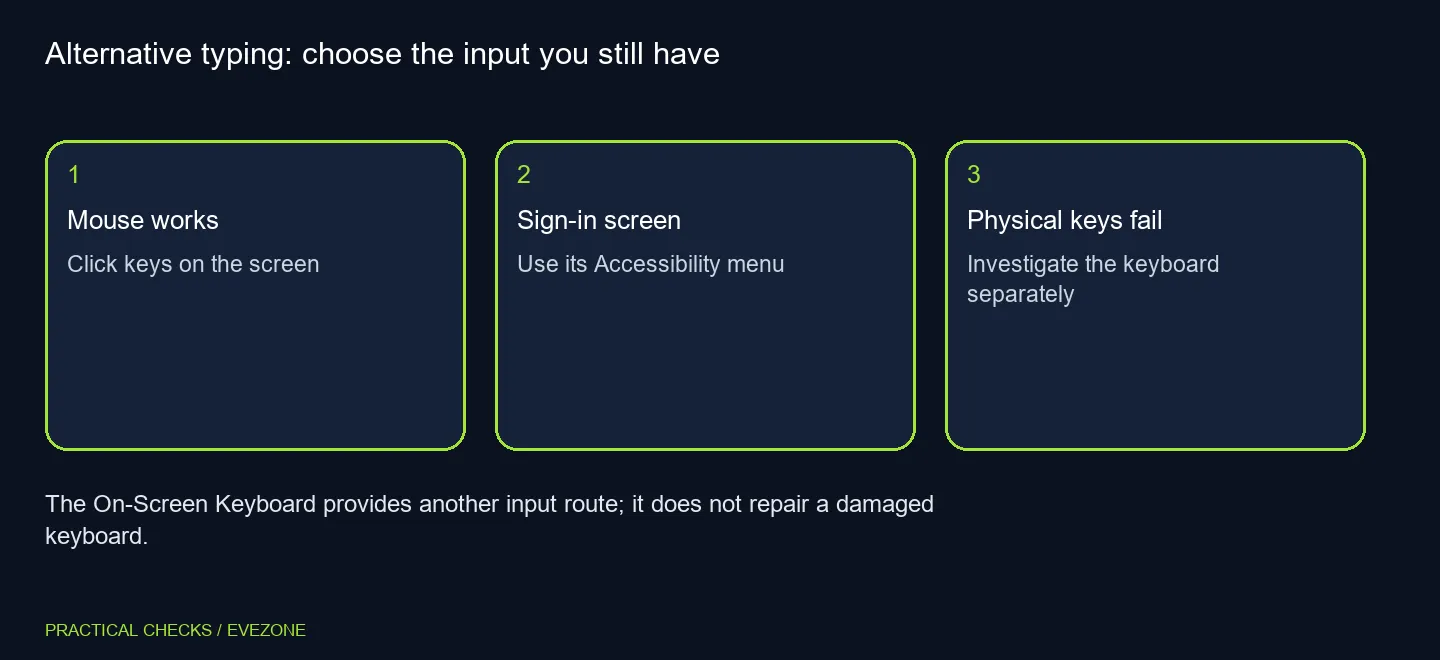
🖱 Use the control you can still operate
If the mouse works, reach Settings through Start rather than relying on a shortcut containing a broken key. Place the text cursor in the field where you want to type, then use the on-screen keys to enter the text.
Windows key, Ctrl and O is another route when those physical keys work. If they do not, repeating the combination is not a meaningful test of whether the OSK exists. Choose a route that matches the input you still have available.
The sign-in screen has its own Accessibility button. That matters when you cannot reach the desktop yet. Keep the normal sign-in requirements in place; the on-screen keyboard is a way to enter input, not a way around account access controls.
⌨ Distinguish the two screen keyboards
Windows also has a touch keyboard. Its appearance around touch input can lead people to assume that all visible keyboards require a touchscreen. The accessibility On-Screen Keyboard is explicitly available without one.
The OSK offers input options, including selecting keys by clicking. Begin with the straightforward mode that fits your pointing device. You can explore other access methods if needed, but a short emergency typing task does not require changing every option.
For a longer-term desk setup, gaming keyboards can help you compare physical layouts and switch preferences. Keep the purchasing decision separate from the immediate need to enter a password or finish a message.
🧰 Investigate the physical fault independently
Successful on-screen typing shows that you have another way to provide input. It does not prove which part of the original keyboard path is faulty. A single worn key, a disconnected cable and a software-specific shortcut problem are not interchangeable diagnoses.
Write down whether the physical problem appears in more than one application and which keys are affected. That description is useful when seeking support and more informative than saying only that typing does not work.
If you choose a mouse from gaming mice for easier pointing, base that choice on grip and control. The OSK can bridge an immediate input need, but it should not force you into an unsuitable permanent setup. Close the visual keyboard when you no longer need it, keeping the route available for future use.
Frequently Asked Questions
Do I need a touchscreen?
No. The On-Screen Keyboard can be operated with a mouse or another pointing device.
How do I open it in Windows 11?
Go to Settings, Accessibility, Keyboard and turn on On-Screen Keyboard.
Can I open it before signing in?
Yes. Use the Accessibility button on the sign-in screen and choose On-Screen Keyboard.
What is the keyboard shortcut?
Windows key, Ctrl and O toggles the On-Screen Keyboard when the required physical keys still work.
Is it the same as the touch keyboard?
No. Windows has a separate touch keyboard; the accessibility OSK is another input tool.
Will it fix my physical keys?
No. It provides an R0 alternative input route while you investigate the keyboard or connection.
Have a working route for the typing you need?
Use the built-in keyboard when it helps, then compare Evetech physical keyboards for the replacement or layout you actually require.