A PC that reads the sign-in screen aloud is not necessarily playing a stray video. Windows Narrator starts automatically when a startup option asks the screen reader to run. The useful clue is when the voice begins: before you sign in, after your desktop loads, or only after a keyboard shortcut.
Quick Answer
Use Windows key, Ctrl and Enter to stop the current Narrator session if it is unwanted. Open its settings with Windows key, Ctrl and N, then inspect the separate before-sign-in and after-sign-in options. These checks require R0 additional hardware. On a shared PC, preserve the screen-reader access that another user needs.
🔊 Identify speech before silencing the whole PC
Listen to what is being read. Narrator announces interface elements and text as you move through them. A browser tab, a media player and another accessibility application are different possible sources of speech, so confirm the program before changing startup options.
Muting Windows may stop the noise temporarily, but it also removes other useful audio. It does not tell you why the screen reader started. Use Narrator's own controls when that is the feature you mean to change.
If another person relies on spoken navigation, discuss the intended change with them. A shared sign-in option affects access at a point where a user may not yet be able to choose their normal personal settings.
👤 Check the time at which it starts
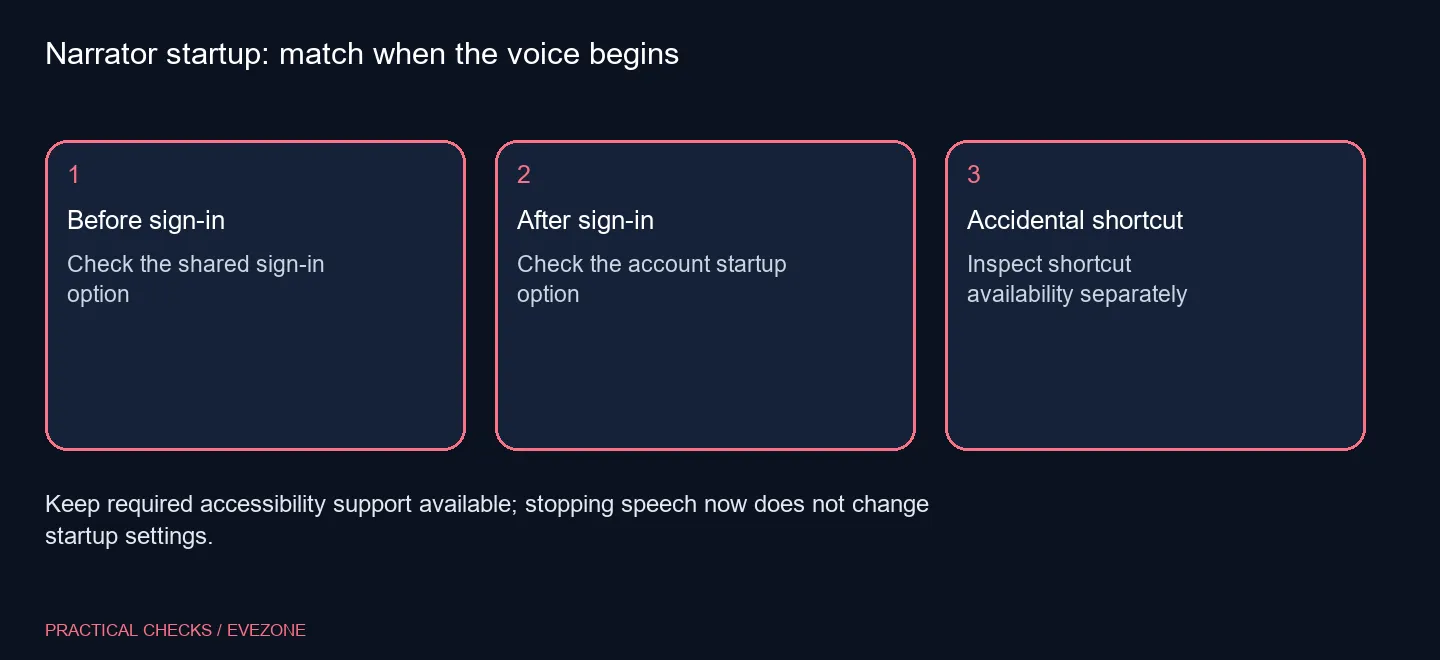
The before-sign-in option makes Narrator available at the sign-in stage. The after-sign-in option starts it for the signed-in experience. Treat them as two deliberate choices rather than clearing every accessibility control to make the desktop quiet.
Expand the options beside the Narrator toggle in its settings if the startup controls are not immediately visible. Record the current selections, change the one that matches the unwanted behaviour and test at the relevant stage when convenient.
The shortcut is another separate consideration. If speech begins only after a particular key combination, inspect whether the shortcut is enabled instead of assuming the startup setting has failed. Check the keys you intended to press and whether a modifier was held accidentally.
⌨ Keep useful access without an unnecessary purchase
Browse gaming keyboards when you need a different physical layout or easier-to-reach keys. Replacing a keyboard does not automatically clear an enabled Narrator startup option, so separate the hardware preference from the setting.
For someone using gaming mice to navigate the settings, make the immediate controls easy to find and avoid changing unrelated input features. The goal is predictable access for each user, not removal of accessibility tools as a group.
Once the intended startup behaviour is confirmed, leave voice speed and other Narrator preferences alone unless they also need adjustment. A focused change is easier to explain to the next person using the computer and easier to reverse if their needs change.
Frequently Asked Questions
How do I stop the current session?
Press Windows key, Ctrl and Enter together to toggle Narrator, or turn it off in its settings.
Where are Narrator settings?
Press Windows key, Ctrl and N, or open Settings, Accessibility, Narrator.
Why does it return after sign-in?
Check whether Start Narrator after sign-in remains selected. Stopping the current session does not clear that option.
What if it speaks before login?
Inspect the separate Start Narrator before sign-in option, taking other users of the PC into account.
Must I mute all sound?
No. Muting the PC changes all audio and leaves the Narrator startup choice unresolved.
Is new audio hardware required?
No. Checking these accessibility settings is an R0 hardware step; keep speakers or headphones for an actual audio need.
Need a quieter sign-in without removing useful access?
Set Narrator startup deliberately, and compare Evetech keyboards only for a separate comfort or layout requirement.