An accidental extra finger can turn a scroll into an app switch. Windows three finger gestures are intended shortcuts, but the default action may not suit the way you rest your hand on a laptop. Match the setting to the gesture that actually triggers the unwanted action.
Quick Answer
Go to Settings, Bluetooth & devices, Touchpad and expand Three-finger gestures where available. Choose the action offered by your device, then test a deliberate three-finger swipe. This is an R0 adjustment to existing controls, not a promise that every laptop supports the same gesture menu or a reason to replace a working touchpad.
✋ Count fingers before changing the action
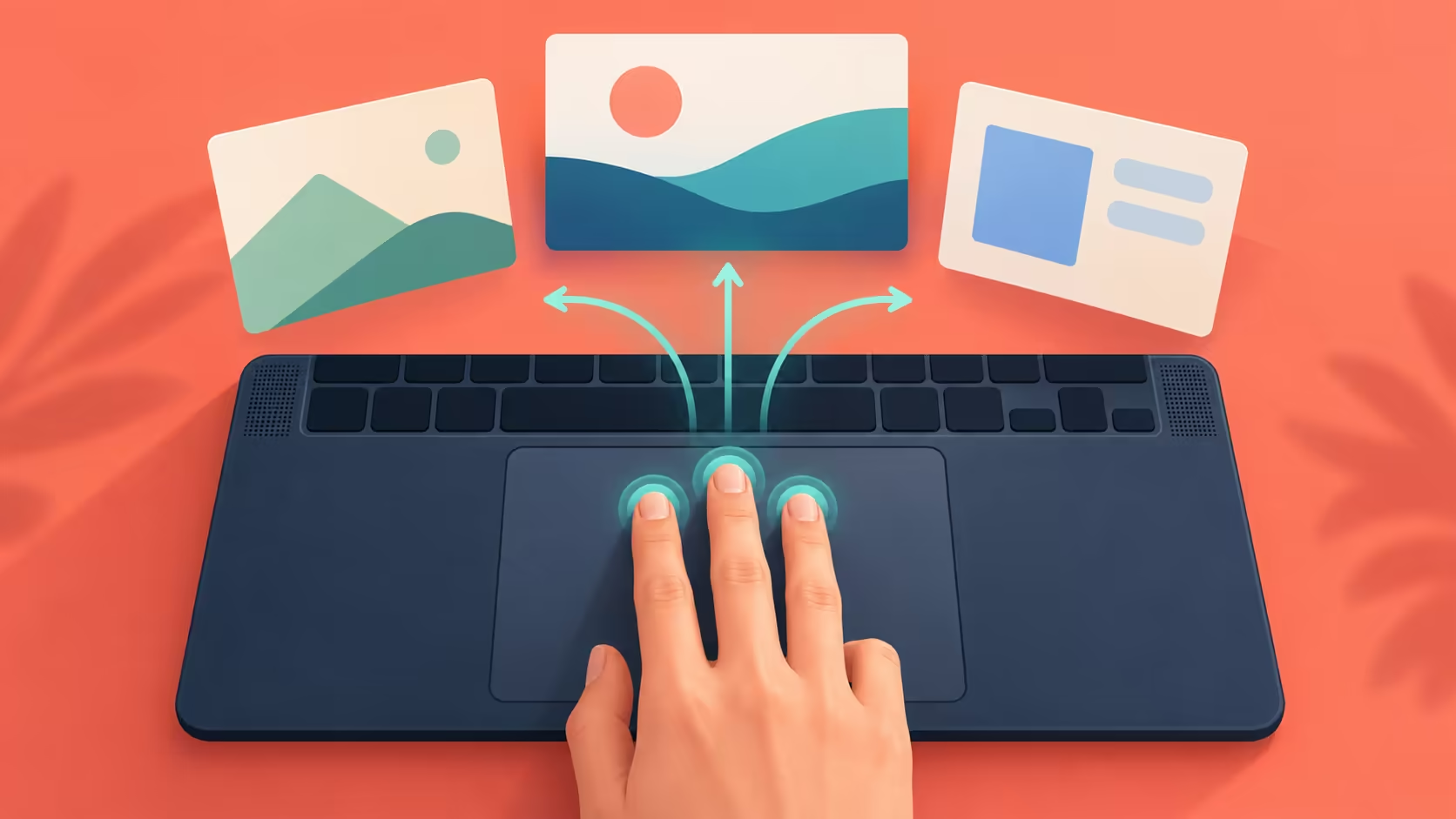
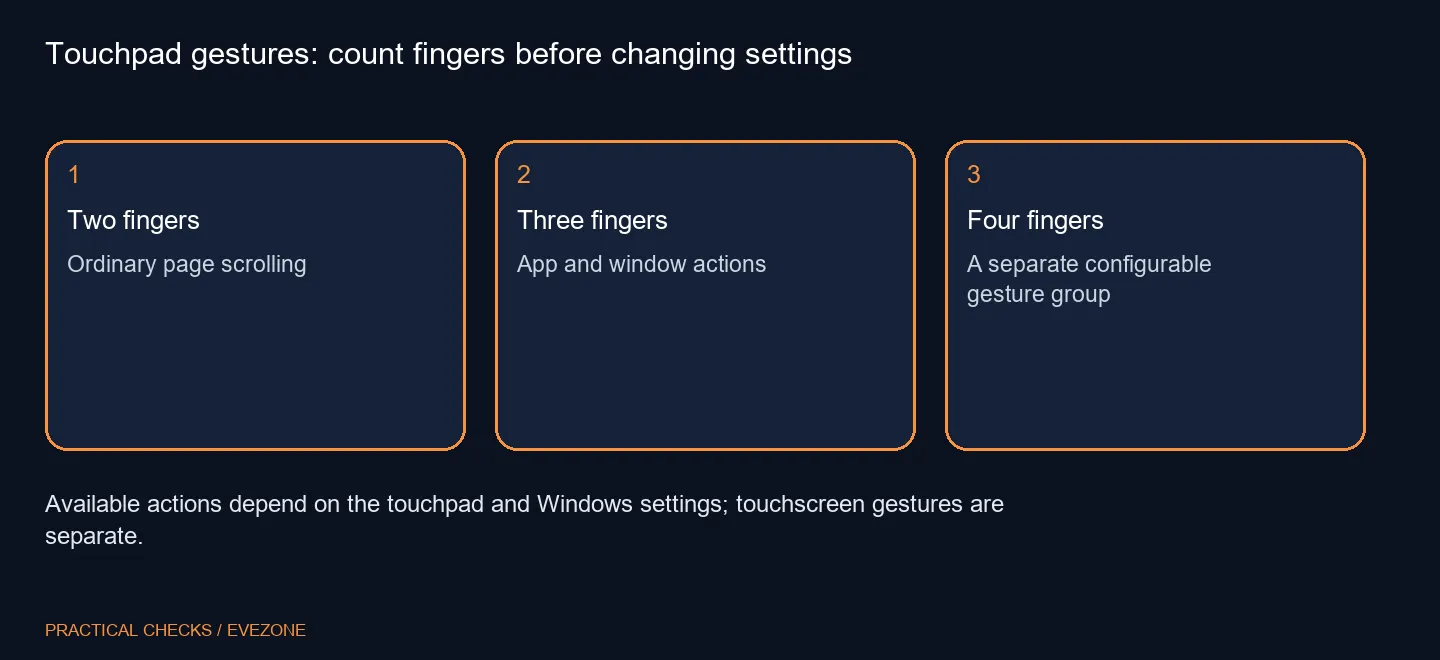
The documented defaults use three fingers up to show open windows, down to show the desktop, and left or right to switch apps or windows. Two-finger scrolling is a different action. Describe which movement causes the problem before changing either group.
Touchscreen gestures also have their own behaviour. A swipe directly on the display and a swipe on the touchpad should not be treated as the same test, even if both use three fingers. Keep your hand on the intended input surface when checking the result.
Available controls depend on the touchpad. If the three-finger section is absent, record that fact rather than assuming the laptop is broken. The manufacturer and installed driver can determine which settings Windows exposes.
🧪 Try the setting with ordinary windows
Open two harmless applications and practise the gesture slowly. Watch whether the action matches the menu you selected. This avoids mistaking a lost window or a switched desktop for an application that has suddenly closed.
If your hands often trigger a gesture unintentionally, choose a less disruptive offered action or disable that assignment where the menu allows it. There is no requirement to use every shortcut. Comfort and predictable behaviour matter more than mastering a gesture you do not need.
When comparing amd laptops on special, test the physical touchpad position and palm-rest space as well as the processor specification. A larger pad or different placement may change how it feels, but an available software assignment should be checked before spending a laptop budget.
💻 Separate preference from an input failure
A recognised gesture that performs an unwanted command is different from a pad that ignores all movement. The first points towards configuration; the second needs a broader device check. Keep these observations separate if you seek support.
An external mouse from gaming mice can be a useful desk preference or temporary alternative, but it does not explain what a touchpad swipe is assigned to do. Test each input device deliberately rather than changing both sets of controls together.
After settling on an action, return to normal work and see whether accidental switching stops. If it does, keep that focused change. Reverting to the previous assignment remains straightforward if you later decide the original gesture was useful.
Frequently Asked Questions
Where are these settings?
Open Settings, Bluetooth & devices, Touchpad, then expand Three-finger gestures if that section is available.
What does an upward swipe do by default?
The documented three-finger upward swipe shows open windows on a supported touchpad.
What about a downward swipe?
The standard three-finger downward swipe shows the desktop.
Can I assign another action?
Yes, supported devices expose action menus in the three-finger and four-finger gesture sections.
Does this change two-finger scrolling?
That is a separate gesture. Check scroll controls when the page moves in the wrong way.
How much does the adjustment cost?
Using the existing Windows controls costs R0 in additional hardware; a new laptop is not needed just to change an available action.
Want fewer accidental window switches?
Choose a touchpad action you can use comfortably, then compare Evetech laptops or mice only when your physical setup needs a change.