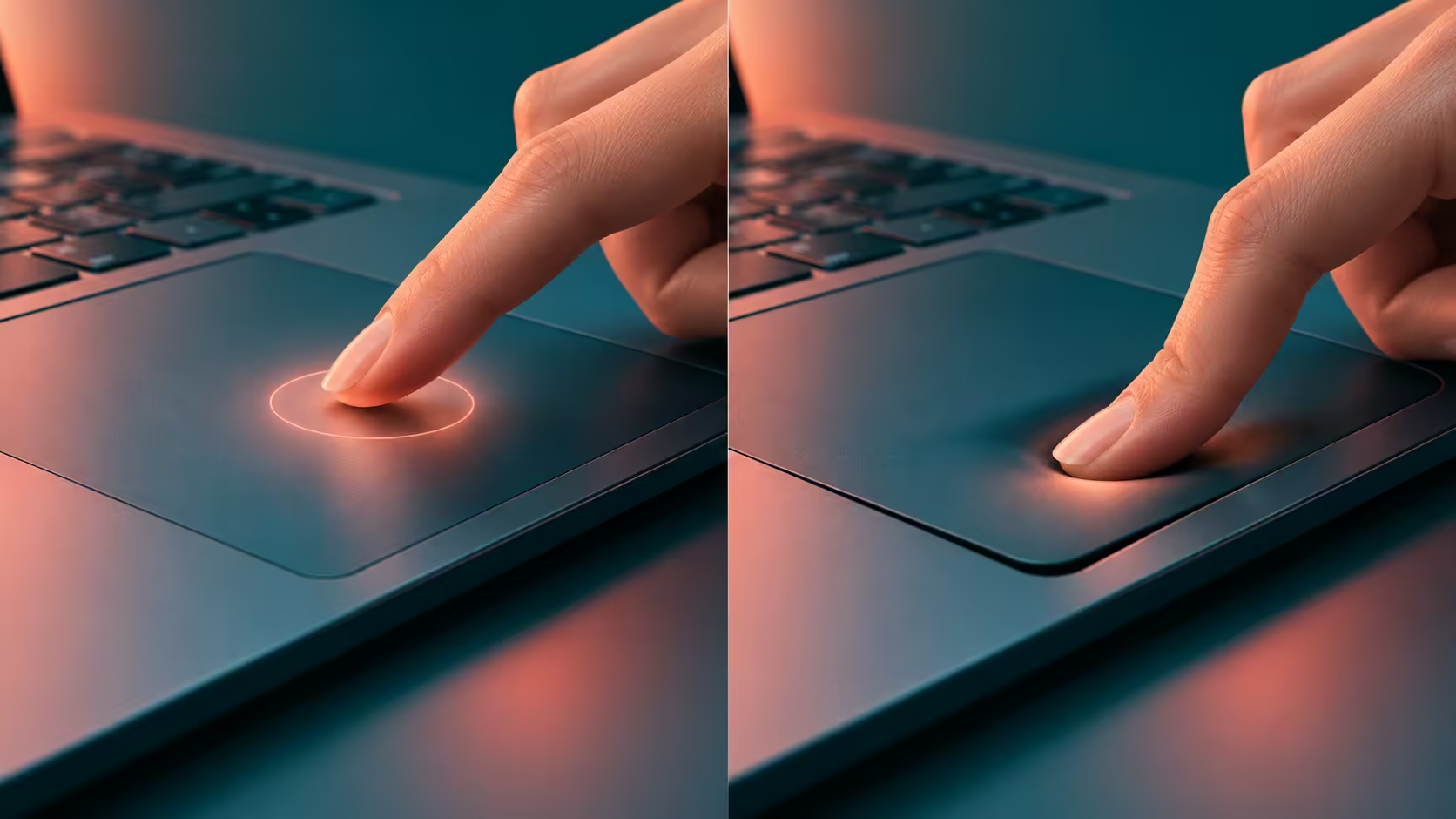
A touchpad can move the pointer correctly while a light tap does nothing. Windows touchpad tap to click is a gesture setting, so that behaviour is different from a pad that no longer detects your finger at all. Test tapping and physically pressing as two separate actions.
Quick Answer
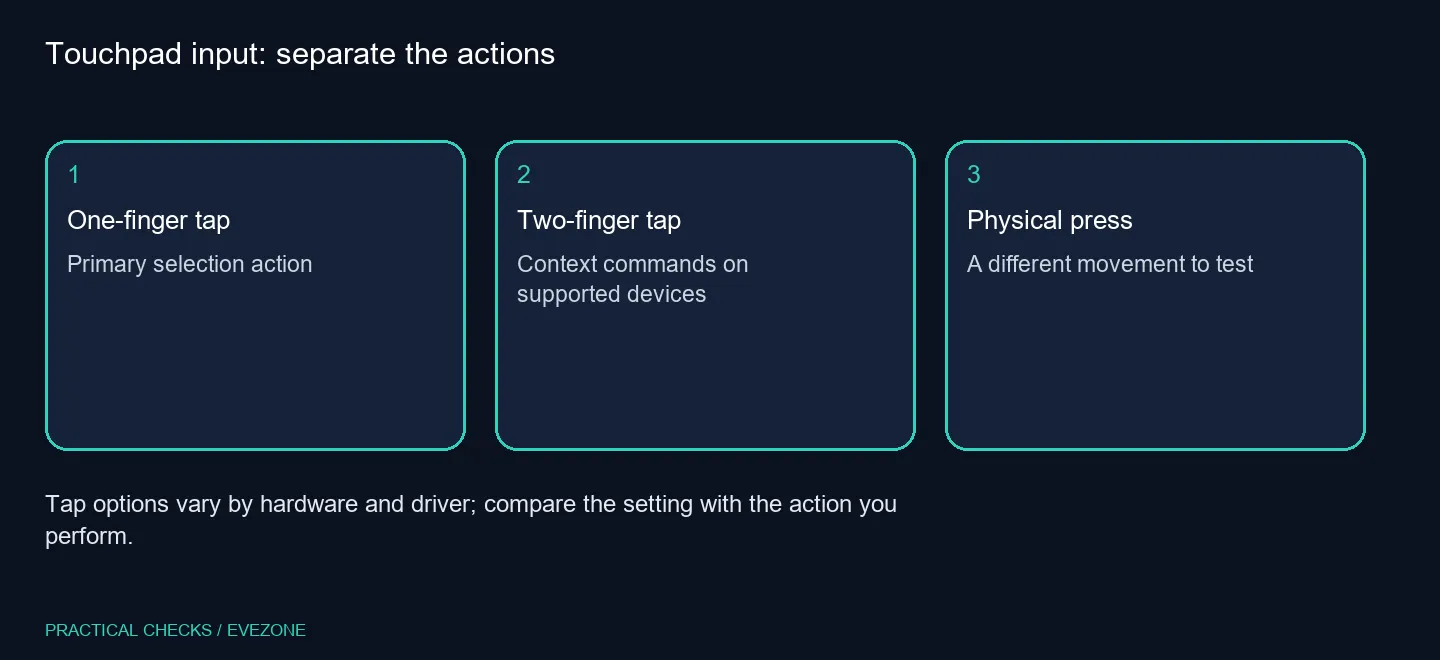
Open Settings, Bluetooth & devices, Touchpad and inspect the available tap controls. Enable the single-finger selection action if offered, then try it on a harmless item. This R0 check uses your existing laptop. A two-finger context-menu tap and a physical press are different inputs, and supported options vary between devices.
👆 Reproduce the action you mean to change
Move the pointer onto an ordinary file or control. Lift your finger, touch the pad lightly once and lift it again. Then compare that with pressing the pad or its physical button. Describe which action succeeds instead of grouping both under the word click.
A two-finger tap commonly opens context commands rather than selecting an item. That is useful when you want a right-click action, but it can be confusing if an extra finger rests on the surface while you are aiming for a simple selection.
Check the manufacturer's controls when Windows does not expose the options shown in another guide. A missing menu is not enough evidence to declare the hardware faulty. Keep the laptop model and driver context available when asking for help.
🧪 Change taps without rebuilding every gesture
Use the tap controls for a tap problem. Leave scrolling, pointer speed and multi-finger swipes unchanged while testing whether the primary selection action responds. Otherwise you may solve one issue and create a different behaviour that is difficult to trace.
Try a second ordinary application after the first test. A result restricted to one program is useful information; it does not establish that the pad has failed everywhere. Avoid using a destructive control as your test target.
When comparing amd laptops on special, pay attention to the position and feel of the touchpad as well as the main specifications. A physical preference can justify another setup, but first check whether the action you want is already available on the machine you own.
🖱 Choose the input method that fits your work
Some people prefer a deliberate physical press; others find light taps more comfortable. Neither preference requires enabling every gesture. Choose the behaviour you can repeat reliably without accidental context menus or unwanted movement.
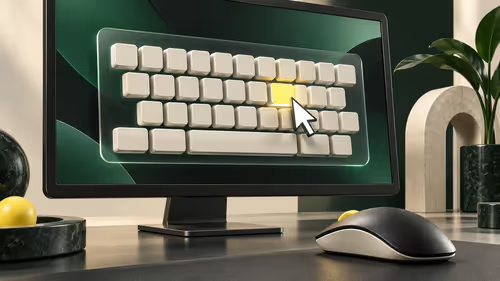
An external mouse from gaming mice can suit long desk sessions. It also provides another input route while you investigate a pad, but its success does not identify whether the original issue was a setting, driver or physical defect.
After the change, use the laptop normally and note whether selections are predictable. If pointer movement and physical clicking both fail, collect those symptoms separately rather than repeatedly toggling tap options. That keeps a simple configuration check from becoming an unfocused hardware diagnosis.
Frequently Asked Questions
Is tapping the same as pressing?
No. A tap is a light contact gesture; a press physically clicks the pad or its button.
What does a one-finger tap do?
On a supported and enabled touchpad, it performs a primary selection action.
What does a two-finger tap do?
It commonly opens context commands, like a mouse right-click, when that gesture is enabled.
Where do I check tap settings?
Look in Settings, Bluetooth & devices, Touchpad and inspect the available tap controls.
Does every laptop have identical controls?
No. The hardware and installed driver affect the gestures and options available.
Should I replace the laptop first?
No. An R0 check of the tap setting and a separate physical-click test come before a hardware purchase.
Does a light tap now do what you expect?
Keep the touchpad behaviour you prefer and compare Evetech mice or laptops when you need a different physical setup.