A useful background app can be running while its shortcut seems to have disappeared. Windows system tray icons may be tucked into the hidden icon menu rather than placed directly beside the clock. Find that shortcut before reinstalling the app or assuming a missing icon means the program has stopped.
Quick Answer
Right-click an empty part of the taskbar and open Taskbar settings. Check System tray icons and Other system tray icons, including the hidden icon menu, then choose which available app shortcuts should stay visible. The adjustment costs R0 in extra hardware and does not, by itself, close apps or change their startup behaviour.
📍 Find the right group of controls
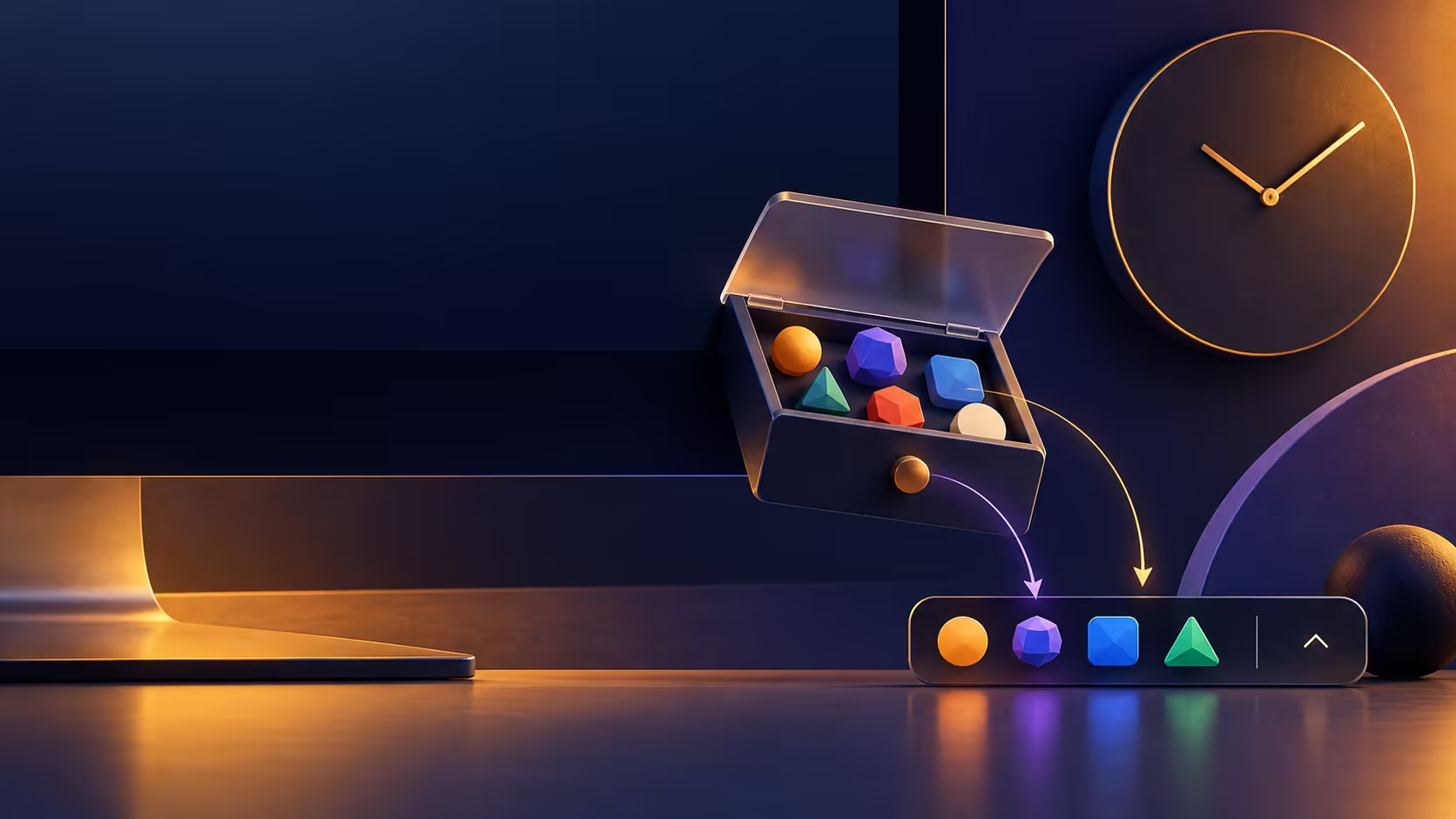
The system tray sits at the taskbar end near the clock. Its icons are different from the main row of pinned applications. Start by opening the hidden icon menu, if enabled, and checking whether the app shortcut is already there.
The settings separate built-in tray elements from other application icons. Inspect the relevant group rather than toggling every taskbar item. An app may need to be running before its tray shortcut is available, so check the application itself if there is nothing to move.
For a frequently used shortcut, keeping it visible can save a few steps. Leave less useful icons in the hidden menu to preserve space. The right arrangement is the one that makes your own daily checks easier.
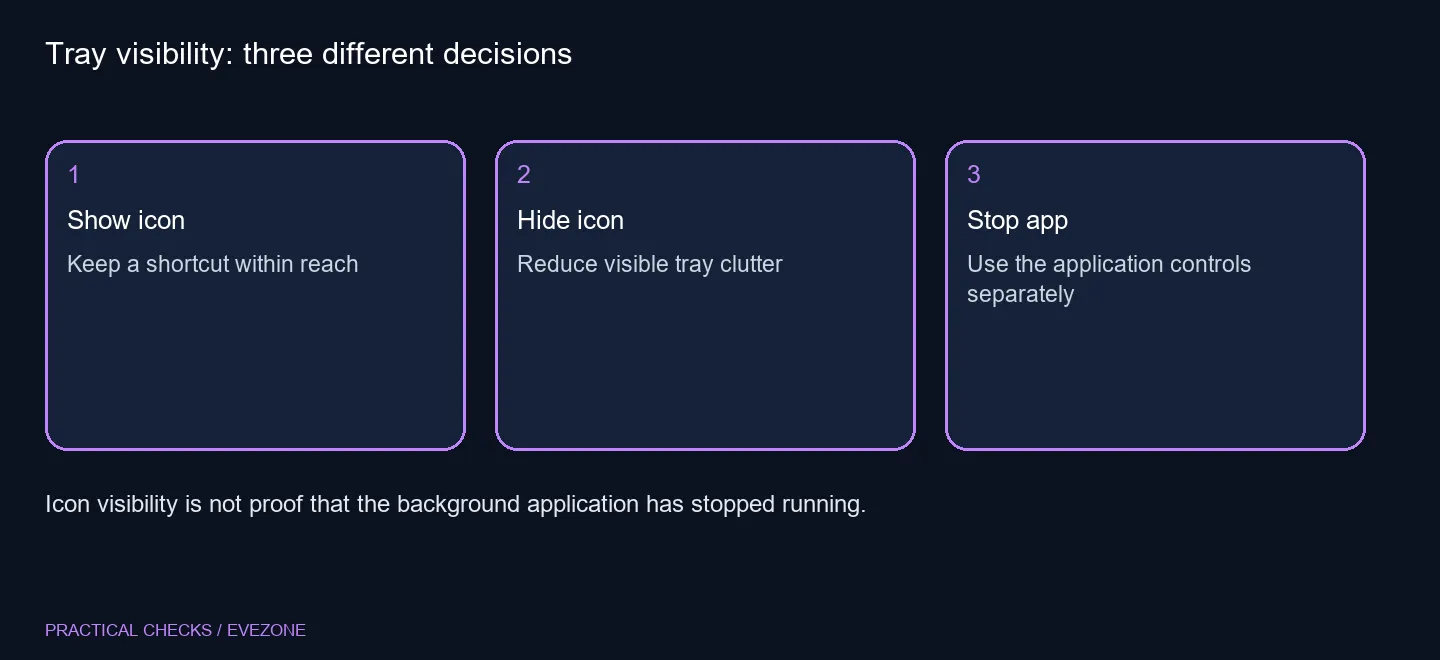
🧹 Hide clutter without confusing it with app control
Hiding a tray icon is a visual choice. If your actual goal is to stop an application, use the application's own exit controls or investigate its startup settings separately. Do not use a tidier clock area as evidence that background work has stopped.
Notification sounds, taskbar badges and tray icons also answer different questions. An icon can provide access to settings while an alert tells you that something happened. Name which of those is distracting you before changing its control.
Try rearranging the icons so the ones you need are easy to recognise. If you use gaming keyboards, keyboard access and clear shortcuts may matter more than keeping every background symbol in view. The tray should support the way you work rather than become another checklist to maintain.
🔎 Check an apparent disappearance carefully
Open the app normally, then inspect the tray again. If its shortcut returns only while the app is running, that is useful information about its behaviour. If it never appears, check whether the app actually provides a tray shortcut rather than assuming all software does.
A precise pointer can help with a crowded taskbar; browse gaming mice for a physical fit or button requirement, not because hidden tray placement suggests a mouse fault. A disappearing icon is an interface observation, not a diagnosis of input hardware.
On a managed computer, some taskbar settings may be controlled centrally. Record the missing option and ask the administrator rather than trying unofficial replacements. Once the preferred shortcuts remain accessible, leave unrelated taskbar settings alone.
Frequently Asked Questions
Where is the tray menu?
Right-click an empty taskbar area, open Taskbar settings, then inspect System tray icons and Other system tray icons.
What is the hidden icon menu?
It is the overflow area for tray icons that are not kept directly beside the clock.
Does hiding an icon close the app?
No. Treat icon placement and the app running in the background as different choices.
Can I rearrange icons?
The taskbar guidance allows tray icons to be dragged to change their order or placement.
Is this the same as notification badges?
No. A tray shortcut and a badge on a taskbar app button are different interface elements.
Do I need a new PC?
No. Adjusting the available icon controls requires R0 additional hardware spend.
Found the shortcut you needed?
Keep useful tray icons visible and choose Evetech desk hardware for comfort rather than to solve a hidden-menu setting.