A black preview just before a call does not immediately mean the webcam has failed. Windows 11 camera not working can come from a closed shutter, the wrong input or an access setting. Work through those layers in order so that a software restriction does not turn into an unnecessary purchase.
Quick Answer
Check the shutter and USB connection, then test the Windows Camera app before changing the meeting app. Review Settings, Privacy & security, Camera for the relevant permissions. Start with R0 in new hardware: Evetech listed the Logitech C270 at R299 on 26 September 2026, but even a new webcam cannot solve a blocked permission by itself.
📷 Give the hardware a simple test
Look for a sliding shutter, a camera button or a keyboard key with a camera symbol. On an external webcam, confirm the connection is secure. A physical privacy control is easy to overlook when you mostly use the camera in one application and assume its settings have not changed.
Microsoft recommends testing with the Windows Camera app to help distinguish an app-specific problem. Open it and check the preview. If the camera works there, note that result before returning to the program used for calls. It gives you a useful comparison rather than another setting changed without a test.
For an external camera, testing another USB port or another available computer can help isolate the fault. Borrow equipment where possible. Do not buy a replacement only because one program shows a blank square.
🔐 Check the permission that applies
In Windows 11, open Settings, Privacy & security, Camera. Check Camera access and the relevant app controls. The documented Windows permission model distinguishes Microsoft Store apps from desktop apps; a desktop program may not appear in the individual Store-app list.
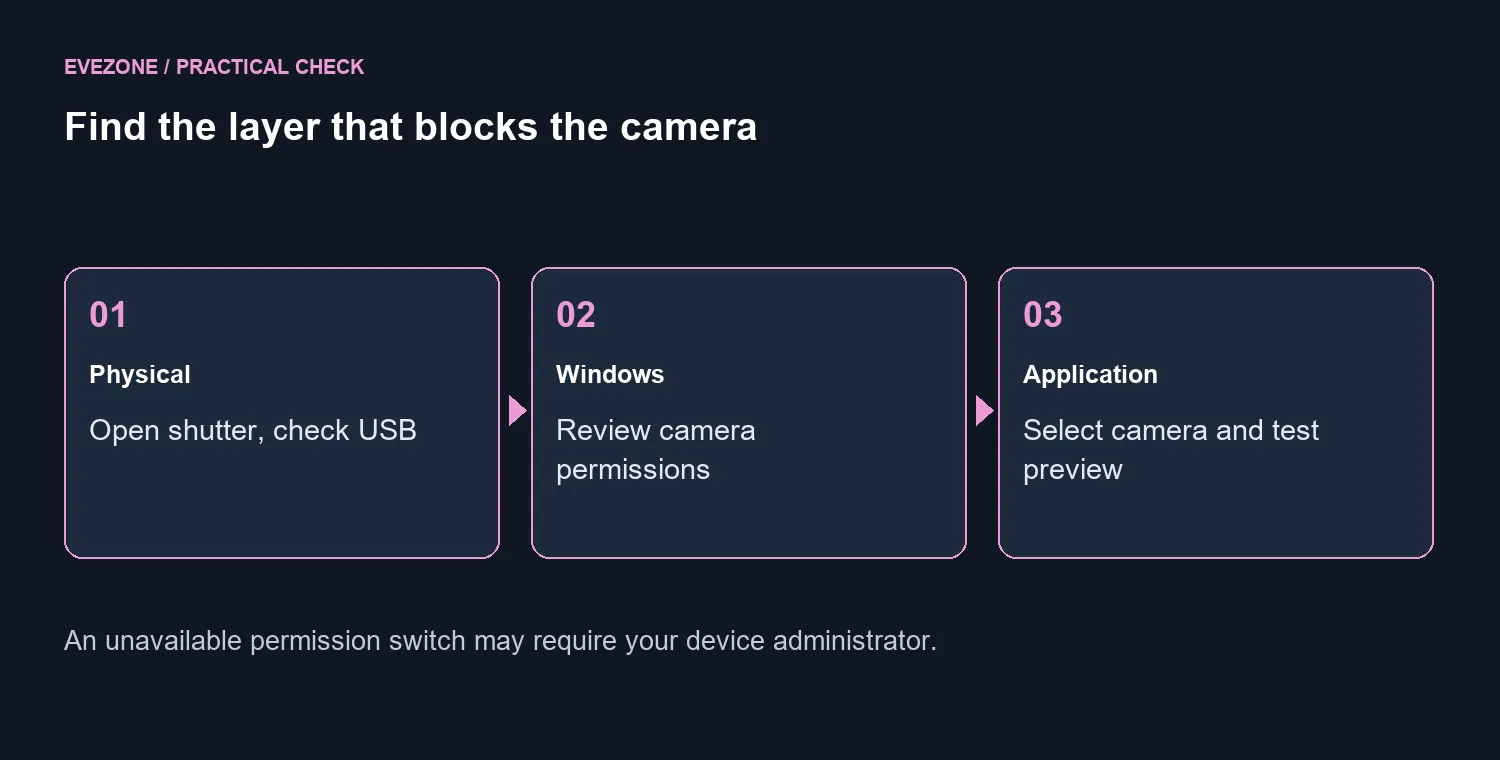
Check desktop app access when that is the kind of program you use. Windows builds and managed settings can differ, so read the controls presented on your machine rather than trying to force an exact screenshot to match. If the device access switch is unavailable, ask the administrator instead of attempting to bypass a work policy.
This matters on a South African work-from-home desk where one camera may be shared between a personal computer and an employer's laptop. The physical camera can be fine while the two machines have different permission policies.
🧪 Return to the meeting app
Once the basic preview works, select the intended camera inside the meeting program and test again. A laptop's built-in camera and an external webcam are separate choices. Record which one works, in which app, before moving to more disruptive troubleshooting.
Browse webcams if the hardware testing points towards replacement, or compare the full webcam shelf if you also want a different mounting or capture format. The dated R299 example is a starting price reference, not a guarantee that its features match your current camera.
If the camera fails across devices, keep those test results for support. If it works in Camera but fails in one meeting app, keep investigating that app's selection and access. That distinction gives the next person helping you something concrete to work with.
Frequently Asked Questions
What should I check before changing Windows settings?
Open the physical shutter or camera switch and check the USB connection. A closed shutter can look like a failed camera.
Where are Windows 11 camera permissions?
Open Settings, then Privacy & security, then Camera. Check device access and the permissions relevant to the app you use.
Why is my meeting app missing from the Store app list?
It may be a desktop app. Check desktop camera access and the camera selected inside that program.
What if the Camera access control is unavailable?
Ask the device administrator. Do not try to bypass a work or school policy.
Does working in Camera prove every meeting app will work?
No. It helps isolate the issue. The meeting app can still have the wrong camera or different access settings.
What is a replacement price reference?
A local option on 26 September was the in-stock Logitech C270 at R299. Try the free access checks before replacing your camera.
Need a webcam after completing the checks?
Compare Evetech models by the capture format and mounting you need, keeping your test results handy for support.