Quick Answer
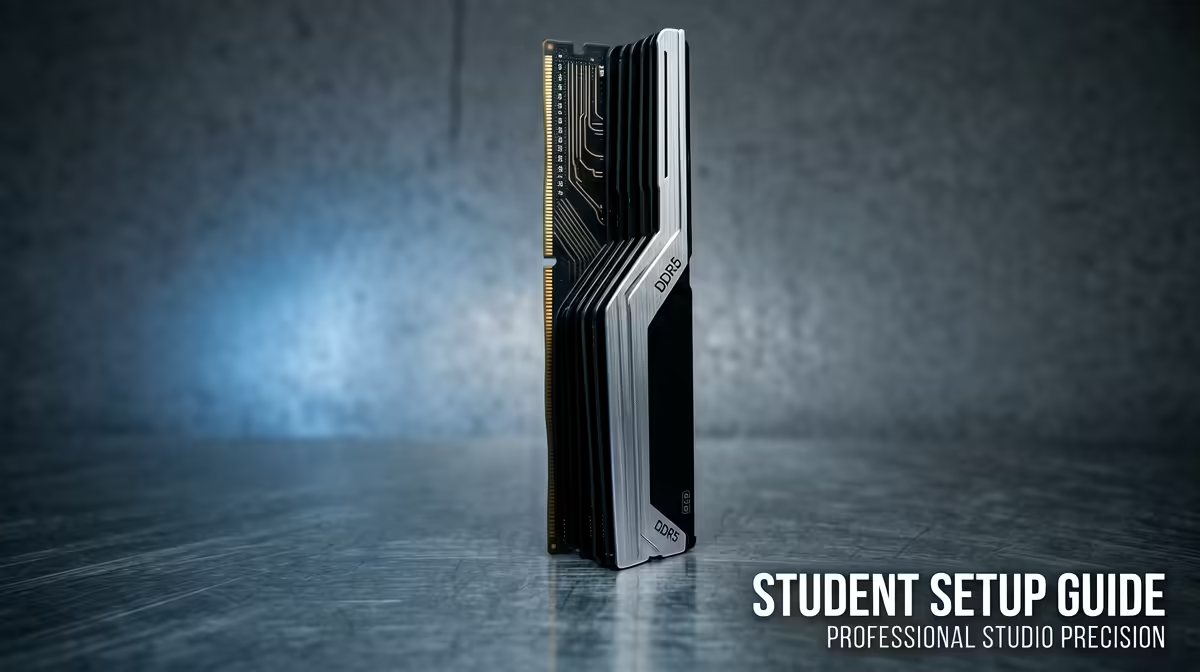
For campus res rooms, set up a DDR5 kit by installing it in the correct dual-channel slots, enabling the EXPO or XMP profile in BIOS, and confirming the speed in Windows. A 32GB DDR5-6000 kit (around R900 to R1,400) runs at full speed only with EXPO enabled; out of the box it defaults to a slower 4800MHz, which many res buyers never notice.
Installing It Right In A Res Setup
In a res room you often build or upgrade on a cramped desk, so take care. Install the two modules in the matching dual-channel slots, usually slots 2 and 4, as the motherboard manual shows, for full bandwidth. Seat each module firmly until both clips click. Single-channel by mistake roughly halves memory bandwidth and hurts gaming and multitasking, a common res-room error. Confirm both sticks show in the BIOS before booting into Windows.
Hitting Rated Speed With EXPO Or XMP
DDR5 boots at a safe default of 4800MHz until you enable the kit's EXPO (AMD) or XMP (Intel) profile in BIOS. Without it, your R1,200 DDR5-6000 kit runs slow and you lose the performance you paid for. Enter BIOS, enable the rated profile, save and reboot, then verify the speed in Task Manager or a system tool. This single step is the most-missed part of a res-room DDR5 setup.
FAQ
Which slots should I use for two DDR5 sticks?
Usually slots 2 and 4 for dual-channel, as your motherboard manual specifies. Using the wrong pair can leave you in single-channel, halving bandwidth and hurting performance.
Why is my DDR5 running at 4800MHz?
DDR5 defaults to a safe 4800MHz until you enable the EXPO or XMP profile in BIOS. Enabling it unlocks the rated DDR5-6000 speed you paid for; it is the most-missed setup step.
How do I check my RAM is running correctly?
Open Task Manager's Performance tab or a system info tool and confirm both the capacity and the speed match your kit. If the speed reads 4800MHz, enable EXPO or XMP in BIOS.
DDR5 in the correct dual-channel slots, enable EXPO or XMP in BIOS so the kit runs at its rated 6000MHz, not the slow 4800MHz default.