Capture cards are not equal at 4K60, and the spec sheet is where that inequality becomes concrete. A card that claims ultra-HD recording but ships with a 5 Gbps USB port, an older HDMI input version, and no hardware encoder will produce footage that falls short of its headline resolution. Understanding the essential capture card specs for lag-free 4K60 gameplay recording means knowing which four numbers to verify before anything else.
Quick Answer
For lag-free 4K60 gameplay recording, a capture card needs HDMI 2.0 input at 18 Gbps, a USB-C 3.1 Gen 2 output at 10 Gbps, sub-1ms 4K pass-through, and H.265 hardware encoding. Any one of those four missing from the spec sheet is a genuine limitation at 4K60.
🔌 HDMI 2.0 Input: The Bandwidth Starting Point
The HDMI cable connecting your console to the capture card must carry a 4K60 signal, and that signal occupies up to 18 Gbps on the wire. The earlier HDMI 1.4 specification could only move data at 10.2 Gbps, which is enough for 4K at 30 frames per second but not 60. A capture card with an HDMI 1.4 input cannot accept a 4K60 source signal; it will either cap the console at 4K30 or refuse the connection entirely.
HDMI 2.0 at 18 Gbps is the minimum entry point for 4K60. Some premium cards support HDMI 2.1 at 48 Gbps, which adds 4K120 and 8K60 capability. For most creators targeting 4K60, HDMI 2.0 is sufficient, but if your console outputs at 4K120 for a supported title and you want to record that frame rate, HDMI 2.1 is the only path.
Check this specification first, because it sits at the very beginning of the signal chain. A card with the right USB port, the right encoder, and the right pass-through still captures nothing better than 4K30 if the HDMI input version is wrong.
⚡ USB-C 3.1 Gen 2: Moving the Data Out
Once the capture card receives and processes the 4K60 signal, it needs to send the encoded footage to the PC fast enough to keep up with incoming frames. At 4K60 with high-quality H.265 encoding, the data rate runs close to 100 Mbps, and the connection from card to PC must sustain that without queuing.
USB 3.0 at 5 Gbps can technically carry 100 Mbps of data, since 100 Mbps is a fraction of 5 Gbps. The real-world concern is sustained throughput and the encoding target it permits. Cards that must operate within 5 Gbps constraints tend to apply heavier compression to stay within that lane's practical limits, producing recorded files at around 60 Mbps rather than 100 Mbps. The difference shows in fast scenes with fine texture.
USB-C 3.1 Gen 2 at 10 Gbps provides enough overhead that the card can record at its maximum bitrate without competing with the connection for headroom. The file that arrives on the NVMe drive is the file the encoder intended, not a copy that was squeezed further during transit.
Checking Your PC's Port
Before purchasing, identify whether your PC's USB-C port actually runs at 10 Gbps. Many machines ship with USB-C ports that operate at 5 Gbps because they share a USB 3.0 controller. Check Device Manager under Universal Serial Bus controllers for a port labelled USB 3.1 Gen 2 or 10 Gbps. If that label is absent, a PCIe expansion card is a straightforward fix.
🔆 Zero-Lag Pass-Through: Playing While Recording
Recording 4K60 footage is useless if you cannot play the game comfortably while the card is active. Without pass-through, gameplay is monitored through the capture software's preview window, which introduces anywhere from 60ms to 200ms of delay between pressing a button and seeing the result on screen. At 200ms, reaction-dependent games become effectively unplayable.
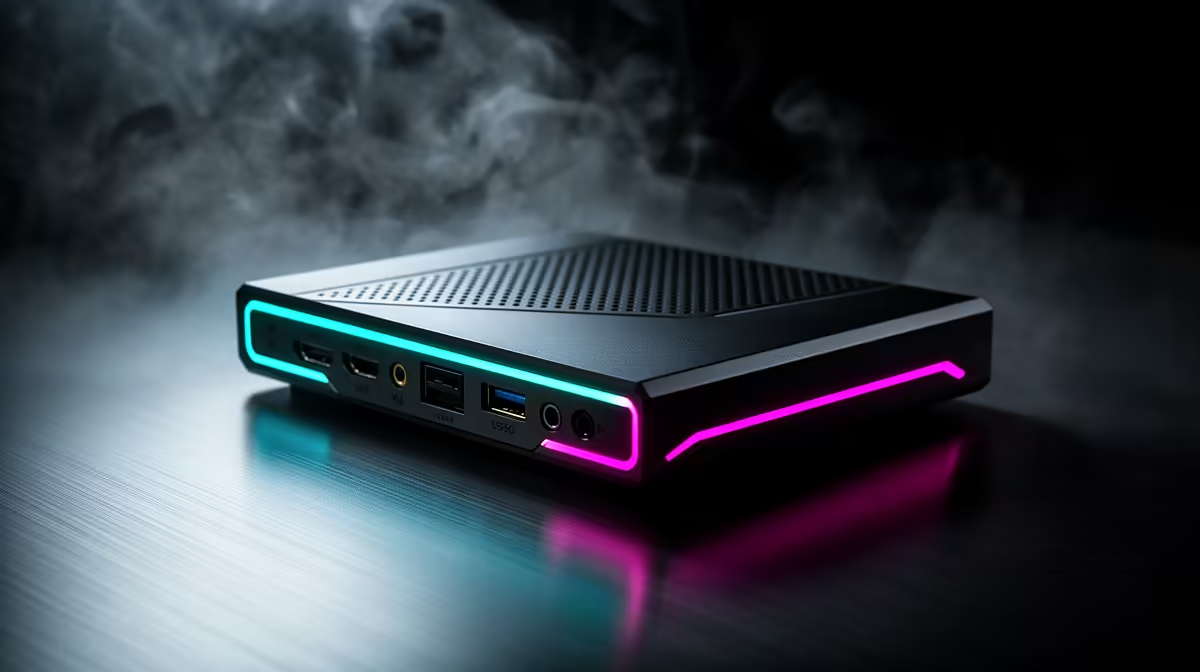
Sub-1ms 4K pass-through bypasses the encoding pipeline entirely, taking the incoming HDMI signal and forwarding it directly to the display monitor through a second HDMI output. Your screen receives the native 4K60 signal from the console without any processing step from the PC, so the only latency between your controller and the image on screen is the display's own processing, which Game Mode reduces to its minimum.
This is the spec that separates a professional capture card from a basic model. Budget cards often omit true pass-through to reduce component cost; confirming it is present and rated at 4K60 rather than a lower resolution is essential.
Pro Tip ⚡
After setting up pass-through, enable Game Mode on your monitor and confirm it is active rather than just selected in the menu. Some displays require a full power cycle to apply the mode change. With both pass-through and Game Mode active, total input delay can sit under 15ms, which is imperceptible during normal gameplay.
🧠 H.265 Hardware Encoding: Keeping the CPU Out of It
Encoding 4K60 footage in software is a CPU-intensive task. Doing it in real time while the game is running on a console, OBS is managing scenes, and the recording is simultaneously writing to an NVMe drive places sustained load on the processor. A mid-tier PC handles it, but the margin between smooth operation and occasional frame drops is narrow.
H.265 hardware encoding moves that workload onto a dedicated chip built into the capture card itself. The CPU sees the encoded output, not the raw processing task, which keeps CPU utilisation under roughly 10 percent during recording regardless of scene complexity. The other advantage is file efficiency: H.265 at the same visual quality as H.264 produces files approximately 40 percent smaller, which extends NVMe drive capacity for long sessions.
Confirm that the hardware encoder specifically supports 4K60 at the bitrate the spec sheet advertises. Some cards include H.265 capability that is only exposed at 1080p through the vendor app, not at full 4K. The spec to look for is H.265 hardware encoding at 4K60 up to at least 80 Mbps, with 100 Mbps being the more capable target.
Frequently Asked Questions
Which HDMI version does a 4K60 capture card require?
HDMI 2.0, rated at 18 Gbps, is the minimum for 4K60 input. The earlier HDMI 1.4 tops out at 10.2 Gbps, which can carry 4K at 30 frames per second but not 60. HDMI 2.1 extends this further to 4K120 and is worth choosing only if your console and workflow target that frame rate.
Why does the card need hardware encoding for 4K60?
Encoding a 4K60 stream in software places sustained load on the host CPU. Hardware encoding moves that task onto dedicated circuitry inside the card, keeping CPU usage under roughly 10 percent and eliminating the risk of dropped frames when the system is under load. It also enables H.265, which stores 4K footage in smaller files than H.264 at equivalent quality.
What USB standard is the minimum for 4K60 capture?
USB-C 3.1 Gen 2 at 10 Gbps. The 5 Gbps ceiling of USB 3.0 forces the card to apply tighter compression to fit within the available bandwidth, which costs detail in fast-moving scenes. At 10 Gbps, the card can record at bitrates near 100 Mbps without the connection becoming a constraint.
What does pass-through actually do during recording?
Pass-through splits the incoming HDMI signal so the raw console output goes directly to your display at sub-1ms delay, completely separate from the recording process. You play the game on a responsive screen while the card simultaneously captures the footage. Without pass-through, the only way to see gameplay is through the capture software's preview, which introduces significant and noticeable lag.
Does a higher bitrate on the spec sheet mean better quality?
Yes, within reason. 4K60 footage recorded at 40 Mbps will show blocking and edge blurring in fast scenes. The same footage at 100 Mbps retains sharp detail across the frame. Cards that support 80 Mbps or above with H.265 hardware encoding are in the range where quality differences between that card and a more expensive model become very difficult to see in normal playback.
Ready to record 4K60 gameplay with the specs to back the resolution?
Browse capture cards with confirmed HDMI 2.0 input, USB-C 3.1 output, hardware encoding, and true zero-lag pass-through built into the spec sheet.