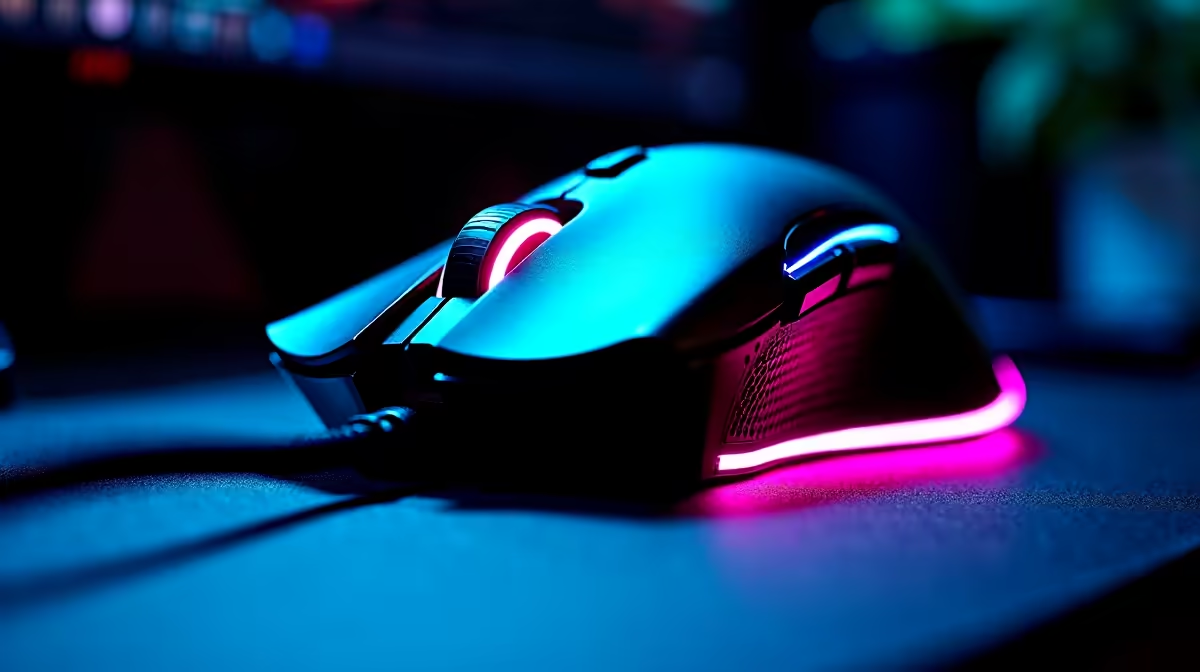
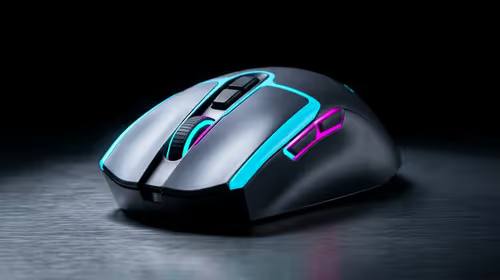
Is there anything more frustrating? You’re in a 1v3 clutch situation in Valorant, the spike is ticking, and your wireless mouse just… dies. 😩 But the software said you had 20% left! What gives? Your mouse’s battery sensor might be lying to you. Don't stress, a quick battery recalibration for your gaming mouse can often fix this, getting your gear’s reported power level back to its true state and saving you from rage-inducing disconnects.
Why Your Gaming Mouse Battery Lies To You
Think of your mouse's battery software as an estimate, not a perfect science. Over time, with countless partial charges and discharges, the software that gauges the battery's capacity can drift. It loses track of what's truly 'full' and what's genuinely 'empty'. This leads to inaccurate readings—like showing 15% charge when the battery is actually about to give up the ghost. This isn't a fault; it's just the nature of modern batteries. A proper battery recalibration for your gaming mouse helps reset these digital counters. For a look at the latest tech in pointer precision, check out Evetech's full range of gaming mice.
The Simple Guide to Mouse Battery Recalibration ⚡
Getting your mouse's battery reporting accurately again is easier than you think. It doesn’t require any fancy software, just a bit of patience. This process works for the vast majority of wireless gaming mice on the market.
Step-by-Step Recalibration Process:
- Full Drain: Use your mouse normally until it completely powers down on its own. Don't plug it in when you get the low battery warning; let it run flat.
- Let it Rest: Once it’s off, leave it unplugged for a few hours (3-5 hours is ideal). This allows the battery cells to settle.
- Uninterrupted Full Charge: Plug your mouse in and let it charge to 100% without interruption. Make sure you use a reliable power source. Once it hits 100%, leave it charging for another hour just to be sure.
- Repeat if Needed: For best results, repeat this full drain-and-charge cycle two or three times. This solidifies the battery controller's understanding of its upper and lower limits.
Check The Software First
Before you start, open your mouse's companion software (e.g., Logitech G Hub, Razer Synapse). Some high-end models have a built-in battery calibration tool that can automate the process. It’s always worth a quick check!
Signs You Need a Mouse Battery Recalibration
Not sure if your power woes are due to calibration drift? Here are a few tell-tale signs that it's time to perform these steps:
- Sudden Power Drops: The battery percentage plummets from 40% to 5% in a matter of minutes.
- Dying on "Low" Battery: The mouse dies consistently when the software still reports 10-20% charge remaining.
- Stuck Percentages: The battery indicator seems stuck at a certain percentage for an unusually long time.
Sometimes, consistent power delivery is also about your setup. Ensuring you have high-quality mouse accessories, like a good charging dock, can also contribute to better battery longevity.
When Recalibration Isn't Enough 🔋
If you've performed the recalibration cycle a few times and your mouse still dies unpredictably, it might be a sign of something more permanent. Lithium-ion batteries have a finite number of charge cycles. After a few years of heavy use, they simply can't hold a charge like they used to. At this point, no amount of recalibration will help. While some gamers might opt for the unbreakable connection of a wired mouse, for others, it's a clear signal that it's time for an upgrade. This is your chance to get a new mouse with a fresh battery, improved sensor, and the latest features.
Ready for a Reliable Upgrade?
If your old mouse has given up the ghost, don't let it cost you another match. Check out the best gaming mouse deals in South Africa for performance that leaves lag and battery anxiety in the dust.