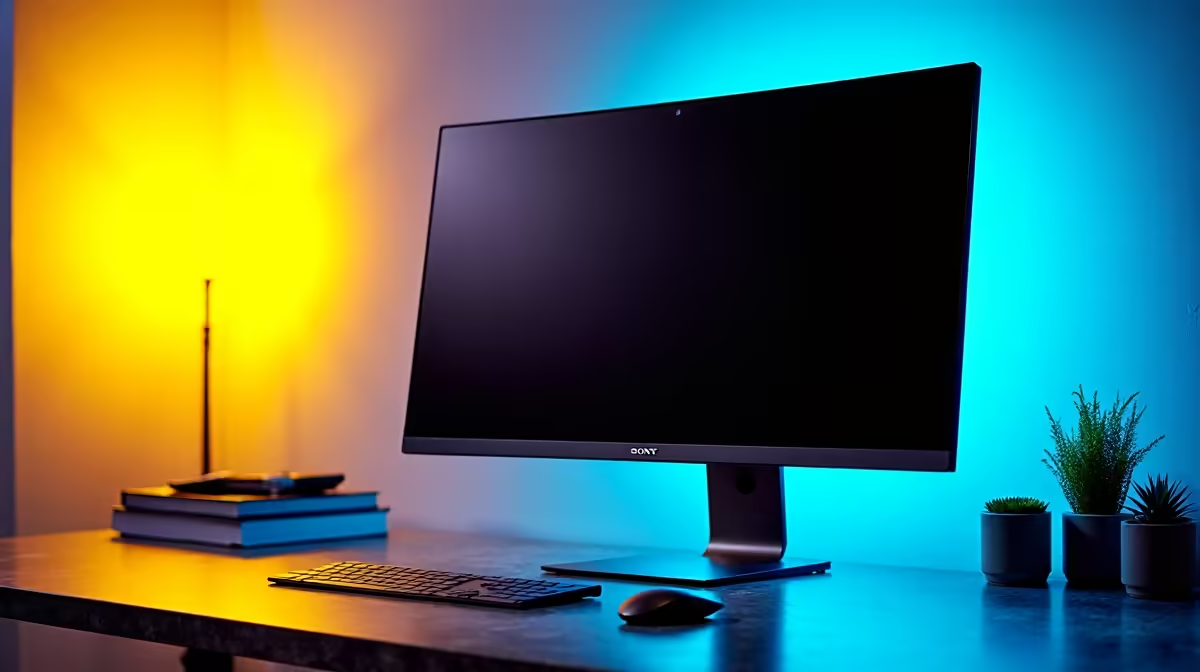
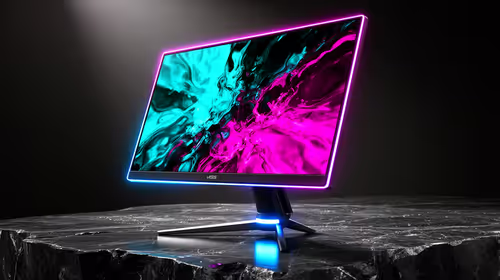
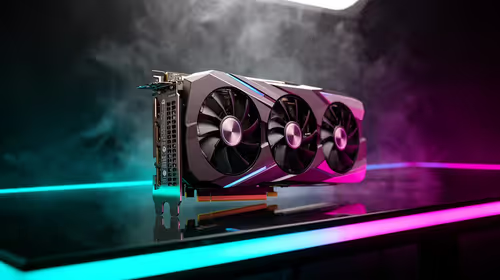
Tired of the daily desk dance? You know the one... lean over to press the PC power button, then fumble for the tiny button under your monitor to wake it up. It’s a small hassle, but it adds up. What if your computer and monitor could just... sync up? That’s not science fiction; it’s a massively overlooked feature called HDMI CEC, and it can bring seamless, one-touch power control to your entire PC setup. ⚡
What is HDMI CEC, Anyway?
You’ve probably used HDMI CEC (Consumer Electronics Control) without even realising it. It’s the clever tech that lets your TV remote control the volume on your soundbar or power on your PlayStation when you switch to its input. In short, it allows devices connected via an HDMI cable to send commands to each other.
While it’s famous in the lounge, achieving HDMI CEC PC control has been a bit of a hidden gem. The goal is simple: make your devices work together intelligently. When you wake your PC from sleep, your monitor should turn on automatically. Put the PC to sleep, and the monitor should follow suit. No more extra button presses.
Unlocking HDMI CEC PC Control on Your Rig
Getting this sync to work between your computer and monitor isn't plug-and-play just yet, but it's getting easier. Here’s what you need to check to get your office monitor and computer in sync.
Step 1: Check Your Monitor's Settings
First, dive into your monitor's on-screen display (OSD) menu. The feature is rarely just called "HDMI CEC." Manufacturers love their branding, so look for names like:
- Anynet+ (Samsung)
- SimpLink (LG)
- BRAVIA Sync (Sony)
- EasyLink (Philips)
- Viera Link (Panasonic)
If you find one of these, enable it! This is the most crucial step. Modern PC monitors, especially high-end gaming and productivity displays, are more likely to include this feature.
Step 2: Check Your Graphics Card
Most modern graphics cards from NVIDIA and AMD support CEC, but it sometimes requires a specific adapter or is enabled by default. The good news is that for basic power on/off commands, it often works out of the box with a compatible monitor. If you're running into trouble, ensuring your graphics drivers are up to date is always a good first step.
Troubleshooting Tip 🔧
your monitor and PC aren't syncing, try a different HDMI port on both your graphics card and your monitor. Sometimes, only one specific port has full CEC support. Also, check that you're using a modern, high-quality HDMI cable, as older cables can sometimes be the culprit. If all else fails, a few select [monitor accessories](https: www.evetech.co.za PC-Components buy-monitor-accessories-368) can help bridge the gap.
The Real-World Benefits of a Synced Setup
So, why bother with this? It’s all about streamlining your workflow and cleaning up your space.
Imagine sitting down at your desk, tapping your keyboard to wake your PC, and having your entire array of gaming monitors spring to life instantly. The immersion is seamless, especially with wrap-around curved monitors that pull you right into the action.
This isn't just for gamers. For professionals working with high-resolution content on stunning 4K monitors, this small automation saves time and mental energy, letting you focus on the creative task at hand. It even extends to mobile setups; connect your laptop to one of the latest portable monitors and have it power on in sync, ready for a presentation. ✨
Is Your Gear Ready for HDMI CEC?
Take a moment to check your current equipment. If your monitor is a few years old, it might not have CEC support. If you're thinking of an upgrade, this is a fantastic quality-of-life feature to look for. It’s a subtle touch that makes your whole setup feel more modern and integrated.
When you're browsing the best PC monitor deals in South Africa, keep an eye on the spec sheet for any mention of CEC or its branded names. It’s the kind of small detail that delivers a big payoff in daily convenience.
Ready to Sync Your Setup?
Streamlining your workspace with HDMI CEC is just one way to create a smarter, more efficient setup. If your current screen isn't cutting it, it might be time for an upgrade. Explore our massive range of PC monitors and find the perfect display to command your digital world.