Quick Answer
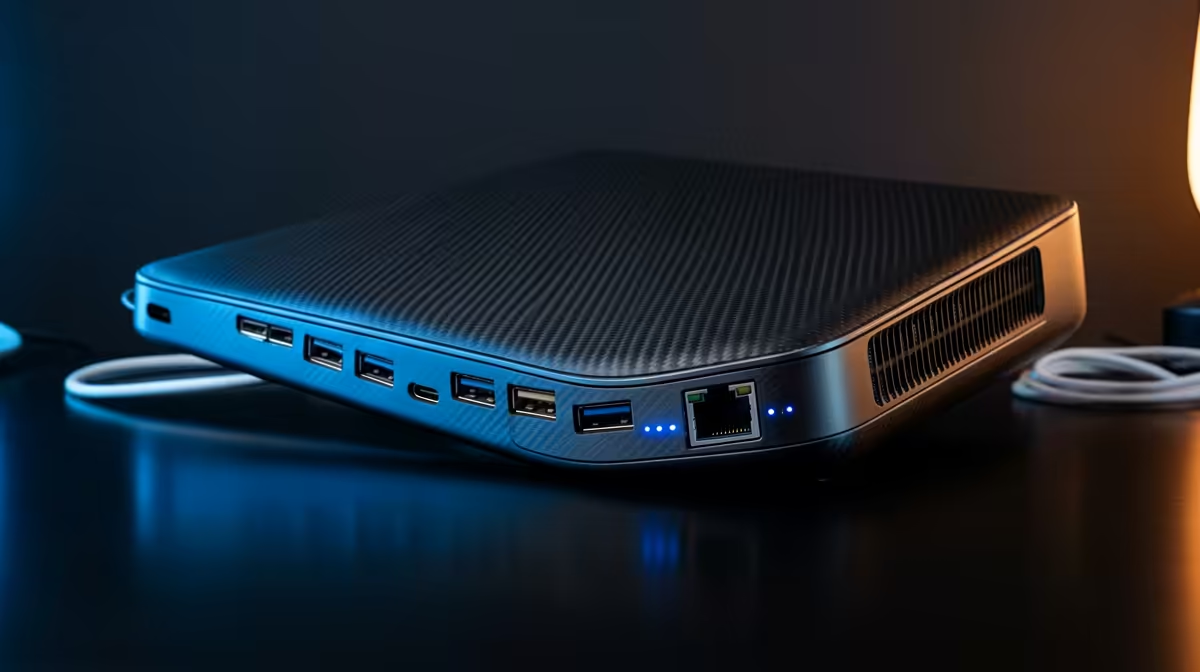
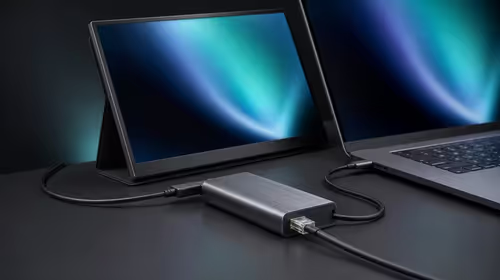
An 11-port docking station reduces cable clutter by centralising all peripheral connections through one hub, leaving only a single USB-C or Thunderbolt cable running from the dock to your laptop. All other cables, monitor, Ethernet, keyboard, mouse, and drives, terminate at the dock permanently.
The Logic of a Single-Cable Desk 🖥️
Before a dock, a typical workstation has separate cables for monitor, power, wired keyboard, mouse, Ethernet, and any USB drives, totalling five to seven cables running to the laptop. With an 11-port dock positioned at the back or side of the desk, all those cables connect to the dock once and stay permanently routed. You only plug and unplug the single upstream USB-C or Thunderbolt cable. This matters practically when you work from a shared desk, switch between a home office and a campus office, or live in a small flat in Cape Town or Johannesburg where desk real estate is limited. Arriving at a desk and snapping in one cable rather than six saves 90 seconds and eliminates the cable-hunting experience.
Port Layout Planning for an 11-Port Dock ⚙️
With 11 ports, the standard allocation is: two HDMI or DP ports for dual monitors, one Gigabit or 2.5GbE Ethernet, three USB-A 3.0 for keyboard, mouse, and an external drive, one USB-C data port for a fast drive or phone charging, one USB-C upstream to the laptop, one 3.5 mm audio combo for a headset, one SD card slot, and one USB-A for a low-speed device like a USB LED lamp or webcam. This covers virtually every connection a modern SA home office or student workspace needs without a single cable to the laptop except the upstream.
Physical Cable Management for a Clean Result 🔧
A dock solves the connection problem but not cable routing. Mount the dock under the desk using adhesive cable clips or a small cable management tray from R80 to R200. Run cables along the desk's underside using velcro cable ties, grouping power cables away from signal cables to prevent interference. Label each cable at both the dock and the device end using small adhesive flags so future reconfiguration is simple. In SA coastal cities like Durban or East London where humidity is higher, avoid zip ties that dig into cable insulation over time as heat and humidity cause cable jackets to harden and crack around tight zip tie contact points. Velcro is the correct choice for managed cable runs in humid environments.
Desk Mount the Dock for Maximum Cleanliness ⚡
Most 11-port docks have VESA-pattern screw holes or a flat bottom that accepts double-sided adhesive cable mounts. Mounting the dock to the underside of your desk at the back edge removes it from the visible desk surface entirely. Run the single upstream cable along the desk underside and only the laptop sits visibly on the desk. This takes 10 minutes and eliminates the dock from your visual workspace completely.
FAQ
Do I need Thunderbolt 4 to use an 11-port dock?
No. Most 11-port docks use USB-C with USB 3.2 Gen 1 or Gen 2 rather than Thunderbolt. They connect to any USB-C port with Alt Mode support. Thunderbolt docks with 11 ports exist but cost significantly more and are only necessary if you need dual 4K displays plus sustained high-speed data transfer simultaneously.
Will an 11-port dock charge my laptop?
If the dock includes Power Delivery on its upstream port, yes. Check the dock's PD wattage: 65W suits most thin-and-light laptops while gaming laptops need 100W to 180W. Use the laptop's own charger in parallel if the dock's PD rating falls short of your laptop's requirement.
Can I use the same dock on two different laptops?
Yes. As long as both laptops have USB-C or Thunderbolt, the dock works with both. Disconnect from one laptop, connect to the other, and all peripherals transfer automatically. This is useful in SA households where two people share a desk and alternately connect their own laptops.
Ready to replace cable chaos with a single-cable workstation?
Browse 11-port and multi-port docking stations at Evetech to find the right port count for your setup.