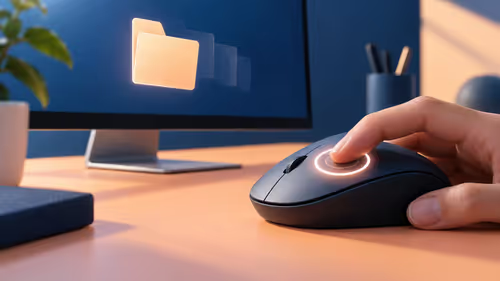
HyperScroll tilt wheel control is useful when it turns a long, repetitive navigation job into a one-finger action. It is less useful when extra wheel assignments make the mouse harder to operate than the keyboard shortcut they replace.
Quick Answer
A Gen-2 HyperScroll tilt wheel expands one finger's jobs beyond ordinary vertical scrolling. Its useful gains are faster movement through long pages, sideways navigation where supported and extra inputs that can be mapped without occupying thumb buttons. The Naga V3 Pro's wheel should be treated as a deliberate control surface, not an automatic replacement for every shortcut.
🖱️ Separate scrolling from clicking
An ordinary mouse wheel already has several possible actions: rolling, clicking, and sometimes horizontal tilt. The Naga V3 Pro's HyperScroll Tilt Wheel Gen-2 adds that sideways input to the set. Before mapping it, identify which movement you can perform comfortably while keeping the pointer under control.
Vertical roll is naturally suited to reading a long guide, moving through a spreadsheet, or scanning a document. Tilt can help where an application supports horizontal movement, such as a wide timeline or a sheet with distant columns. A wheel click can be useful for a separate function, but it should not carry a command that is likely to be triggered while scrolling quickly.
The important distinction is physical. The index finger can make a quick wheel action without moving the thumb from the side plate. That preserves the thumb buttons for game abilities or shortcuts that need a different kind of reach.
📚 Test it on a real navigation task
Open a long document and give yourself a destination halfway down the page. First use the keyboard's page controls; then try the wheel. Notice whether you can stop close to the target without overshooting. Next open a wide sheet or timeline and test horizontal movement if the software supports it.
This exercise reveals the case where the obvious answer is wrong. More free-scrolling speed is not always better. When looking for one row in a dense document, a very fast wheel action can skip past the target and require repeated correction. A controlled motion can be quicker overall because it creates fewer return trips.
Office mice can suit simple document work, but a multi-button device is worth considering when one hand needs to switch between navigation, desktop shortcuts and games. Compare the shape and controls through the gaming mice category.
🎮 Reserve wheel inputs for low-conflict jobs
In a game, the tilt inputs can work as extra mapped commands if they do not conflict with ordinary scrolling. Start with a function that is useful but not destructive when pressed accidentally, such as a map view, an interface panel, or a communication action. Test it while moving and aiming, not only while standing still.
Avoid assigning a tilt direction to an action that ruins a round or consumes a scarce resource until you are certain the movement is reliable. Wheel tilt has a different feel from a side button, and the brain needs time to distinguish a left flick from a scroll or click. Build confidence with low-risk jobs first.
🔧 Make an assignment plan
Use three questions for each wheel direction. Is the action frequent enough to deserve a finger-level shortcut? Can you perform it without moving the pointer? Would an accidental activation be harmless? If the answer to any is no, keep it on the keyboard or a less exposed button.
For productivity, a sensible experiment is horizontal movement on a wide worksheet, a tab-change action, or an editing shortcut. For games, it may be an interface command rather than a combat ability. Save a separate profile for each context so a desktop mapping does not appear in the middle of a match.
🧼 Protect consistency over time
Wheel feel can change when dust and debris accumulate around moving parts. Keep the desk clean and avoid forcing dirt into the wheel area. If scrolling becomes inconsistent, test it in more than one application before changing a profile. A software setting and a mechanical issue require different fixes.
The Naga V3 Pro also has Gen-4 optical switches rated for 100 million clicks, but that rating refers to click switches, not every component of the wheel assembly. Treat the mouse as a set of parts that benefit from ordinary care rather than assuming one endurance rating covers every action.
🔍 Compare the wheel with the shortcut it replaces
For each proposed wheel assignment, time a small real task twice. First do it with the normal keyboard shortcut; then repeat it with the wheel assignment. Count errors as well as seconds. A mapping that saves one key press but produces two accidental tilts is not an improvement.
For example, horizontal tilt may keep the hand on the mouse during a wide spreadsheet scan. When editing a short paragraph, the same assignment may offer no benefit because a keyboard shortcut is already direct. Context decides whether the wheel is a genuine tool. Give the assignment a few days before judging it and remove it if accidental activations increase. The best configuration is one you stop noticing.
Try the wheel with an ordinary browser task too. Open several long pages, move between headings, and decide whether a wheel assignment makes the search calmer or merely faster. Speed without a reliable stopping point often creates more work than it saves. Keep the assignment only when it shortens the full task, including corrections.
Write down the original shortcut before replacing it. That simple record prevents a useful mapping from becoming a mystery after a software update or profile change.
Frequently Asked Questions
What does a tilt wheel do?
It adds left and right wheel input alongside ordinary vertical scrolling. Software can use that for sideways navigation or mapped commands.
Is a faster wheel always better for long documents?
No. Fast movement helps cover distance, but controlled movement can be quicker when you must stop accurately at a specific row or paragraph.
Should I map combat actions to wheel tilt?
Start with a low-risk command and test it while moving. Use a critical ability only when the motion is consistently deliberate.
Can wheel mappings differ between work and games?
Yes. Separate profiles let a document shortcut remain a document shortcut instead of appearing in a game.
Give the wheel one useful job at a time, then explore the mouse options that make navigation and play feel more direct.