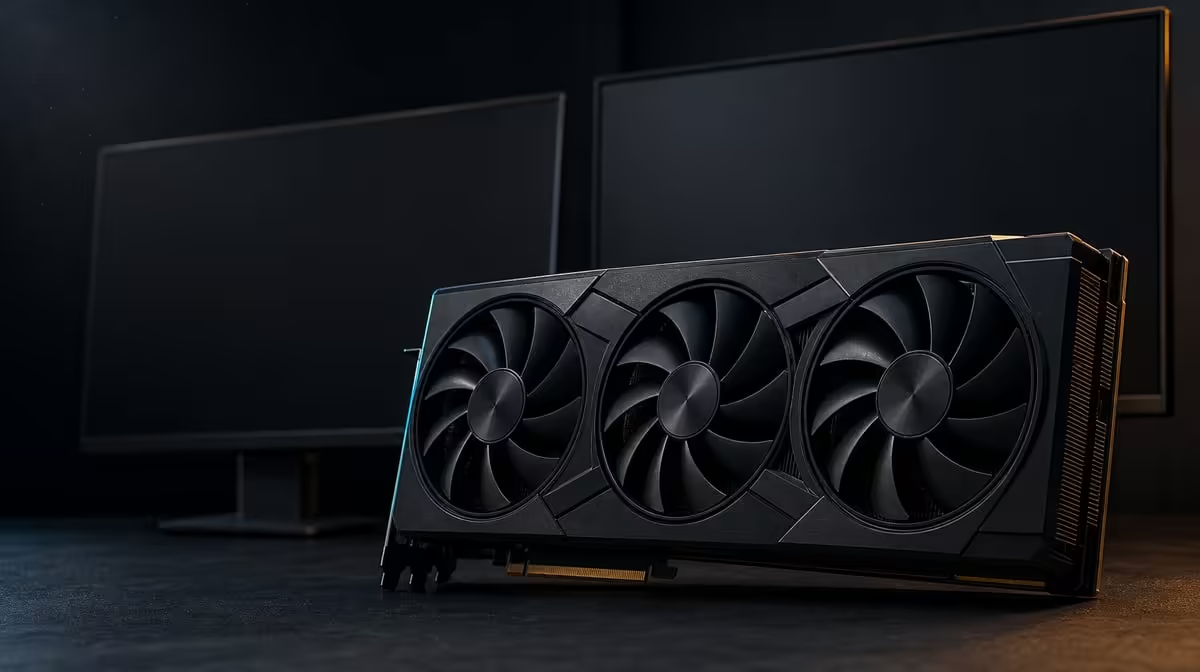
Counting sockets is straightforward; predicting an ambitious screen arrangement is not. How many monitors the ASUS TUF RTX 5090 can connect begins with its five physical outputs, then requires the intended simultaneous modes, cables, inputs and software configuration to be checked.
Quick Answer
The R73,599 ASUS TUF RTX 5090 has five physical display connections: DP 2.1b on three sockets and HDMI 2.1b on two. That provides up to five routes to plan, but it does not guarantee that every five-monitor combination will operate simultaneously at any chosen resolution and refresh.
🔢 Separate port count from active-screen support
The rear connection inventory is exact: a trio of DisplayPort 2.1b sockets and a pair of HDMI 2.1b sockets. Each can be assigned to a compatible display path.
Physical availability is only the first layer. A simultaneous configuration depends on the GPU's supported output behaviour, the modes requested and the displays involved. Confirm the exact plan instead of converting "five connectors" into an unconditional "five monitors".
Write every screen in a table with role, input, native resolution and target refresh. Include colour or other required display features where they affect the work. This turns an abstract maximum into a specific question.
Mark which screens need to be active together. A creator may switch a client display on only for review, while a monitoring panel remains visible all day. Simultaneous need can be lower than the number of monitors physically on the desk.
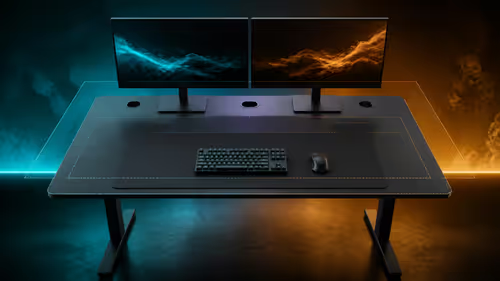
Include desk geometry. A panel that technically connects may not fit at a comfortable viewing distance or angle. Measure width, stand footprint and sight lines so port planning does not produce an unusable wall of screens.
Decide whether any monitor will be shared with another computer or console. Input switching can reduce the number of GPU routes needed at once, but it adds a daily control step that should be rehearsed.
Compare port inventories in Evetech's ASUS graphics-card category after completing that table.
🔌 Allocate DisplayPort and HDMI deliberately
Choose the connector route from both endpoints. A monitor with only one suitable high-performance input largely makes the decision; another with several native inputs leaves more flexibility.
Cable capability matters. A lead can have the expected connector while failing to expose the target resolution, refresh or feature set. Label tested cables and keep their intended roles documented.
Adapters solve physical mismatch only when their conversion supports the desired mode. They do not add another native GPU output, and they may not preserve every capability. Check the exact adapter rather than assuming.
Assign the most demanding monitor first. Connect it directly, set the intended mode and prove stability. Add the next screen only after the baseline survives a restart and full-screen application.
Keep a rear-panel drawing. Once five similar connections are occupied beneath a desk, identifying a particular route by touch is risky. The drawing also speeds up recovery after moving the workstation.
Do not daisy-chain or split connections unless the exact method and displays support the intended behaviour. A splitter may mirror rather than create independent desktops, while another arrangement can have mode limits. Treat the direct five-port inventory as the known starting point.
Compare broader output options in Evetech's NVIDIA GPU range.
🖥️ Configure the desktop one panel at a time
After each connection, confirm the monitor input and operating-system detection. Select resolution, refresh rate, scaling and physical position, then check which display is primary.
Virtual arrangement should match the desk. Incorrect left-right order or height creates pointer jumps, while mixed scaling can change window size as applications move between screens.
Open the actual creator or gaming software. Some applications choose a display independently of the desktop. Confirm preview, timeline, full-screen and communication windows return to the intended panels.
Test wake, shutdown, restart and cable reconnection. A layout that appears once but shuffles every morning is not production-ready. Record the event that causes movement.
Identical monitors can simplify scaling, colour and mode choices, yet they are not mandatory. A mixed desk can work well when each panel has a clear role and its differences are documented.
Colour work needs its own check. Matching connector names do not make panels visually identical, so use the application's appropriate calibration and preview process. Avoid blaming the output count for differences caused by the displays themselves.
Arrange the pointer boundaries carefully when screen heights or resolutions differ. Small virtual offsets can prevent the cursor from catching on an unexpected edge and make a mixed setup feel coherent.
This GPU's processing and memory resources may serve demanding creation or AI work, but they do not change the physical output count. Keep performance and connectivity decisions separate.
🧪 Prove the demanding combination
Run the intended set of displays together with the applications normally used. A static desktop is not enough; open a game, preview or production job that exercises the arrangement.
Observe frame delivery, window behaviour and whether any panel loses its selected mode. If a problem occurs, disconnect or reduce one element at a time to identify the boundary.
Do not blame the GPU before checking the cable, monitor input and software setting attached to the failing screen. Swap a known-good route as a controlled test and return unsuccessful changes.
Keep a fault table with screen, port, cable and symptom. Swapping only the cable shows whether the issue follows that lead; moving only the monitor shows whether it follows the panel. Randomly rearranging all five routes destroys this useful evidence.
The card's patented vapor chamber and axial-tech fans manage heat, but a multi-monitor desk can crowd the tower with cabling. Keep chassis vents open and maintain safe slack around graphics connections.
At R73,599, five output sockets add value for users who can assign them to useful roles. Someone with one or two panels should not price the unused connectors as an automatic benefit.
Consider the time saved by a stable layout. A creator who no longer hides preview and communication tools can gain practical productivity, while an unused panel adds power, clutter and visual distraction. The best count is the smallest one that supports the work cleanly.
Preserve the final map with monitor model, input, cable, GPU socket and selected mode. It becomes the reference when adding, replacing or diagnosing a screen.
Add the operating-system scaling and primary-display choices to that map. Hardware connections alone cannot restore the workspace after a software reset.
Review Evetech's GPU best sellers after proving the full configuration, then check current availability.
Frequently Asked Questions
How many physical video outputs are on this graphics card?
There are five: DP 2.1b on three sockets and HDMI 2.1b on two connectors.
Does that mean five monitors always work simultaneously?
No. The precise simultaneous-screen combination and requested modes need their own support confirmation.
Can the five ports mix DisplayPort and HDMI screens?
They provide both connector types, so a mixed plan is possible when each complete path and simultaneous arrangement are compatible.
What should a creator map before connecting several screens?
Record every monitor's role, native input, resolution, refresh target and whether it must be active with the others.
Could adapters change the available connection plan?
They can convert a route when supported, but they do not create a new native output and may limit features.
Why might identical monitors simplify configuration?
Matching resolutions, scaling and refresh behaviour can reduce window-size and desktop-alignment differences.
What should be checked after all screens are attached?
Verify operating-system layout, application display choices, selected modes, wake behaviour and stability under the real workload.
Planning a five-port workstation properly?
Map each monitor, input, cable and mode first, then compare Evetech graphics cards by the simultaneous layout you can confirm.