


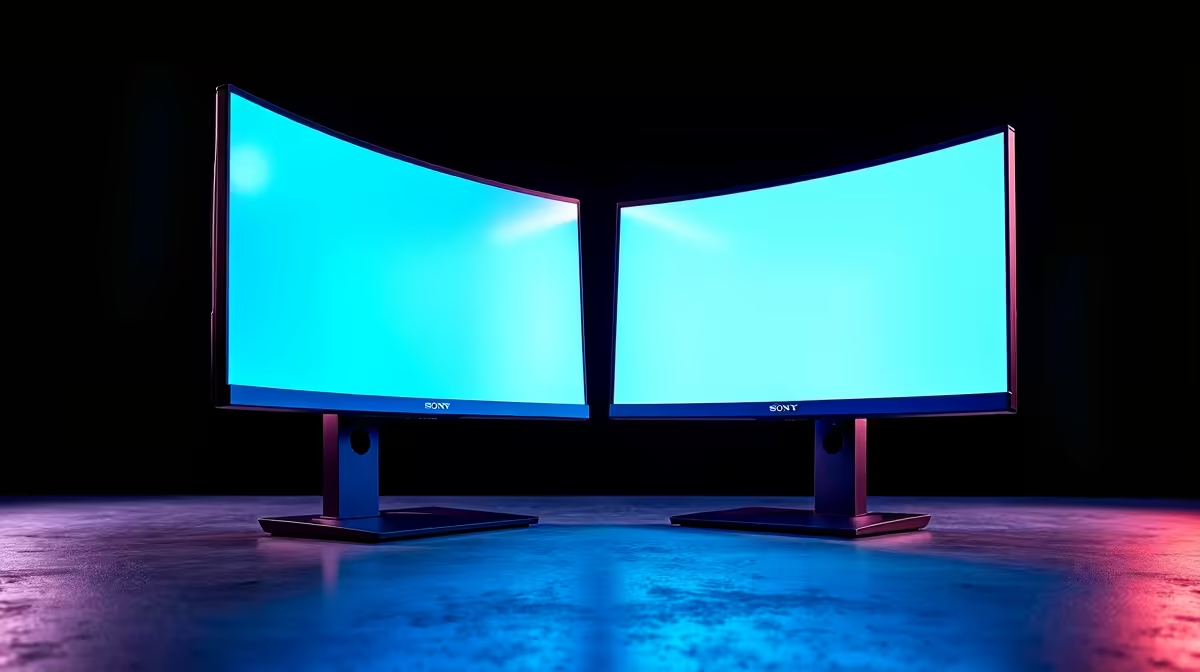
Tired of ALT-TAB-ing between your game, Discord, and OBS? In South Africa, a single screen just doesn’t cut it for serious streaming or professional multitasking anymore. Upgrading your desk is no longer a luxury… it's a fundamental power-up. This guide will walk you through building the best dual monitor setup in 2025, ensuring your command centre is ready for anything, from a nail-biting Warzone final circle to a deadline-crushing workday.
Why a Dual Monitor Setup is Essential in 2025
Let's be real: once you experience two screens, you can never go back. For streamers, it means dedicating one monitor to pure, immersive gameplay while managing your stream, chat, and alerts on the second. No more performance dips from overlays or frantic switching. For professionals—video editors, developers, and designers—the productivity boost is immense. Imagine your code on one screen and your live preview on the other. It's about workflow, efficiency, and pure focus.
A well-planned dual monitor setup is the heart of a powerful Game Desk and the single biggest upgrade you can make to your PC experience. The key is choosing the right PC monitors that work for your specific needs.
Crafting the Best Dual Monitor Setup: What to Look For
Building the perfect pair isn't just about grabbing any two screens. To create the best dual monitor setup, you need to consider how they'll work together. Here’s what matters most.
Matching vs. Mixing Monitors
The classic approach is to buy two identical monitors. This gives you a seamless, symmetrical look and consistent colour and brightness, which is great for aesthetics and dragging windows between screens.
However, a mixed setup can be more powerful. You could pair a high-refresh-rate 144Hz+ gaming monitor for your main action with a 4K 60Hz IPS panel on the side for its sharp resolution and brilliant colour accuracy. This "specialist" approach gives you the best of both worlds without breaking the bank.
The Sync Wars: G-Sync, FreeSync & Adaptive Sync
Screen tearing is the enemy of smooth gameplay. This is where variable refresh rate (VRR) technology comes in. It syncs your monitor's refresh rate with your graphics card's output, eliminating stutter and tearing.
- NVIDIA G-Sync: Often considered the premium choice, it uses dedicated hardware in the monitor for flawless performance. Check out these premium G-Sync displays for the ultimate tear-free experience.
- AMD FreeSync: An open standard that works over DisplayPort and HDMI. It's more widely available and budget-friendly. Evetech has a huge range of AMD FreeSync monitors perfect for any build.
- Adaptive Sync: This is the VESA standard that FreeSync is based on. Many modern "G-Sync Compatible" screens are essentially high-quality versatile Adaptive Sync screens that NVIDIA has certified.
Cable Management Pro Tip 🔧
Use a dual monitor arm instead of the included stands. It not only frees up a massive amount of desk space but also gives you perfect ergonomic alignment. Most arms have built-in cable routing channels, making it easy to hide your DisplayPort and power cables for a super clean setup.
Our Top Monitor Picks for a Killer Dual Setup
Finding the right brand and model is the final piece of the puzzle. Whether you're a competitive gamer or a creative professional, there's a perfect match for your dual monitor setup.
For competitive gamers who need every frame, exploring high-performance AOC gaming monitors is a great starting point, as they offer incredible speed and responsiveness. If your work demands pixel-perfect colours for design or video editing, you can't go wrong with the professional lineup of colour-accurate HP monitors.
And if you're building a powerful setup without wanting to spend a fortune, there are fantastic options available. You can find some great value Dahua screens that deliver excellent performance for their price, proving you don't need to empty your wallet for a massive upgrade. ✨
Putting It All Together: Setup & Optimisation
Once your monitors arrive, the fun begins. Physically setting them up is straightforward, but a few software tweaks will unlock their full potential.
In Windows, right-click your desktop and go to "Display settings." Here you can arrange your monitors, set the main display, and ensure each one is running at its native resolution and maximum refresh rate. Don't let your 165Hz monitor run at 60Hz by mistake... it happens! For power users, utilities like Microsoft PowerToys' FancyZones let you create custom grid layouts to snap your windows into perfectly organised spaces. 🚀
Ready to Double Your Screen Space? Building the best dual monitor setup transforms your entire PC experience. From dominating in-game to smashing productivity goals, the right screens make all the difference. Explore our massive range of PC monitors and find the perfect displays to complete your command centre.











