Stop the Stutter: Optimising Your Apex Legends Texture Streaming Budget
Landing in the middle of a chaotic Fragment West firefight only to see blurry buildings and experience jagged frame drops is a nightmare. If your game feels sluggish or the environment looks like a melted wax museum, your Apex Legends texture streaming budget is likely the culprit. Managing VRAM issues is essential for competitive play in South Africa... where every single frame counts when you are trying to climb the ranked ladder.
Understanding the Apex Legends Texture Streaming Budget
The texture streaming budget is not a performance "cap" in the traditional sense. It is a setting that tells the game how much Video RAM (VRAM) it is allowed to reserve for loading textures. If you set this too high for your hardware, your GPU will struggle to swap data... leading to stuttering and hitching. If you set it too low, the game will look muddy and lack detail.
Finding the sweet spot depends entirely on your graphics card. For those using modern NVIDIA or ATI graphics cards, you generally want to set this value slightly below your total physical VRAM. For example, if you have an 8GB card, setting the budget to 6GB (High) ensures you have enough overhead for other background processes.
How to Fix VRAM Issues in Apex Legends
The most common fix for VRAM issues is simple: lower your texture streaming budget by one notch. Many South African gamers try to push their hardware to "Insane" levels, but unless you have 12GB of VRAM or more, this often causes memory overflow.
If you are rocking specific hardware like MSI graphics cards, you can often use proprietary software to monitor real-time VRAM usage. If you see your usage hitting 95% or higher, it is time to dial back the settings.
VRAM Management Tip ⚡
Always leave at least 1GB to 2GB of VRAM "unallocated" in your game settings. This space is used by Windows and background apps like Discord or Chrome. Over-allocating your Apex Legends texture streaming budget will force your PC to use much slower system RAM, causing those annoying micro-stutters during high-action scenes.
Choosing the Right Hardware for Smooth Performance
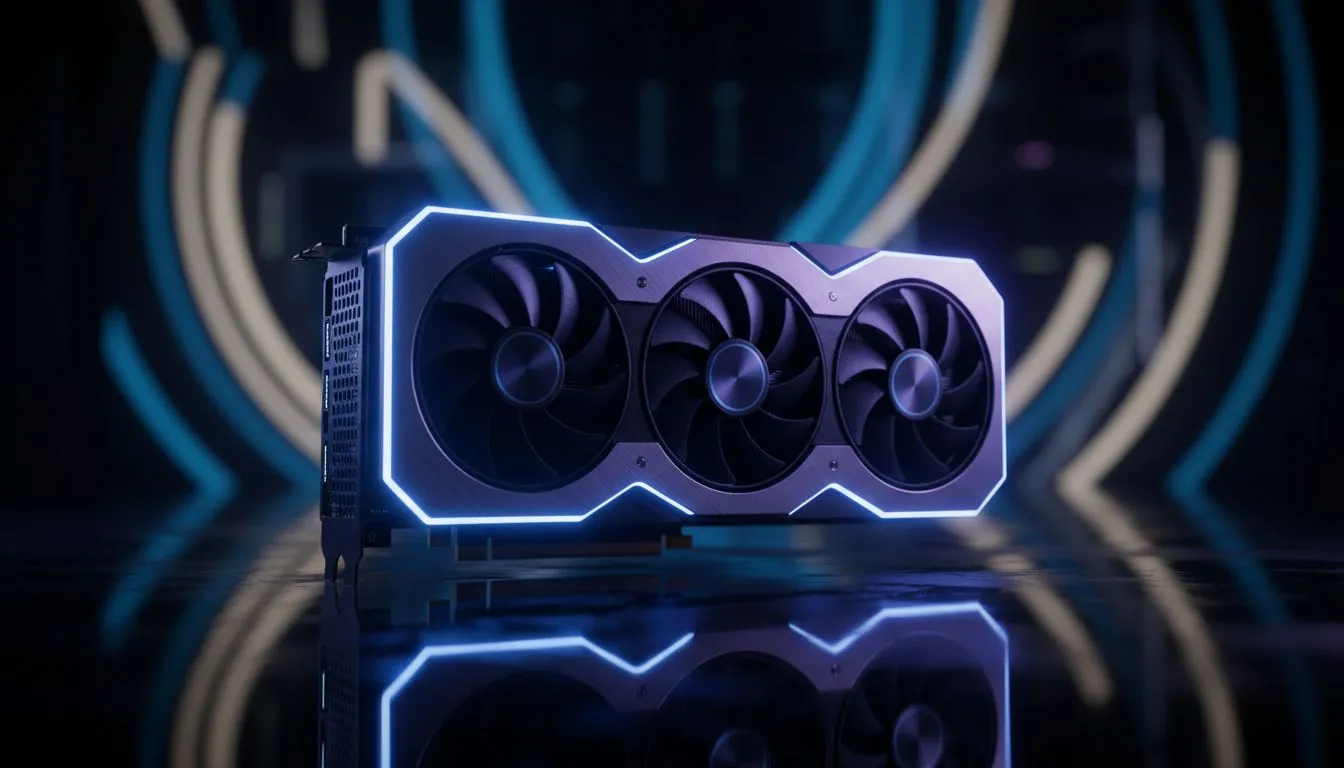
Sometimes, software tweaks can only go so far. If you are still struggling with an older 2GB or 4GB card, it might be time for an upgrade. For entry-level 1080p gaming, the latest Intel Arc graphics cards provide a surprising amount of VRAM for the price, often starting around R4,500.
If you prefer the "Red Team," AMD Radeon graphics cards are famous for offering generous memory buffers, which is perfect for handling high-resolution textures without breaking the bank. While some users might consider workstation graphics cards for their massive memory pools, we generally recommend sticking to gaming-specific GPUs for the best driver support in Apex Legends.
Finding the Balance in South Africa
With local prices for mid-range GPUs fluctuating, it is vital to choose a card that balances cost and performance. A solid 8GB or 12GB card will allow you to set your Apex Legends texture streaming budget to "High" or "Very High" without any fear of VRAM issues. This ensures that the game stays crisp and your movement remains fluid... giving you the edge in those final ring rotations.
Ready to Fix Your VRAM Issues for Good?
Don't let hardware limitations hold back your Apex Legends performance. Whether you need a budget-friendly upgrade or a high-end powerhouse, we have the right GPU for you. Explore our massive range of graphics card specials and dominate the Outlands today.