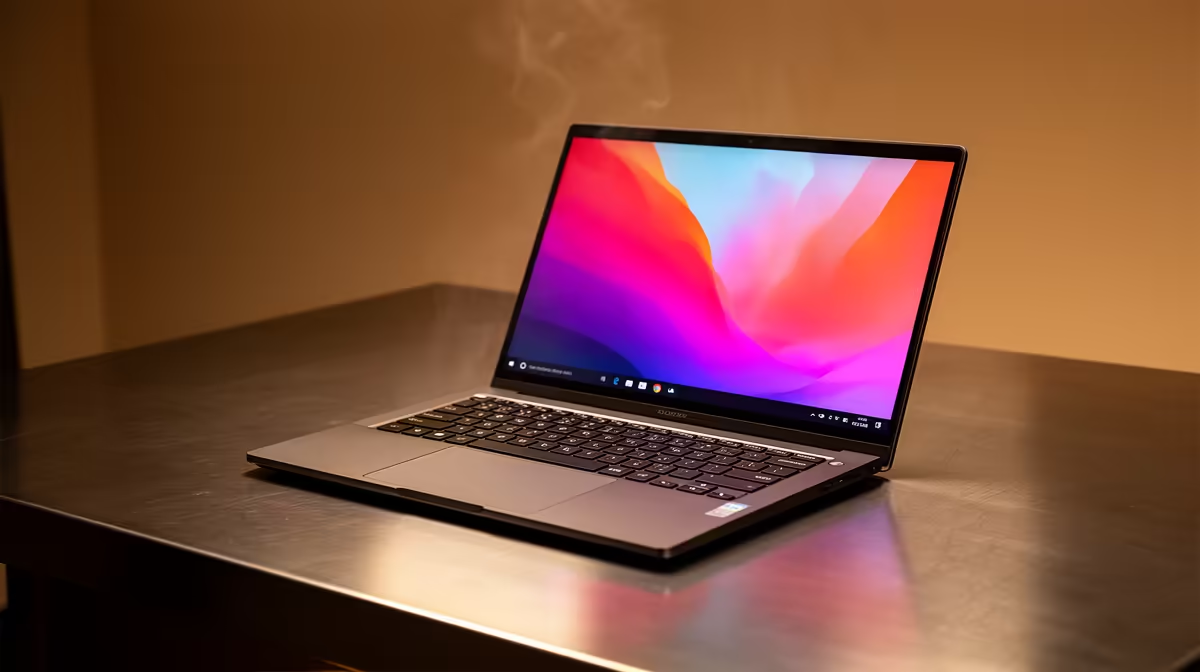
Is your ASUS Vivobook running hotter than a Durban summer? You're not alone. These sleek machines are fantastic for work and play, but an overheating ASUS Vivobook can quickly throttle performance and cause frustrating slowdowns. The good news? The cause is often a simple issue you can fix yourself in minutes. Before you panic, let's walk through the most common reasons for your Vivobook running hot and get it cooled down. 🚀
Common Causes of ASUS Vivobook Overheating
Understanding why your laptop is generating excess heat is the first step. While some warmth during heavy tasks like gaming or video editing is normal, consistent high temperatures during light use point to an underlying problem. An ASUS Vivobook overheating is typically a symptom of one of these seven issues.
1. Blocked Air Vents
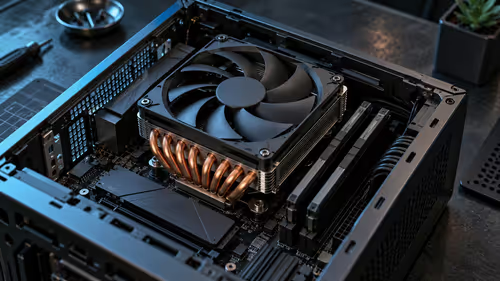
This is the number one culprit. Over time, dust, lint, and pet hair get sucked into the laptop's cooling system, clogging the fans and heatsink fins. This acts like a blanket, trapping heat inside the chassis.
2. Outdated Software & Drivers
Your laptop's BIOS and drivers control how its components, including the fans, manage power and heat. Outdated software can lead to inefficient operation, causing parts to work harder and hotter than necessary.
3. Demanding Applications
Running too many resource-hungry programs at once—or a single intensive game or application—can push your CPU and GPU to their limits, generating significant heat.
4. Poor Airflow
Are you using your Vivobook on your bed, a couch, or a tablecloth? Soft surfaces block the air intake vents on the bottom of the laptop, suffocating the cooling system and causing temperatures to spike.
5. Malware & Background Processes
Malicious software or unnecessary bloatware can run hidden processes in the background, constantly using your CPU's resources and generating heat without you even knowing it.
6. Dried-Out Thermal Paste
Thermal paste is a critical material that transfers heat from the processor to the heatsink. After a few years, this paste can dry out and become ineffective, leading to serious overheating issues.
7. Incorrect Power Settings
Running your Vivobook in "High Performance" mode 24/7 tells the processor to run at maximum speed all the time, even when it's not needed. This consumes more power and creates unnecessary heat.
7 Easy Fixes for a Hot Vivobook 🔧
Now for the solutions! Most of these fixes are simple and don't require any technical expertise. Work your way through them to solve your ASUS Vivobook overheating problems.
1. Clear Those Vents
Turn off and unplug your laptop. Use a can of compressed air to blow short bursts of air into the exhaust vents. This will dislodge the dust buildup and dramatically improve airflow. If you're looking for a new model with a modern cooling design, check out the latest range of ASUS Vivobook laptops.
2. Update Everything
Ensure your system is up to date. Run Windows Update to get the latest drivers. Then, open the MyASUS app (pre-installed on your Vivobook) and check for any BIOS or firmware updates. These updates often include crucial performance and thermal management improvements.
MyASUS App Pro Tip ✨
The MyASUS app isn't just for updates! Use it to run system diagnostics to check for hardware issues. You can also adjust the Fan Profile to 'Whisper Mode' for quiet operation during light tasks or 'Performance Mode' when you need maximum cooling power.
3. Manage Your Software
Press Ctrl + Shift + Esc to open the Task Manager. Click on the "CPU" and "GPU" columns to see which applications are using the most resources. Close any you don't need. If your daily tasks are consistently pushing your hardware to its limits, it might be time for a more powerful machine from our lineup of ASUS Intel laptops.
4. Give It Some Breathing Room
Always use your Vivobook on a hard, flat surface like a desk or a tray. For an even bigger cooling boost, consider a laptop stand. Elevating the laptop allows for 360-degree airflow underneath, which can lower temperatures significantly.
5. Scan for Malware
Run a full system scan with Windows Defender or your preferred antivirus software to find and remove any malicious programs that could be hogging your resources.
6. Adjust Your Power Plan
For everyday web browsing and office work, a "Balanced" power plan is more than enough. Go to Settings > System > Power & battery and select a more efficient power mode. If you're after a laptop that excels at power management, the latest models in our ASUS Ryzen laptop deals are known for their incredible efficiency.
7. Consider a Professional Service
If your Vivobook is over three years old and still overheating after trying these steps, the thermal paste may need to be replaced. This is a more delicate procedure, so we recommend taking it to a professional technician if you're not comfortable opening your laptop.
Is It Time for an Upgrade?
Following these steps can solve most overheating problems and extend the life of your laptop. However, if your machine is still struggling, it might be a sign that the hardware can no longer keep up with modern software demands. Instead of paying for a potentially costly repair on an older device, investing that money in a new machine could be a smarter move. You'll get better performance, a fresh warranty, and a far superior cooling system right out of the box. Evetech always has a wide range of ASUS laptops on special, making an upgrade more affordable than you think.
Ready for a Cooler, Faster Experience? While these fixes can breathe new life into your machine, sometimes an upgrade is the best solution for performance and peace of mind. Explore our massive range of laptop specials and find a cool-running powerhouse built for today's demands.