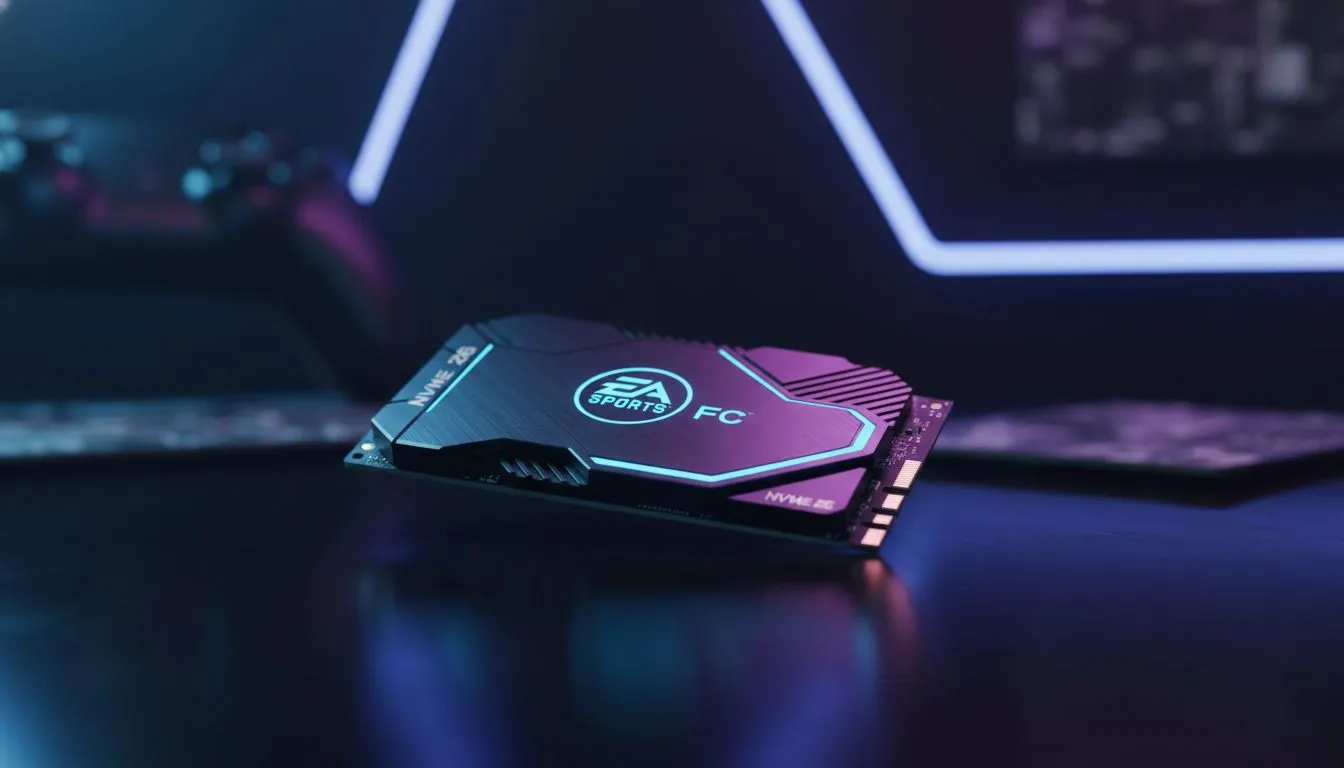
You know the feeling. The final whistle blows, you've just scraped a win in FUT Champs, and you dive into the menus to tweak your squad… only to be met with a stuttering, unresponsive nightmare. That sluggish menu lag has plagued FIFA and EA FC players for years. But what if you could eliminate it for good before EA FC 26 even drops? The secret isn't a new graphics card; it's the storage drive you're using. ⚽
Why Your Old Drive Is Costing You Matches
That frustrating delay when you're applying a contract, browsing the transfer market, or claiming objectives isn't just annoying… it's a performance bottleneck. Traditional hard drives (HDDs) and even some older solid-state drives simply can't read and write data fast enough for the thousands of small player images, kit textures, and UI elements that modern games constantly load.
Every click in the menu is a request for data. When your drive can't keep up, the game stutters. This is where upgrading to an EA FC 26 NVMe drive becomes less of a luxury and more of a competitive necessity.
The NVMe Difference: Instant Response for EA FC 26
Think of an NVMe (Non-Volatile Memory Express) SSD as a direct data highway to your processor, bypassing the slower lanes that older drives use. It plugs straight into your motherboard's M.2 slot, unlocking speeds that are often 5, 10, or even 20 times faster than a standard SSD.
For EA FC, this means menus that snap. Player cards load instantly. Navigating your club feels fluid and responsive, just like the on-pitch gameplay. Preparing for the release of the next game with a proper EA FC 26 NVMe setup ensures you spend more time playing and less time waiting. The solution is a dedicated NVMe SSD, built for pure speed. 🚀
Cloning Made Easy ⚡
Upgrading your main drive? You don't have to reinstall Windows from scratch. Most NVMe SSDs from brands like Samsung and Crucial come with free cloning software. This lets you create an exact copy of your old drive onto the new NVMe, moving your OS, games, and files over in one simple process.
Choosing the Right NVMe for Your Rig
When you're ready to make the jump, you don't need to break the bank. Here's what to look for:
- PCIe Generation: PCIe 4.0 offers a massive speed boost and is the current sweet spot for price and performance.
- Capacity: 1TB is a great starting point, giving you enough space for your OS, EA FC 26, and a few other favourite titles.
- Value: You can find some incredible SSD deals right now in South Africa, often making a high-speed drive surprisingly affordable in ZAR.
An NVMe drive is one of the most impactful upgrades you can make for your entire system, not just for gaming. While you're at it, it's worth browsing the full range of SSDs to see how technology has evolved.
Beyond Menus: Faster Everything
The benefits of an NVMe drive for EA FC 26 extend beyond the menus. You'll experience significantly faster initial game load times, getting you from your desktop to the kick-off screen in seconds. In-game, textures and assets will stream in more smoothly, leading to a more consistent experience. 💻
And if your internal M.2 slots are already full, don't stress. A fast external SSD connected via USB-C is a fantastic option for storing your back catalogue of games, freeing up precious internal space for the latest titles.
Ready to End the Lag for Good?
Stop letting slow hardware dictate your gaming experience. An NVMe SSD is the single best upgrade to kill menu lag and get your PC ready for EA FC 26. Explore our massive range of NVMe SSDs and find the perfect drive to dominate the digital pitch.