Quick Answer
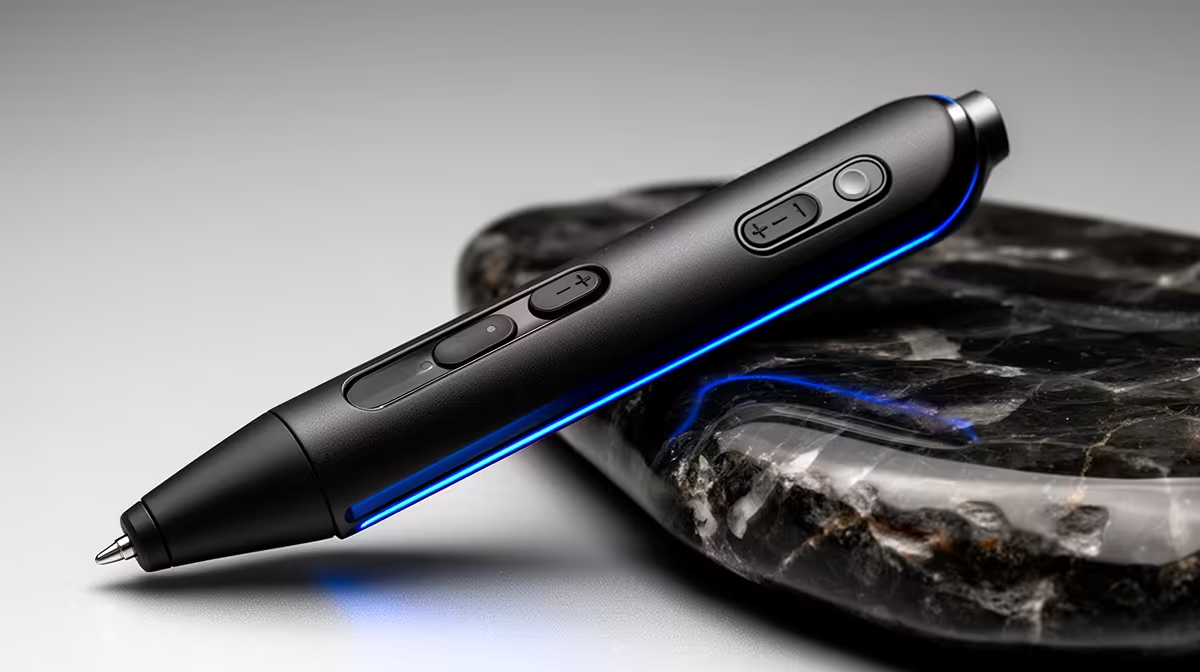
Side buttons on an active stylus pen are physical controls on the barrel that trigger software commands or mode switches without lifting the pen from the screen. Properly configured, they replace repeated toolbar taps and keyboard grabs, making annotation, illustration, and note-taking workflows measurably faster.
Default and Remappable Button Behaviours 🖊️
Most active styli ship with one or two side buttons. Out of the box, the most common default mapping is: front button triggers right-click (equivalent to secondary tap), rear button switches to eraser mode. These defaults serve casual users but are far from optimal for productivity. In Windows 11, the Pen and Windows Ink settings panel lets you remap both buttons to a library of system commands: undo, redo, open the snipping tool, switch between apps, open OneNote, or trigger a custom keyboard shortcut. Third-party companion apps (Wacom Intuition Desktop, Lenovo Pen Settings, HP Pen Control) extend this further, allowing per-application profiles.
High-Impact Shortcut Mappings for Common Workflows 💼
For PDF annotation (a core task for SA legal professionals, educators, and students): map one button to highlight mode and the other to comment insert. For digital whiteboarding during remote work sessions: map one button to shape tool and the other to undo, allowing fast diagram building without touching the taskbar. For illustration in Krita or Clip Studio: map buttons to cycle through brush presets or toggle reference image windows. For students taking handwritten maths or science notes: map one button to switch between pen and eraser, the other to zoom in on the current notation area.
Physical Placement and Accidental Activation 🔧
The value of side buttons depends entirely on their physical placement on the barrel. Well-designed pens position buttons 15 to 20 mm from the grip centre, where a natural hand position cannot accidentally trigger them. Poorly designed budget pens place buttons in the grip zone, producing constant accidental right-clicks that interrupt work. Before purchasing, look for user feedback specifically about accidental activation rather than relying on spec sheets.
Create App-Specific Profiles If Your Pen Supports It ⚡
mapping set rarely suits all applications. If your pen's companion software offers per-app profiles, spend 15 minutes setting up three profiles: one for notes, one for drawing, one for PDF review. The per-app switching is automatic once configured, and the productivity gain versus a single global mapping is significant, particularly during multi-task work sessions.
FAQ
How many side buttons do I actually need on a stylus?
Two buttons covers the majority of professional and student workflows. A single button is fine for basic use. Three or more buttons exist on some premium pens but often overlap in function and add barrel bulk without clear additional benefit for most users.
Can I use stylus side buttons in all Windows applications?
System-level mappings (right-click, undo, screenshot) work in virtually all Windows apps. Per-application custom shortcuts require either the app to natively support pen button input or the pen's companion app to translate the button press into a keyboard shortcut that the target application reads.
Do side buttons work when the stylus is hovering above the screen?
Yes on most modern active pens. The pen communicates via the digitiser protocol even when hovering up to 10 mm above the surface, so button presses register without physical screen contact. This is useful for triggering a right-click context menu while selecting a point on screen without pressing the nib down.
Ready to stop reaching for your keyboard mid-session?
Evetech stocks active stylus pens with programmable side buttons suited to students, professionals, and creative workflows. Browse what is currently available to find a match for your setup.