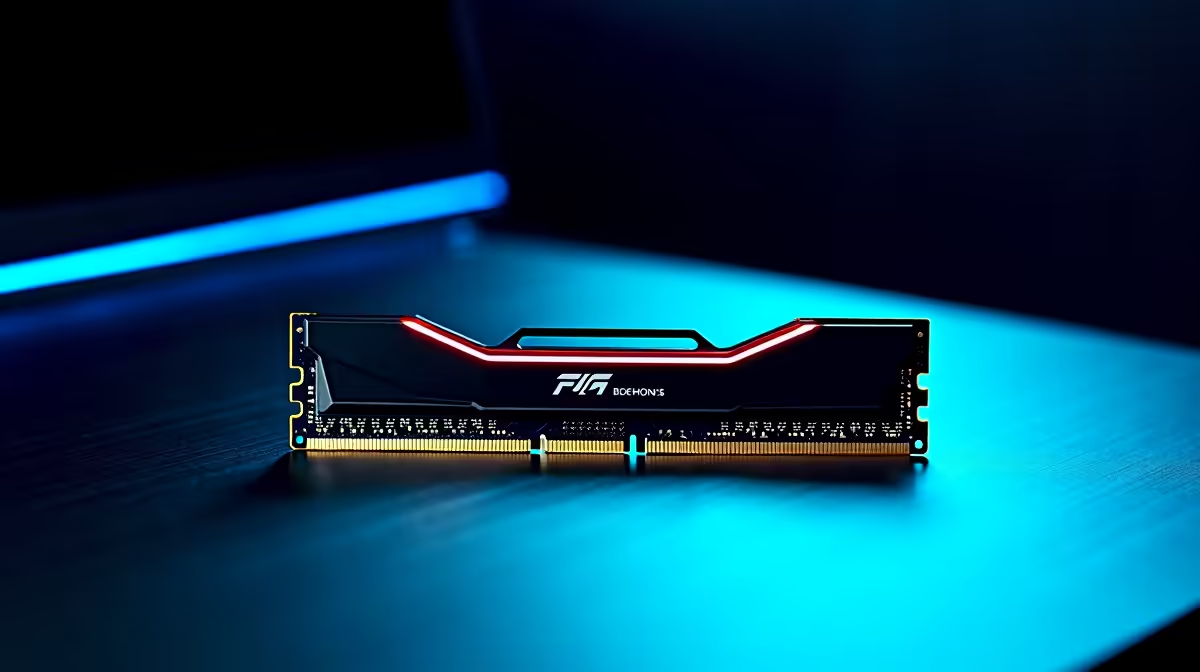
Is your beastly MSI laptop feeling a bit... sluggish? Stuttering in the middle of a tense Warzone match or taking an age to load your next project? Before you start browsing for a whole new machine, there’s a powerful, cost-effective fix you should consider. A simple MSI laptop RAM upgrade is one of the best bang-for-your-buck performance boosts you can do right here in South Africa, and this guide will show you exactly how. 🚀
Why an MSI Laptop RAM Upgrade is Worth It
More RAM (Random Access Memory) is like giving your laptop a bigger workspace. It can juggle more tasks at once without slowing down. For gamers, this means smoother frame rates, faster loading times, and the ability to run Discord, stream, and play simultaneously without a hitch. For creators, it’s the difference between seamless 4K video editing and constant, frustrating lag.
An MSI laptop RAM upgrade is often the key to unlocking your machine's true potential, especially if it originally came with only 8GB or 16GB of memory. Pushing it to 32GB can feel like a night-and-day difference for modern gaming and multitasking.
Before You Start: The Essentials
Preparation is everything. Rushing this process can lead to headaches, so let’s get our ducks in a row first.
### Compatibility Check
This is the most critical step. You need to know:
- RAM Type: Is your MSI laptop using DDR4 or DDR5? They are not interchangeable.
- Form Factor: Laptops use SODIMM (Small Outline Dual In-line Memory Module) sticks, which are smaller than desktop DIMMs.
- Maximum Capacity: Check your specific MSI model’s specs online to find out the maximum amount of RAM it supports (e.g., 32GB, 64GB).
- Speed: Note the speed of your existing RAM (e.g., 3200MHz, 4800MHz). It's best to match it or buy a new kit where all sticks are the same speed.
### Tools You'll Need
- A set of small Phillips head screwdrivers.
- A plastic pry tool (a guitar pick or old credit card works in a pinch).
- An anti-static wrist strap (highly recommended to prevent damaging components).
- A clean, well-lit workspace.
Check Your BIOS First! ⚡
Before buying new RAM, restart your laptop and enter the BIOS (usually by pressing the 'Delete' key on startup). You can often see your current RAM speed and configuration here. After your upgrade, you'll want to return to the BIOS to ensure the new RAM is detected correctly and to enable its XMP profile for maximum performance, if available.
The Step-by-Step RAM Upgrade Process 🔧
Alright, let's get to the main event. Remember to take your time and be gentle with all components.
- Power Down & Unplug: Completely shut down your laptop. Don't just put it to sleep. Unplug the power adapter and all peripherals.
- Open the Back Panel: Place your laptop upside down on a soft cloth. Carefully unscrew all the screws on the bottom panel. Keep them organised, as some might be different lengths.
- Pry it Open: Use your plastic pry tool to gently unclip the back panel. Start at a corner and work your way around. You’ll hear some clicks… that’s normal.
- Disconnect the Battery: This is a crucial safety step. Before touching anything else, locate the battery connector on the motherboard and carefully disconnect it.
- Locate the RAM: The RAM slots are usually covered by a thin black shield or are immediately visible. They are held in by two small clips on either side.
- Remove Old RAM: Gently push the metal clips outwards. The RAM stick will pop up at an angle. You can then slide it out of the slot.
- Install New RAM: Align the notch on your new SODIMM stick with the notch in the slot. Insert it at the same angle (around 30-45 degrees) and press down firmly until the side clips click into place.
- Reassemble: Reconnect the battery, carefully clip the back panel on, and replace all the screws.
That's it! You've successfully completed your MSI laptop memory upgrade. Power on your laptop and check that the new RAM is recognised in your system properties.
Upgrade or Buy New?
A RAM upgrade is a fantastic way to extend the life of your machine. However, if your CPU or GPU is becoming a bottleneck for new games, it might be time to look at a complete system overhaul. Modern gaming laptops, especially power-hungry beasts like the MSI Raider series, offer next-gen performance that a simple RAM upgrade can't match.
Even mid-range options have come a long way. Many of today’s sleek machines like the MSI Vector GP range pack incredible power into a portable chassis. Deciding between upgrading and buying new depends on your budget and performance goals. If you just need better multitasking and smoother performance in existing titles, the upgrade is perfect. If you crave the latest features like ray tracing on ultra settings, a new laptop is the way to go. You can always browse our full range of MSI gaming laptops to see what the latest tech has to offer. ✨
Ready for a Performance Boost? Whether you're performing an MSI laptop RAM upgrade or eyeing a brand-new machine with the latest specs, we've got you covered. Explore our massive range of laptop specials and find the perfect gear to dominate your game in South Africa.