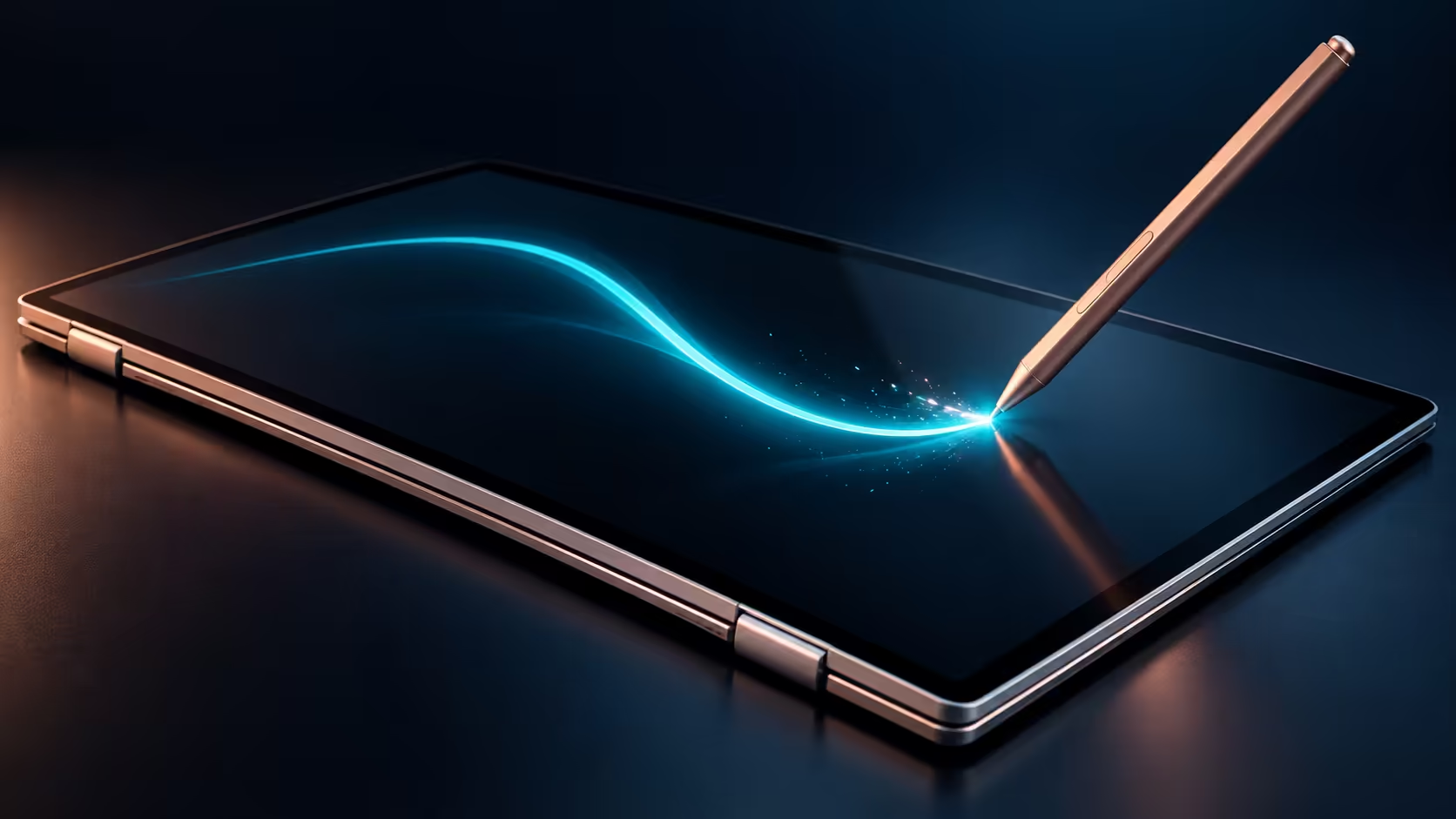
The pen is the part of the MSI Prestige N16 Flip AI+ that most buyers never set up properly. Both South African configurations include the MSI Nano Pen in the box, and it lives in a groove under the laptop rather than in your bag. A few minutes of setup turns it from a loose accessory into something you reach for every day.
Quick Answer
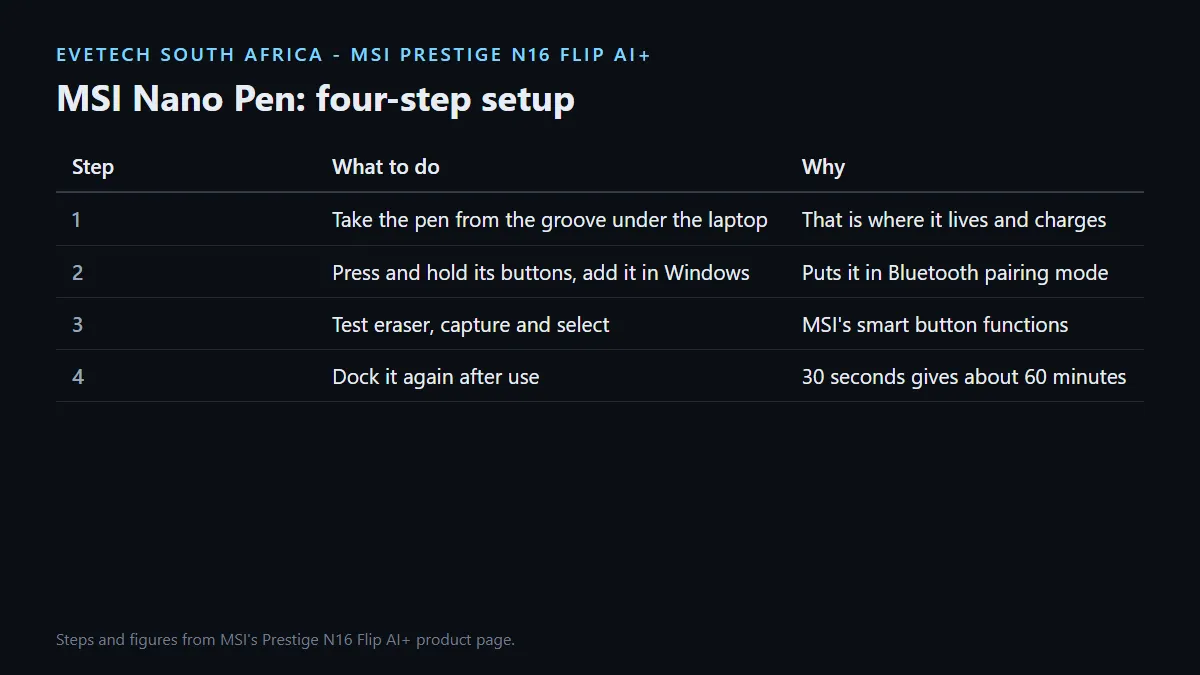
The MSI Nano Pen comes free with both the R84,999 and R134,999 Prestige N16 Flip AI+ models. It docks in a groove on the bottom of the laptop, which keeps it charged, and MSI says 30 seconds of charging gives about 60 minutes of writing. To pair it, press and hold the pen's buttons to put it into Bluetooth pairing mode.
✍️ Where the pen lives and how it charges
MSI built a recess into the underside of the chassis. Pick the pen up from the bottom cover when you need it, and put it back in the groove when you are done. The groove holds it securely and keeps it charged, so there is no separate cable or dock to remember.
If you forget to dock it, the fast charge helps. MSI says 30 seconds in the groove delivers 60 minutes of use, measured during continuous writing without a Bluetooth connection. To check the battery, MSI says a simple tap on the screen shows the pen's level in the bottom-right corner.
🔗 Pairing and the smart buttons
MSI's instructions are short: press and hold the buttons to pair the Nano Pen via Bluetooth. Once paired, the buttons do more than click. MSI lists eraser mode, screen capture, selection and context-specific actions that change with the app you are in.
Setting it up in Windows
- Remove the pen from the groove and press and hold its buttons until it enters pairing mode.
- Open Windows Settings, go to Bluetooth and devices, and add a new device.
- Select the pen from the list, then test the eraser and capture buttons in a notes app.
- Return the pen to the groove so it starts the next session charged.
🖊️ Getting the most from it
The 360-degree hinge is what makes the pen useful. Fold the screen flat into tablet mode for sketching and reading, prop it in tent mode to annotate a slide deck in a meeting, or use presentation mode to mark up a document someone else is reading. MSI pitches the pen at note-taking, annotation, highlighting key points and quick sketches.
Both OLED touchscreens support the pen, whether you choose the 2880 x 1800 panel on the 64GB model or the 3840 x 2400 UHD+ Tandem OLED on the 128GB model. For carrying the laptop and pen together, a padded laptop backpack keeps the docked pen protected, and the MSI laptop range shows the other Prestige models that also support the Nano Pen.
Frequently Asked Questions
Is the MSI Nano Pen included?
Yes. Both Prestige N16 Flip AI+ configurations we list include the MSI Nano Pen.
How does the Nano Pen charge?
It charges while docked in the groove on the underside of the laptop. There is no separate charging cable.
How long does a quick charge last?
MSI says 30 seconds of charging gives about 60 minutes of continuous writing.
How do I pair the pen?
Press and hold the pen's buttons to enter Bluetooth pairing mode, then add it from Bluetooth and devices in Windows Settings.
What do the pen buttons do?
MSI lists eraser mode, screen capture, selection and actions that change depending on the app.
How do I see the pen's battery level?
MSI says a tap on the screen shows the battery level in the bottom-right corner.
Want a laptop that doubles as a notepad?
The Prestige N16 Flip AI+ ships with the Nano Pen in the box. Pair it on day one and keep it docked so it is always charged when you need it.