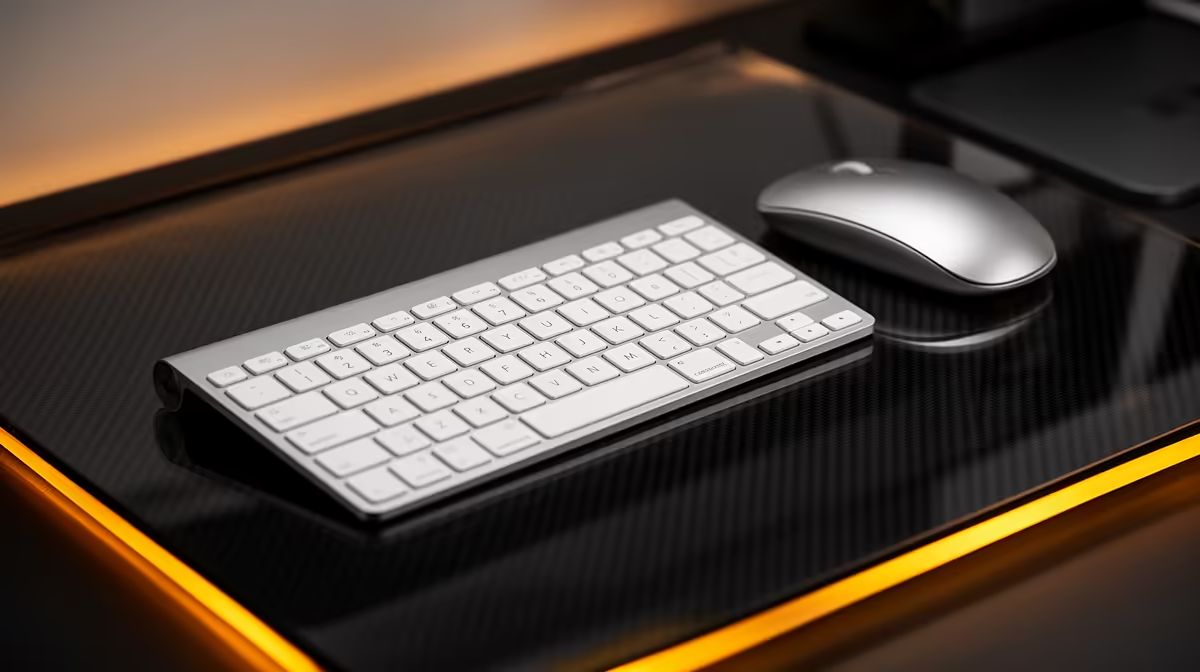
Pairing a Mac with the right desk peripherals turns a laptop into a proper workstation, and Apple's own duo makes the cleanest match. The best keyboard and mouse combo for a Mac desk setup is Apple's Magic Keyboard with the Magic Trackpad, both connecting over Bluetooth and both charging via USB-C since the latest revisions. You get a cable-light desk, full macOS gesture support and a single pairing flow, which South African buyers can bundle together and save themselves a second delivery run.
Quick Answer
For most Mac desks, the Magic Keyboard plus Magic Trackpad is the strongest pairing: native macOS gestures, Bluetooth connection and USB-C charging on current models. If you prefer a mouse over a trackpad, the Magic Mouse swaps in directly, and third-party low-profile options work well for buyers who want a numeric keypad or a different feel.
Why the Apple Pairing Just Works
The advantage of staying in Apple's ecosystem is integration you do not have to configure. Function-row keys map straight to macOS controls, the trackpad unlocks the full set of swipe and pinch gestures that macOS is built around, and there are no driver installs or compatibility caveats. Pairing happens in seconds and both devices show their battery level right in System Settings.
That tight fit matters on a desk where you switch between a closed-lid Mac and an external display. The peripherals carry the macOS experience over to your monitor without you missing the laptop's own trackpad.
If you are building the desk around a notebook, it helps to see the MacBook range at Evetech alongside the peripherals, so your keyboard, pointing device and machine all share the same USB-C charging habit.
Trackpad or Mouse for a Mac Desk
This is the real decision, and it comes down to how you work.
The case for the Magic Trackpad
The trackpad is where macOS feels most at home. Three-finger swipes between spaces, pinch-to-zoom, and Mission Control gestures are smooth and natural, and the large glass surface is comfortable for long sessions. For design, browsing and general productivity, most Mac users prefer it once they adjust.
The case for a mouse
Precision pointing, photo retouching at the pixel level and any gaming lean toward a mouse. The Magic Mouse keeps gesture support while giving you a traditional pointer, and plenty of buyers run both: a trackpad for gestures and a mouse for fine work, switching as the task demands.
Cable Management and Charging
A genuine win of this combo is how little it clutters the desk. Both devices are wireless in use and only need a cable occasionally to top up. On current models that cable is USB-C, the same connector your MacBook uses, so you can charge everything from one type of cable and even one charger.
That single-standard approach removes the old annoyance of hunting for a Lightning cable just to revive a keyboard. Keep one USB-C cable at the desk and your whole input setup stays powered with almost no thought.
Building the Rest of the Mac Desk
A keyboard and pointing device are the core, but a few more choices turn a laptop perched on a table into a setup you actually want to sit at. The principle stays the same: lean on USB-C so everything shares one charging habit and one type of cable.
Connection and the laptop lid
Most Mac desks run the notebook in clamshell mode, lid closed, driving an external display. That makes a reliable Bluetooth connection essential, since you lose the built-in keyboard and trackpad entirely. Apple's Magic peripherals handle this without fuss, waking instantly and reconnecting on their own. If you choose third-party gear, confirm it reconnects reliably from sleep, because nothing is more irritating than a keyboard that drops out every morning.
A dock to tie it together
Once you add a monitor, peripherals and perhaps an external drive, a single USB-C dock keeps the desk tidy and charges the MacBook over the same cable. It also means one connection plugs and unplugs the whole desk when you grab the laptop and go, which is the real luxury of a docked Mac setup.
Ergonomics for Long Sessions
If you type all day, comfort outranks brand loyalty. The flat Magic Keyboard is fine for short bursts, but a low-profile mechanical board can be kinder on the fingers over hours, and a wrist rest helps keep your hands neutral. Raising the external display so its top edge sits near eye level stops you hunching, which a closed laptop on the desk encourages.
For the pointing device, alternating between a trackpad for gestures and a mouse for precision spreads the load across different muscles, which many people find reduces strain over a working day. None of this requires expensive gear, just attention to how your hands and posture sit while you work.
Third-Party Alternatives Worth Considering
Apple's duo is not the only good answer. If you want a numeric keypad, a mechanical typing feel or a more ergonomic shape, several third-party keyboards and mice pair cleanly with macOS over Bluetooth and map their keys correctly. Look for explicit Mac layout support so the Command and Option keys land where your fingers expect.
A vertical mouse can ease wrist strain, and a low-profile mechanical board gives tactile feedback the flat Magic Keyboard does not. To compare what other shoppers are choosing, the top-selling laptops at Evetech sit next to a wide spread of compatible peripherals, making it easy to assemble a desk that fits your hands and your workflow.
Matching the look
If a tidy, colour-matched desk matters to you, Apple's peripherals come in finishes that complement the machine, while third-party options give you more freedom on size and key feel. Either path delivers a quiet, cable-light Mac desk.
Frequently Asked Questions
Do the Magic Keyboard and Magic Trackpad charge with USB-C?
Yes, current revisions of both charge over USB-C, the same connector as recent MacBooks. That lets you use one cable type and even one charger for your whole desk setup.
Is a trackpad or a mouse better for a Mac?
For general macOS use, most people prefer the trackpad because of full gesture support. A mouse is better for precision tasks like photo editing or gaming, and many Mac users keep both on the desk.
Can I use a non-Apple keyboard and mouse with a Mac?
Yes. Many third-party Bluetooth keyboards and mice work well with macOS. Choose ones with explicit Mac layout support so the Command and Option keys are mapped correctly.
Do these connect over Bluetooth or need a dongle?
Apple's Magic peripherals connect over Bluetooth with no dongle. Some third-party options use Bluetooth too, while others include a small USB receiver, so check the spec before buying.
Can I bundle the keyboard and trackpad in one order?
Yes, buying them together in a single order means one delivery rather than two trips, which is convenient and often saves on shipping for South African buyers.
Build a clean, cable-light Mac desk in one go. Pair your peripherals with the right machine from the MacBook range at Evetech and have your keyboard, trackpad and laptop all running on the same USB-C cable.